
How can we help you?
-
myStock
-
- Articles coming soon
-
- Adding Product Recipes and Viewing Items
- Adding recipes
- Bulk settings
- Edit active menu pricing
- How to add products
- How to edit products (average cost, recipes and more)
- How to print barcodes from myStock
- How to review stock movements in stock enquiries
- How to search for products
- Stock Enquiries Grid Edit
- When to use stock enquiries
- Show Remaining Articles (1) Collapse Articles
-
- Articles coming soon
-
-
- Articles coming soon
-
- Articles coming soon
-
- Articles coming soon
-
- Articles coming soon
-
- Articles coming soon
-
- Articles coming soon
-
- Articles coming soon
-
-
-
- Articles coming soon
-
-
-
Accounting Integrations
-
- 01 - Requirements
- 02 - Connecting to Xero
- 03 - Integration Configuration
- 04 - Data Sync – TallOrder → Xero
- 05 - Data Sync – Xero → mySTOCK
- 06 - Product Matching & Item Creation
- 07 - Sync Monitoring & Error Handling
- 08 - Reconciliation Guidance
- 09 - Troubleshooting
- 10 - Frequently Asked Questions
- 11 - Disconnecting the Integration
- 12 - Support
- 13 - Data Flow Diagram
- Show Remaining Articles (3) Collapse Articles
-
-
TallOrder POS
-
TallOrder Add-ons
-
Features
-
FAQs
-
Merchant Settings
- Articles coming soon
-
Product Settings
- Articles coming soon
-
Customer Accounts, Loyalty & Promotions
- Articles coming soon
-
Staff Details
- Articles coming soon
-
Finance Settings
- Articles coming soon
-
POS User Guide
- Articles coming soon
-
Hardware
- Articles coming soon
-
Getting Started
- Articles coming soon
Customer Quotes
Here is a step-by-step on how to do an invoice/quote on the POS system.
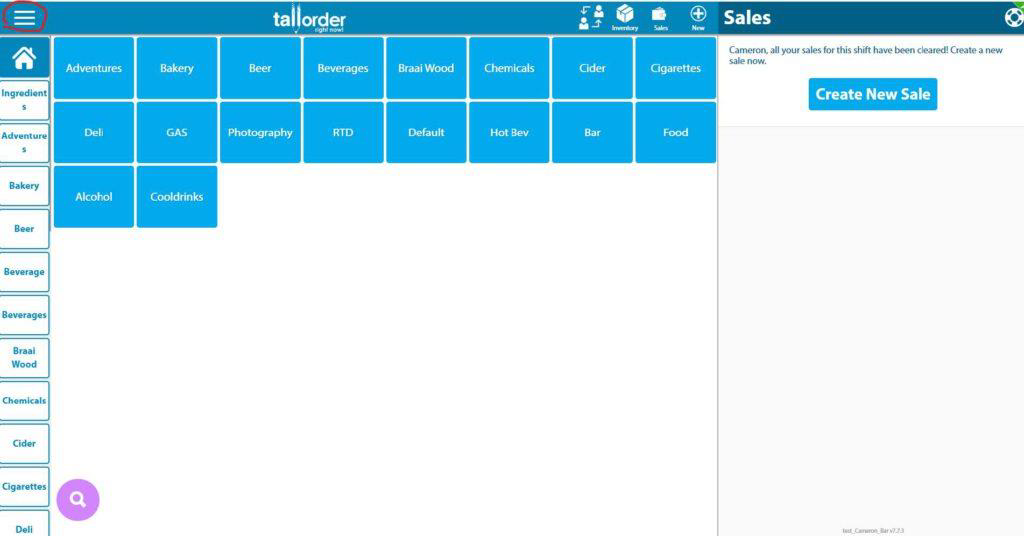
Click on the Menu at the left-hand corner of the screen (resembles three stripes or a “burger” menu):
A drop-down menu will appear, scroll down and click on the “Quotes” option:

From here you can either choose to create a new quote or open a saved one.
To create a new quote click on the “New Quote” button:

Once you have added, or chosen, a customer you can then add the items by clicking on the “Add items” button in the middle on the screen.

You can then search for the item by name, SKU, or barcode:

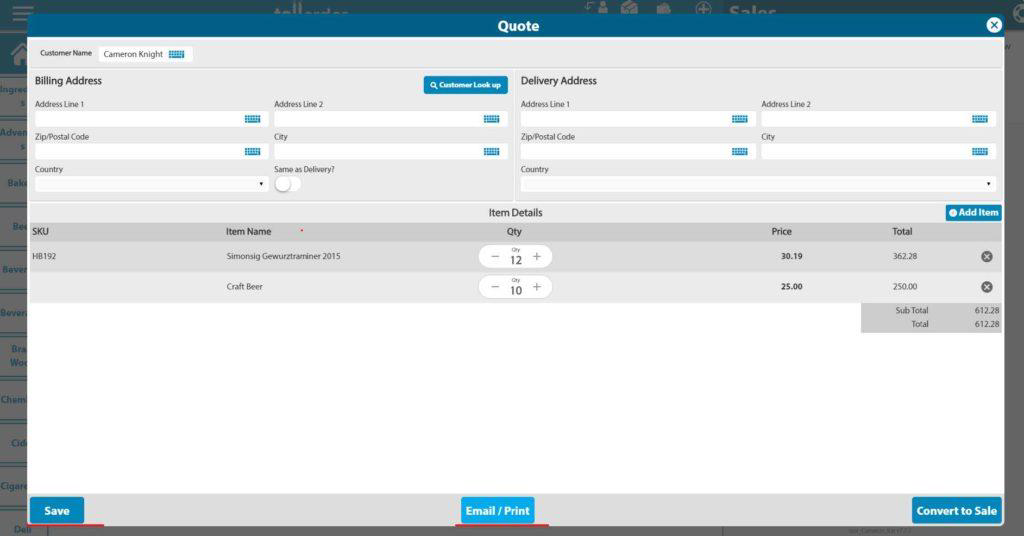
Once you added the items you can save, email or print the quote. You can save the quote and re-open it again when the customer wants to pay.
Once the quote has been saved you can view it again by going to Quotes in the drop-down menu and selecting “Saved Quotes”

You can then select one of your saved quotes. From this screen, you can either delete a saved quote or edit it. to edit a quote click on the pencil icon in line with the relevant quote.

Once you have clicked on the pencil you can then make changes to the quote, save, email, print or convert the quote to a sale when the customer comes in to pay. Each of these options are visible at the bottom of the screen.

Once you have converted the quote to a sale it will open as a tab where you can complete the sale.