
How can we help you?
-
myStock
-
- Articles coming soon
-
- Adding Product Recipes and Viewing Items
- Adding recipes
- Bulk settings
- Edit active menu pricing
- How to add products
- How to edit products (average cost, recipes and more)
- How to print barcodes from myStock
- How to review stock movements in stock enquiries
- How to search for products
- Stock Enquiries Grid Edit
- When to use stock enquiries
- Show Remaining Articles (1) Collapse Articles
-
- Articles coming soon
-
-
- Articles coming soon
-
- Articles coming soon
-
- Articles coming soon
-
- Articles coming soon
-
- Articles coming soon
-
- Articles coming soon
-
- Articles coming soon
-
-
-
- Articles coming soon
-
-
-
Accounting Integrations
-
- 01 - Requirements
- 02 - Connecting to Xero
- 03 - Integration Configuration
- 04 - Data Sync – TallOrder → Xero
- 05 - Data Sync – Xero → mySTOCK
- 06 - Product Matching & Item Creation
- 07 - Sync Monitoring & Error Handling
- 08 - Reconciliation Guidance
- 09 - Troubleshooting
- 10 - Frequently Asked Questions
- 11 - Disconnecting the Integration
- 12 - Support
- 13 - Data Flow Diagram
- Show Remaining Articles (3) Collapse Articles
-
-
TallOrder POS
-
TallOrder Add-ons
-
Features
-
FAQs
-
Merchant Settings
- Articles coming soon
-
Product Settings
- Articles coming soon
-
Customer Accounts, Loyalty & Promotions
- Articles coming soon
-
Staff Details
- Articles coming soon
-
Finance Settings
- Articles coming soon
-
POS User Guide
- Articles coming soon
-
Hardware
- Articles coming soon
-
Getting Started
- Articles coming soon
Stock Enquiries Grid Edit
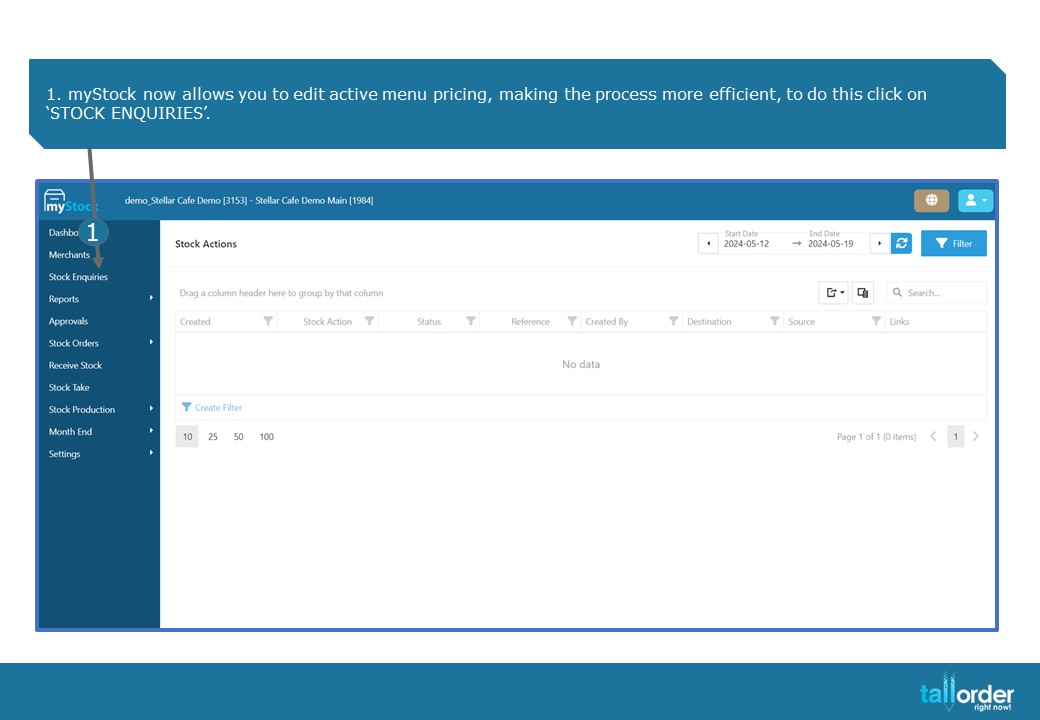
- myStock now allows you to edit active menu pricing, making the process more efficient, to do this click on ‘STOCK ENQUIRIES’.

- Search for the item which you wish to edit by using the ‘SEARCH BY NAME, BARCODE OR SKU’.
- You can also search by ‘DEPARTMENTS’ by clicking the drop box below.
- Alternatively, click on the ‘SEARCH ALL ITEMS’ box.
- Now click on the ‘SEARCH’ icon.
- Click on the ‘BLUE PRICE’ next to the item you want to edit.

- The ‘ITEM EDIT’ page will appear.
- The different locations where this item is on an active menu will be displayed below.
- Click on the ‘EDIT’ icon next to the appropriate location.

- Enter the ‘NEW PRICE’.

- Click on the ‘SAVE’ icon.
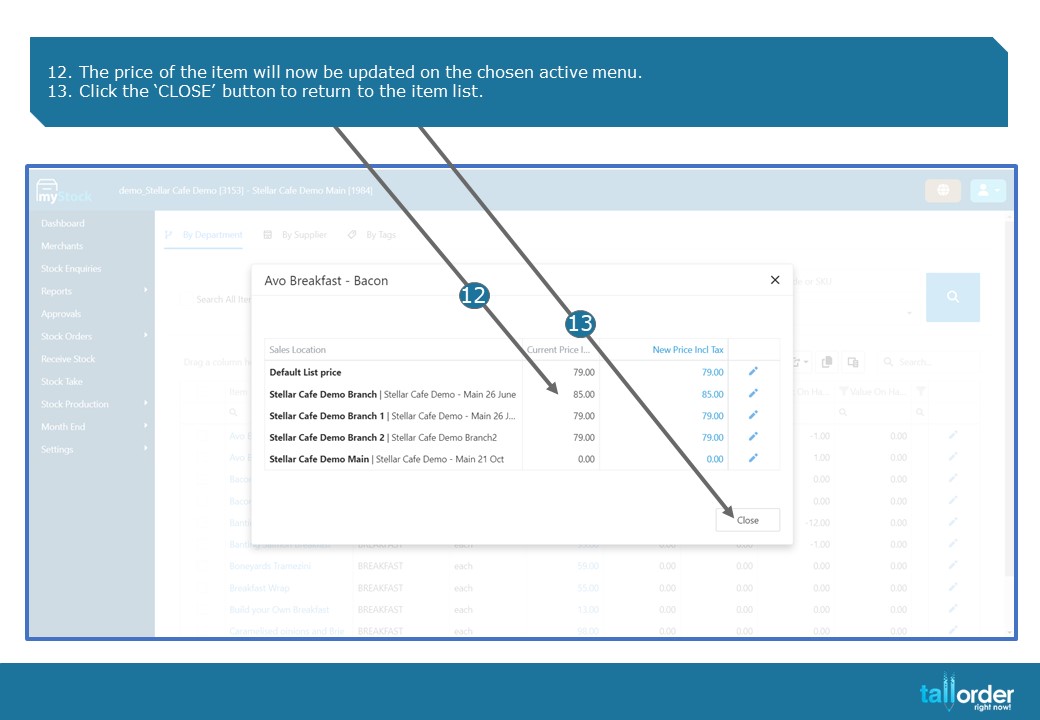
- The price of the item will now be updated on the chosen active menu.
- Click the ‘CLOSE’ button to return to the item list.
STEP-BY-STEP BREAKDOWN
- myStock now allows you to edit active menu pricing, making the process more efficient, to do this click on ‘STOCK ENQUIRIES’.
- Search for the item which you wish to edit by using the ‘SEARCH BY NAME, BARCODE OR SKU’.
- You can also search by ‘DEPARTMENTS’ by clicking the drop box below.
- Alternatively, click on the ‘SEARCH ALL ITEMS’ box.
- Now click on the ‘SEARCH’ icon.
- Click on the ‘BLUE PRICE’ next to the item you want to edit.
- The ‘ITEM EDIT’ page will appear.
- The different locations where this item is on an active menu will be displayed below.
- Click on the ‘EDIT’ icon next to the appropriate location.
- Enter the ‘NEW PRICE’.
- Click on the ‘SAVE’ icon.
- The price of the item will now be updated on the chosen active menu.
- Click the ‘CLOSE’ button to return to the item list.