
How can we help you?
Production order from pending production list
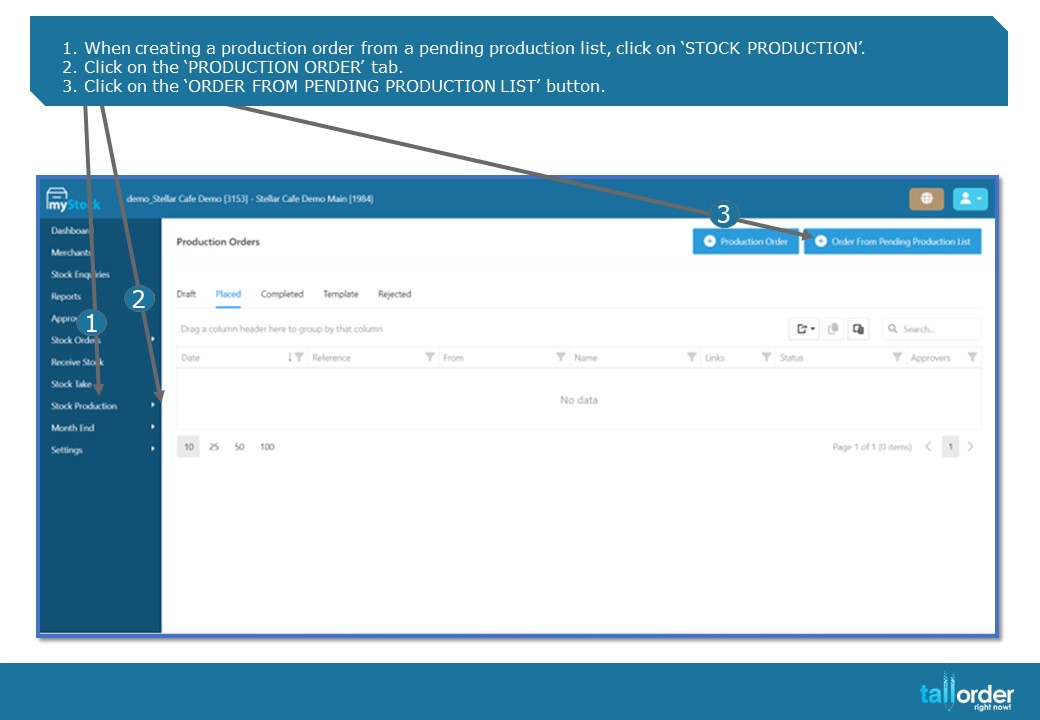
- When creating a production order from a pending production list, click on ‘STOCK PRODUCTION’.
- Click on the ‘PRODUCTION ORDER’ tab.
- Click on the ‘ORDER FROM PENDING PRODUCTION LIST’ button.
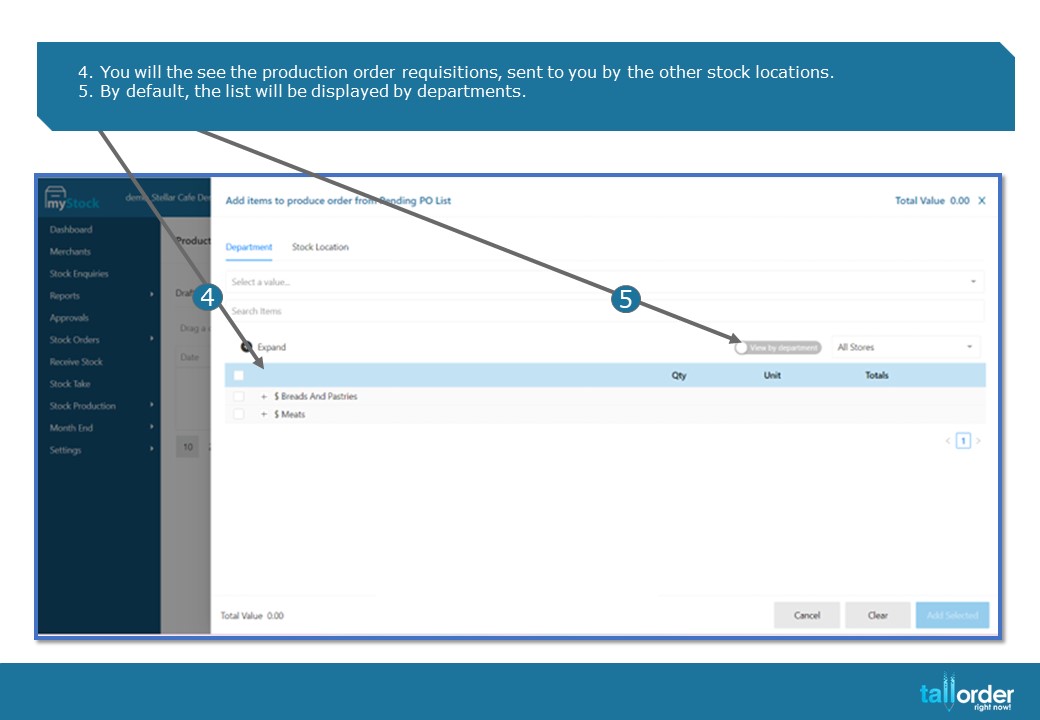
- You will the see the production order requisitions, sent to you by the other stock locations.
- By default, the list will be displayed by departments.
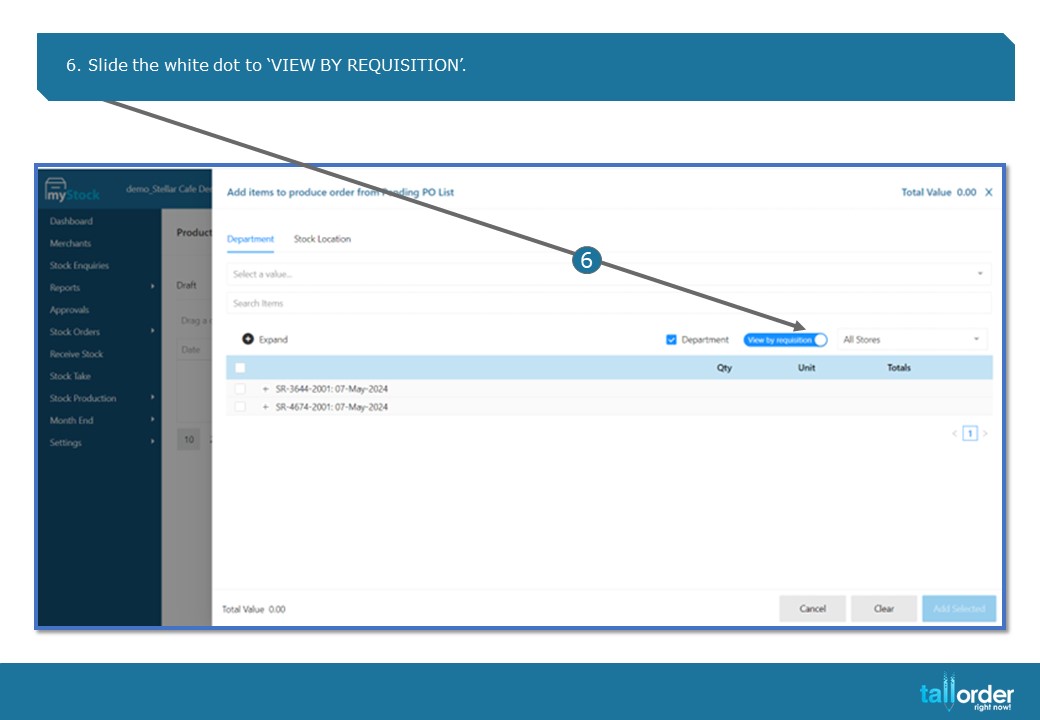
- Slide the white dot to ‘VIEW BY REQUISITION’.
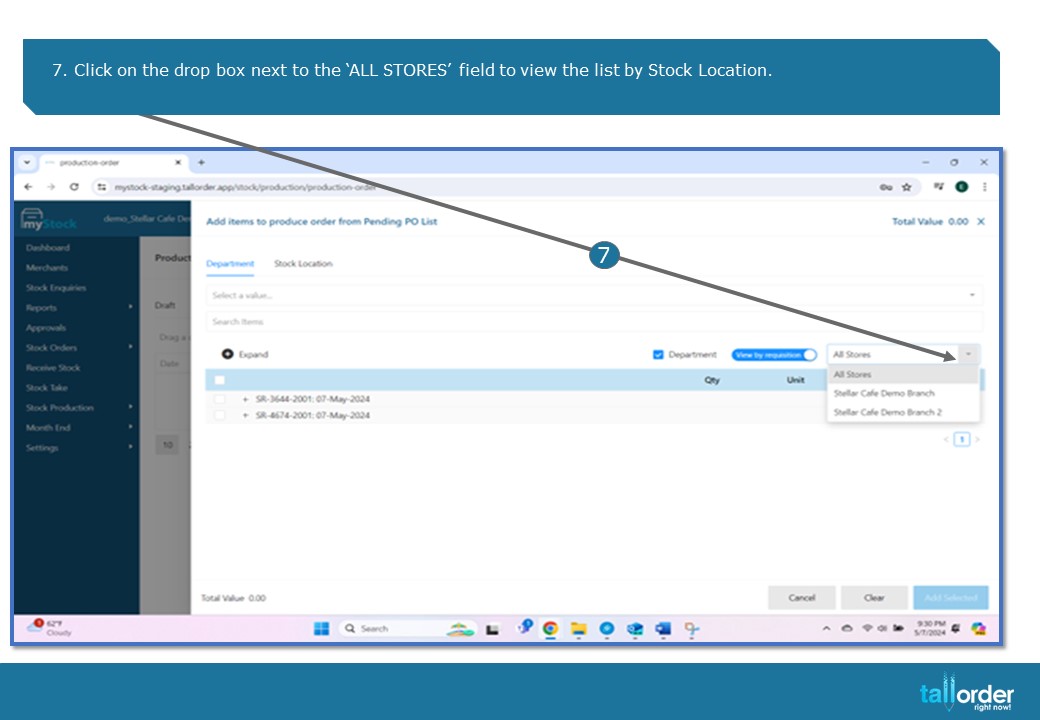
- Click on the drop box next to the ‘ALL STORES’ field to view the list by Stock Location.
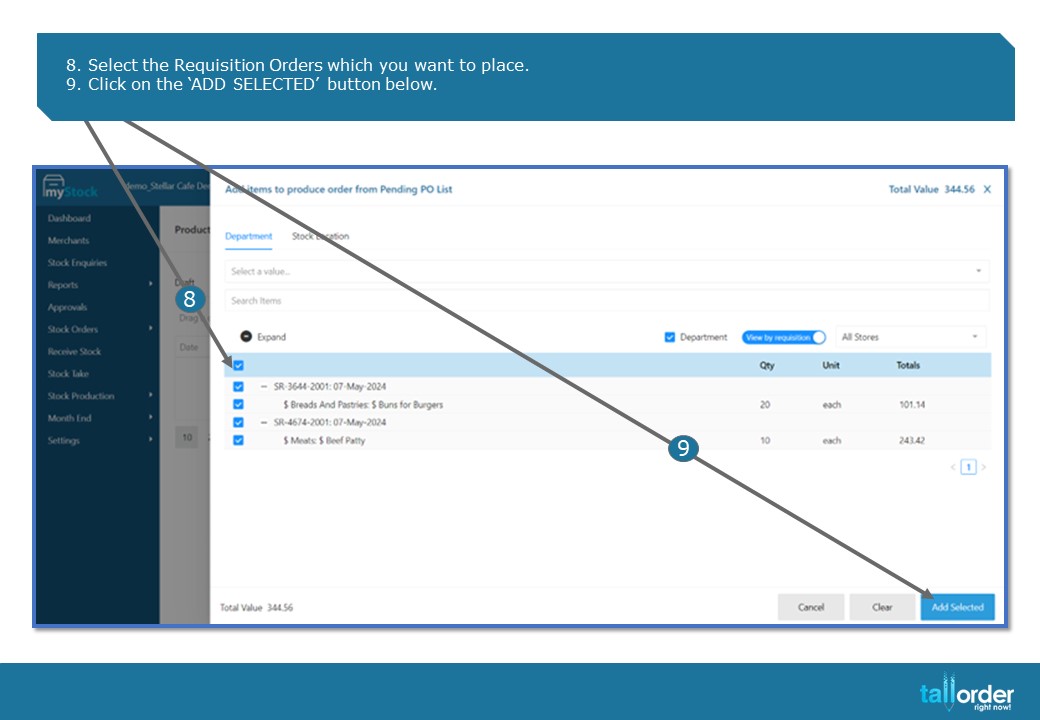
- Select the Requisition Orders which you want to place.
- Click on the ‘ADD SELECTED’ button below.
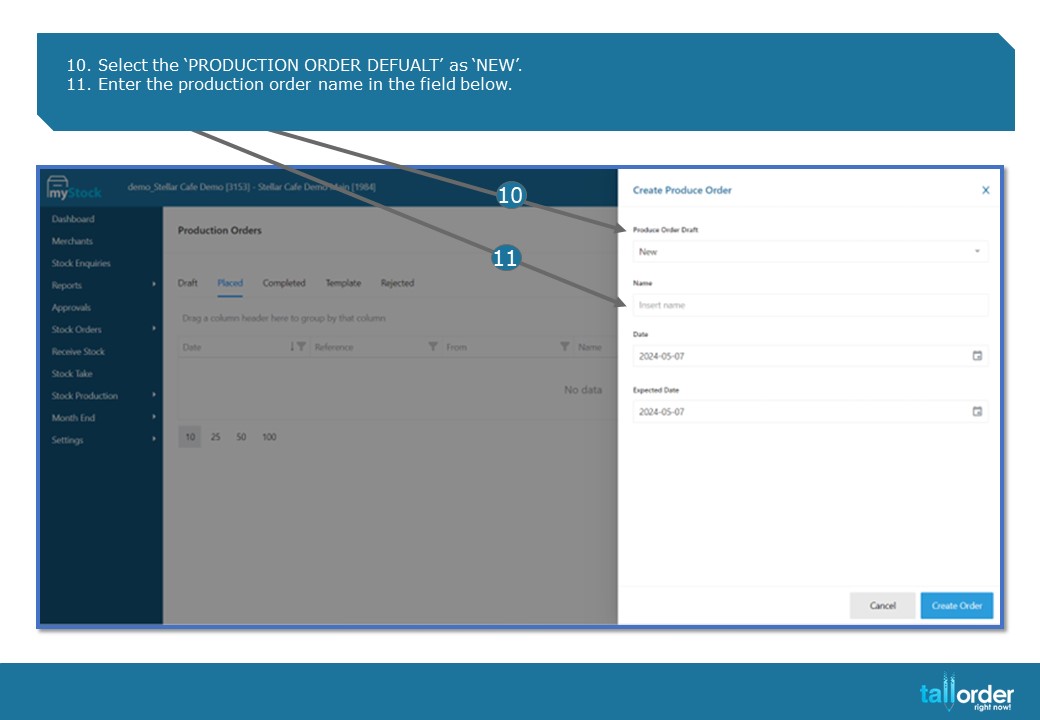
- Select the ‘PRODUCTION ORDER DEFUALT’ as ‘NEW’.
- Enter the production order name in the field below.
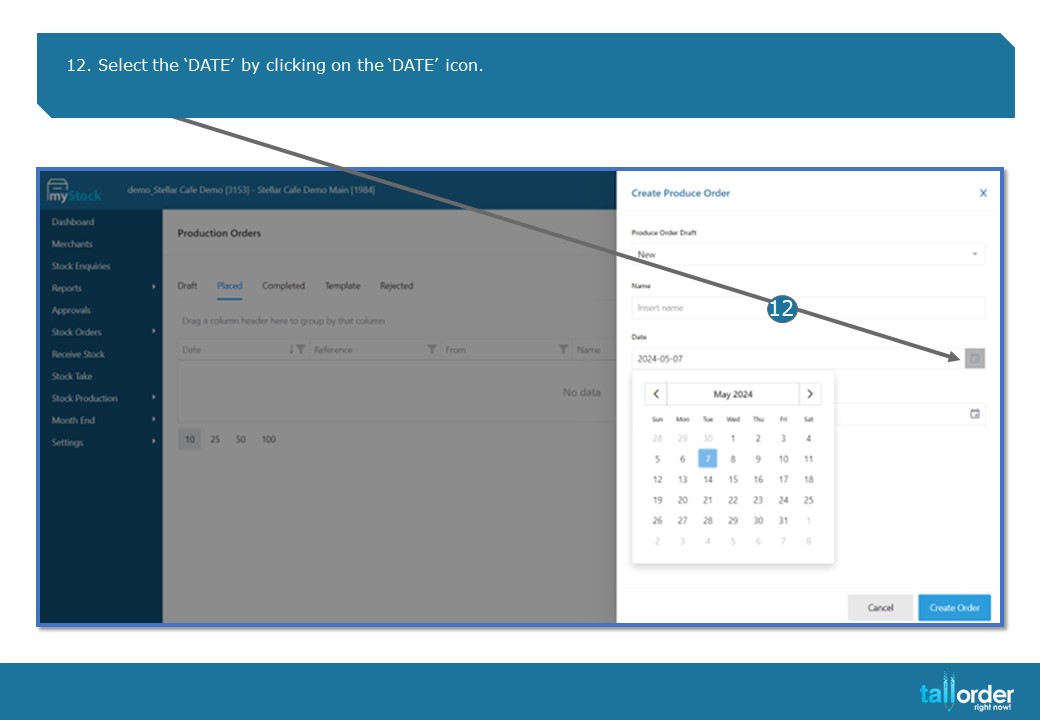
- Select the ‘DATE’ by clicking on the ‘DATE’ icon.

13. Now select the ‘EXPECTED DATE’ by clicking on the ‘DATE’ icon below.
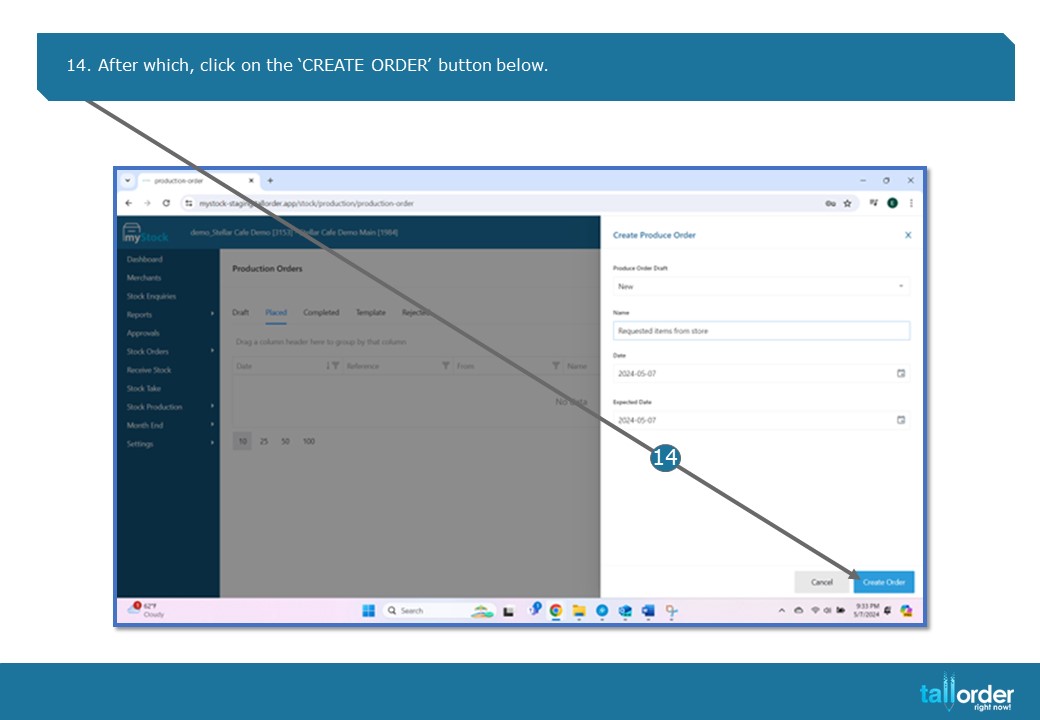
- After which, click on the ‘CREATE ORDER’ button below.
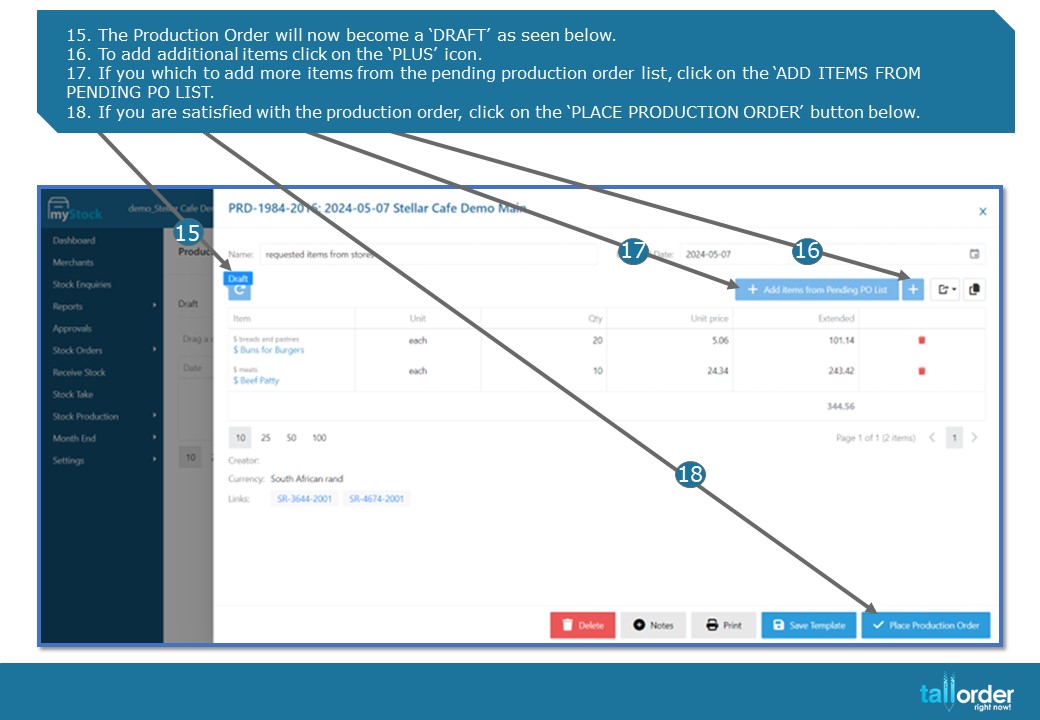
- The Production Order will now become a ‘DRAFT’ as seen below.
- To add additional items click on the ‘PLUS’ icon.
- If you which to add more items from the pending production order list, click on the ‘ADD ITEMS FROM PENDING PO LIST.
- If you are satisfied with the production order, click on the ‘PLACE PRODUCTION ORDER’ button below.
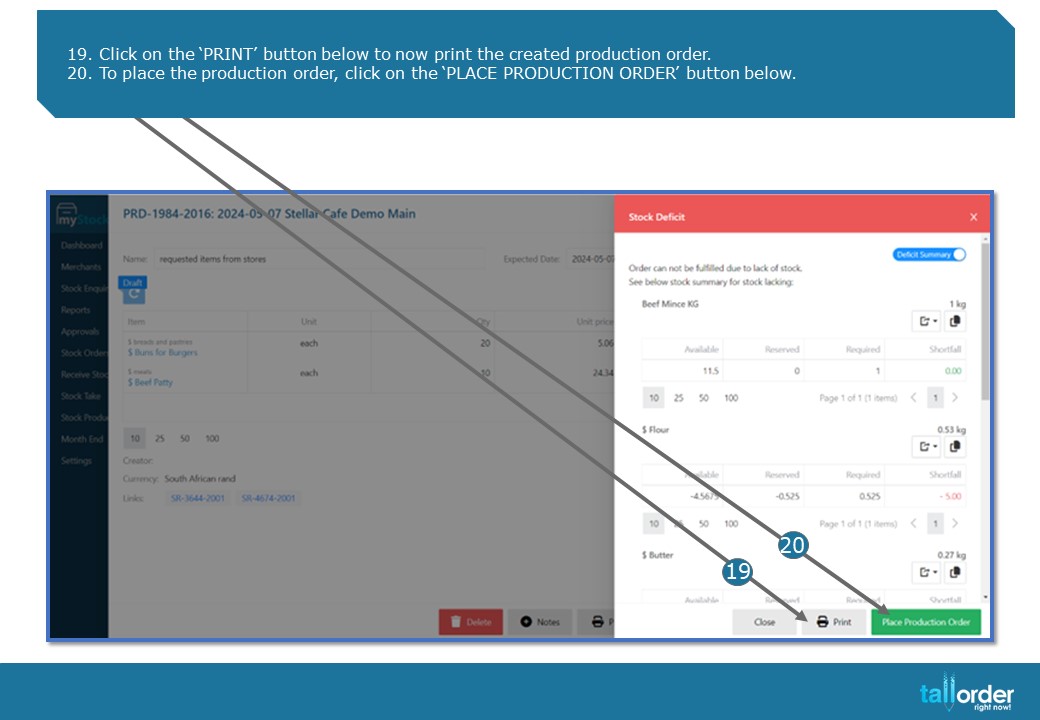
- Click on the ‘PRINT’ button below to now print the created production order.
- To place the production order, click on the ‘PLACE PRODUCTION ORDER’ button below
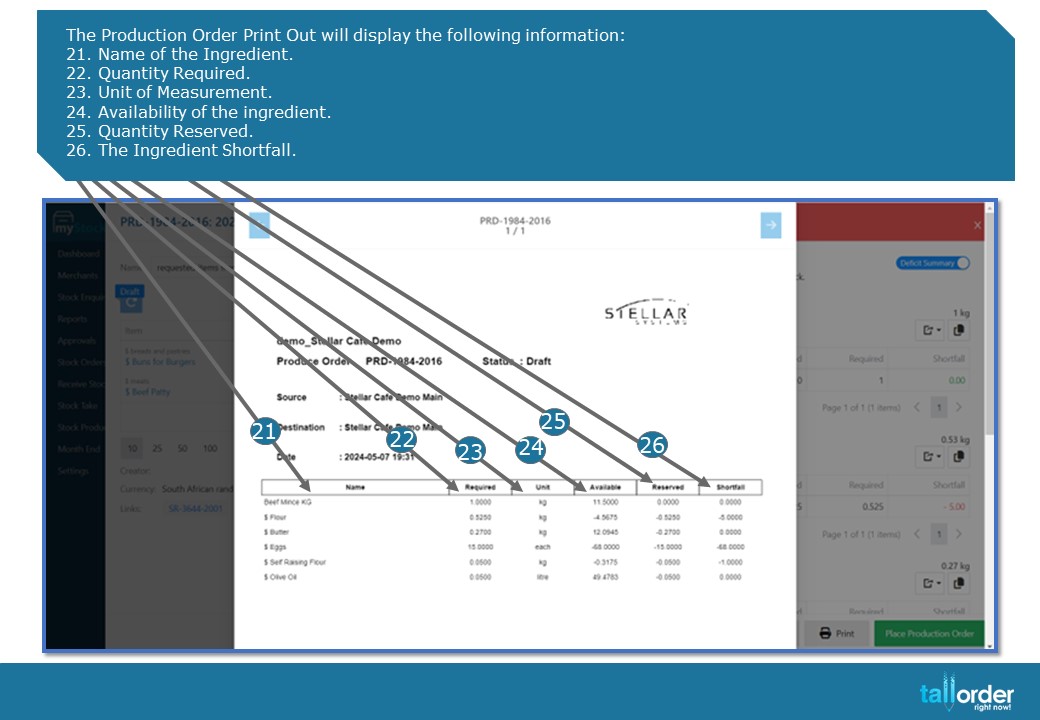
The Production Order Print Out will display the following information:
- Name of the Ingredient.
- Quantity Required.
- Unit of Measurement.
- Availability of the ingredient.
- Quantity Reserved.
- The Ingredient Shortfall.
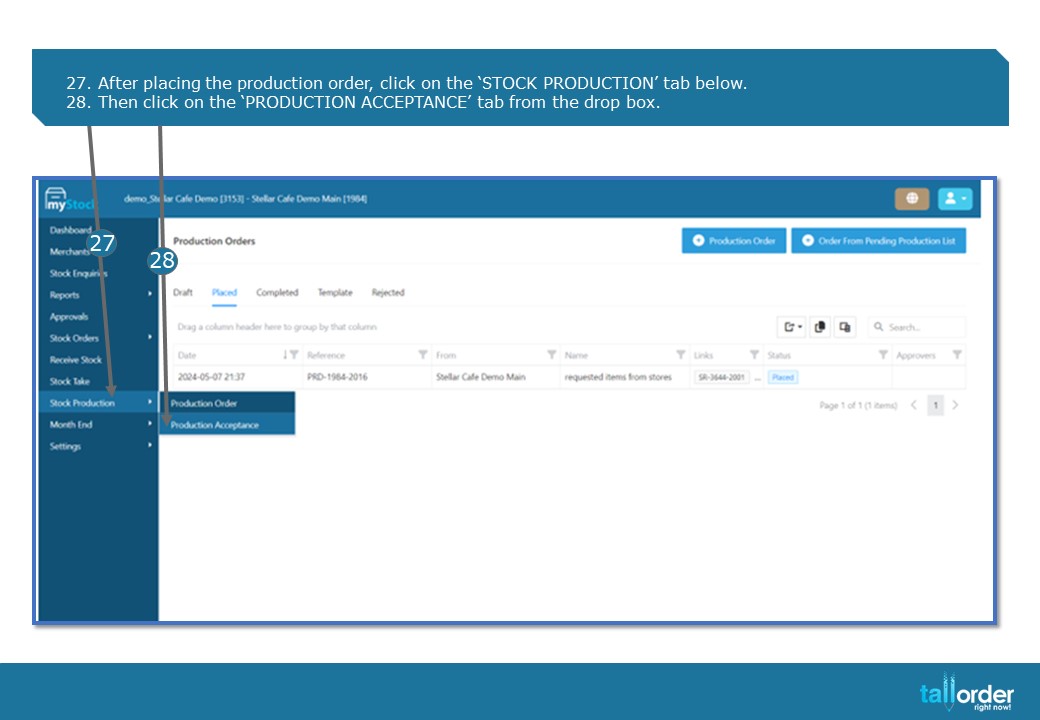
- After placing the production order, click on the ‘STOCK PRODUCTION’ tab below.
- Then click on the ‘PRODUCTION ACCEPTANCE’ tab from the drop box.
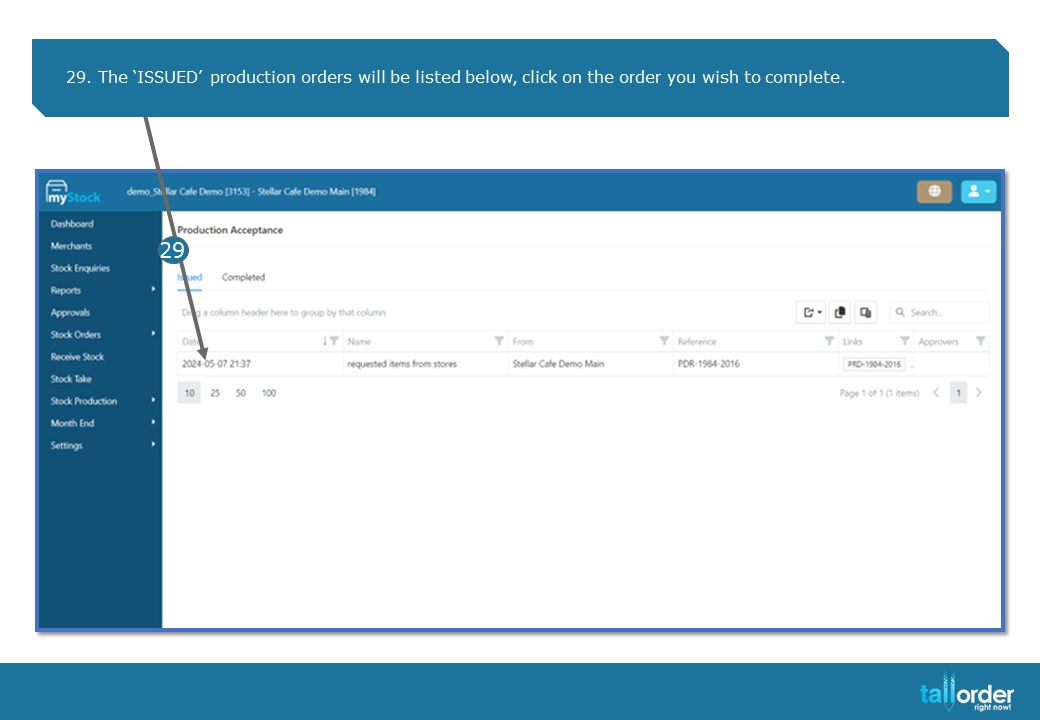
- The ‘ISSUED’ production orders will be listed below, click on the order you wish to complete.
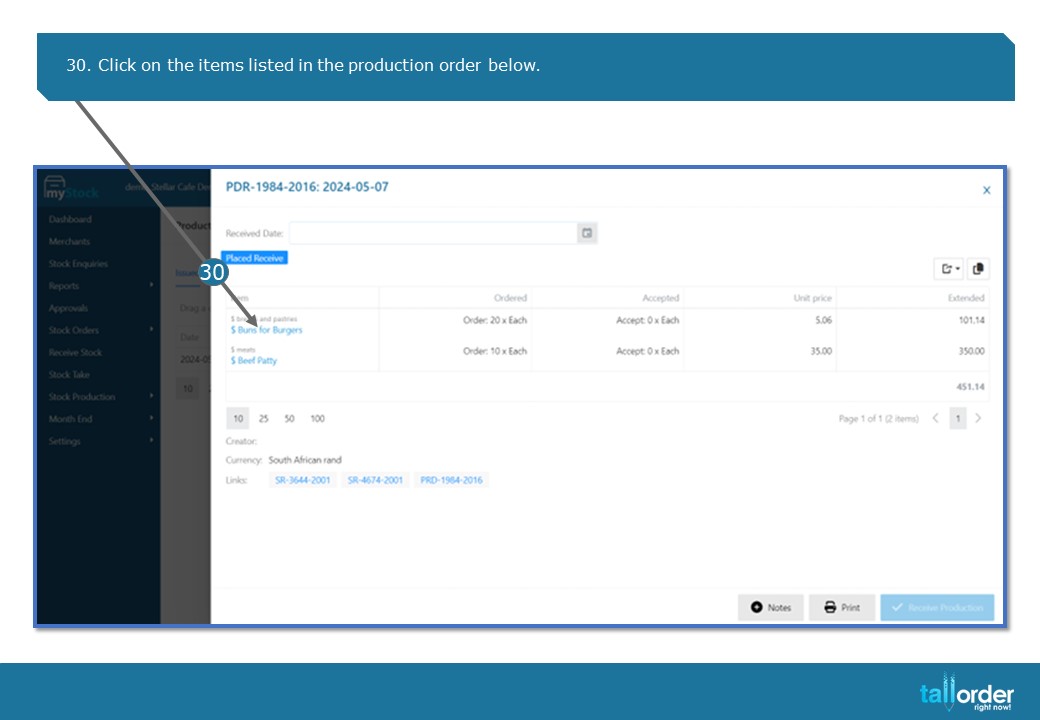
30. Click on the items listed in the production order below.
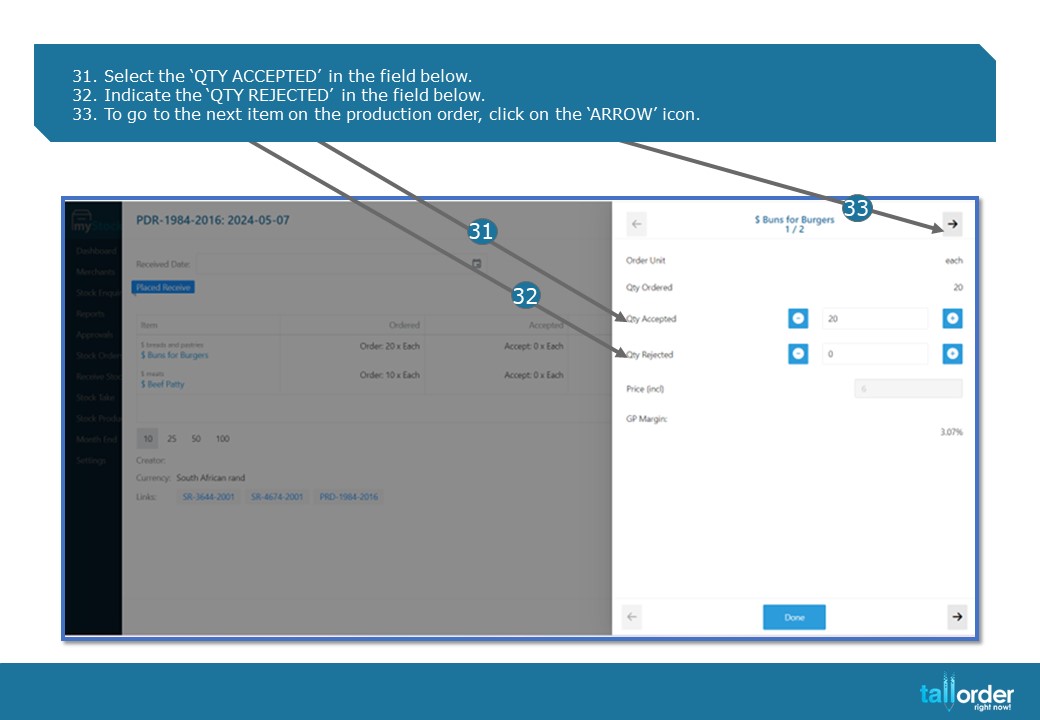
- 31. Select the ‘QTY ACCEPTED’ in the field below.
- Indicate the ‘QTY REJECTED’ in the field below.
- To go to the next item on the production order, click on the ‘ARROW’ icon.
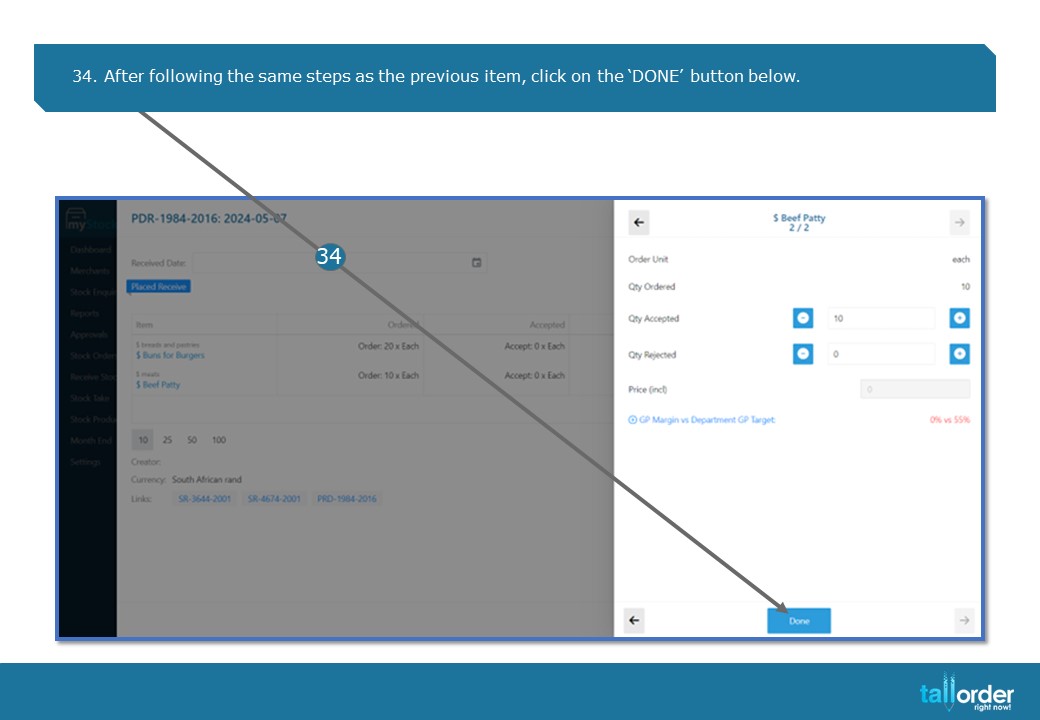
- After following the same steps as the previous item, click on the ‘DONE’ button below.
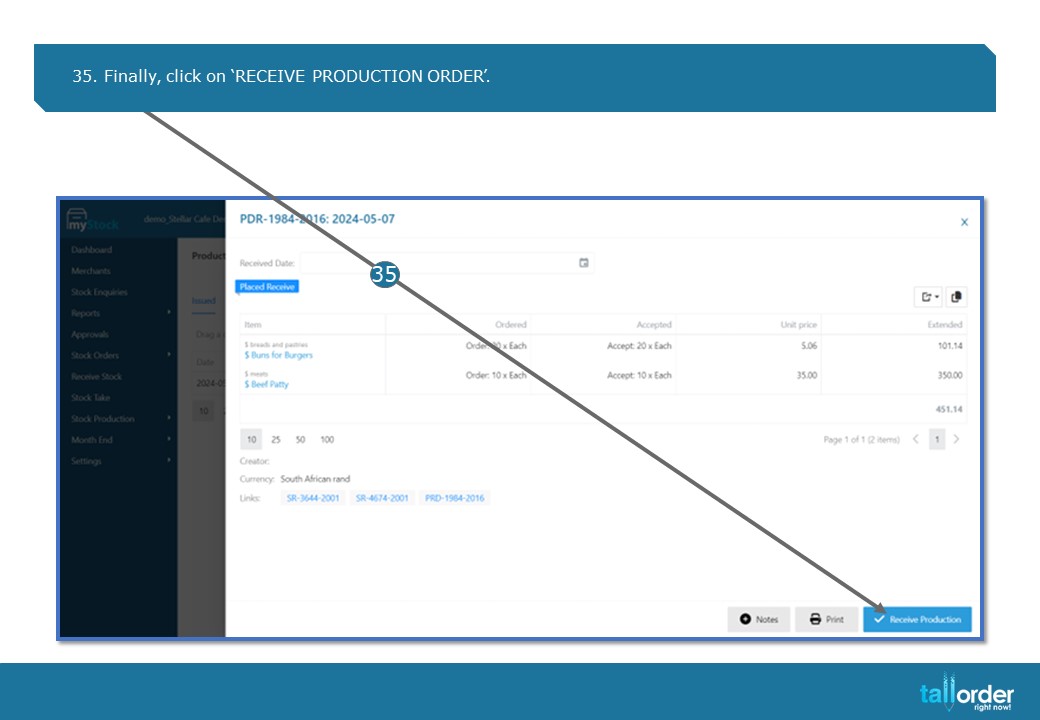
- Finally, click on ‘RECEIVE PRODUCTION ORDER’.
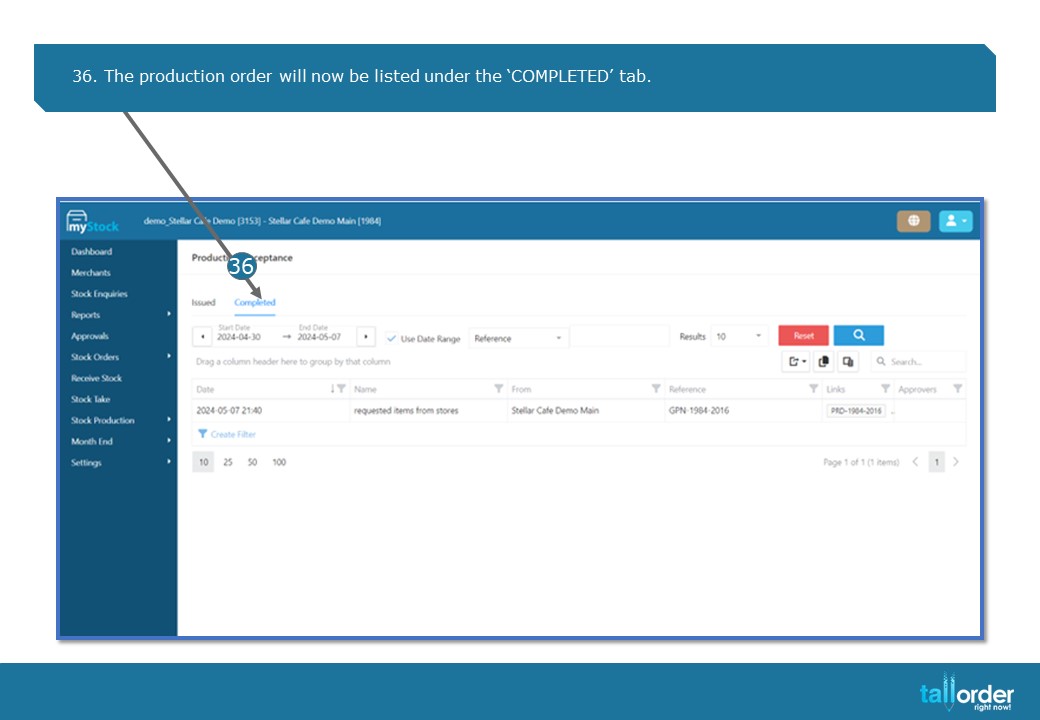
- The production order will now be listed under the ‘COMPLETED’ tab.
STEP-BY-STEP BREAKDOWN
- When creating a production order from a pending production list, click on ‘STOCK PRODUCTION’.
- Click on the ‘PRODUCTION ORDER’ tab.
- Click on the ‘ORDER FROM PENDING PRODUCTION LIST’ button.
- You will the see the production order requisitions, sent to you by the other stock locations.
- By default, the list will be displayed by departments.
- Slide the white dot to ‘VIEW BY REQUISITION’.
- Click on the drop box next to the ‘ALL STORES’ field to view the list by Stock Location.
- Select the Requisition Orders which you want to place.
- Click on the ‘ADD SELECTED’ button below.
- Select the ‘PRODUCTION ORDER DEFUALT’ as ‘NEW’.
- Enter the production order name in the field below.
- Select the ‘DATE’ by clicking on the ‘DATE’ icon.
- Now select the ‘EXPECTED DATE’ by clicking on the ‘DATE’ icon below.
- After which, click on the ‘CREATE ORDER’ button below.
- The Production Order will now become a ‘DRAFT’ as seen below.
- To add additional items click on the ‘PLUS’ icon.
- If you which to add more items from the pending production order list, click on the ‘ADD ITEMS FROM PENDING PO LIST.
- If you are satisfied with the production order, click on the ‘PLACE PRODUCTION ORDER’ button below.
- Click on the ‘PRINT’ button below to now print the created production order.
- To place the production order, click on the ‘PLACE PRODUCTION ORDER’ button below.
The Production Order Print Out will display the following information:
- Name of the Ingredient.
- Quantity Required.
- Unit of Measurement.
- Availability of the ingredient.
- Quantity Reserved.
- The Ingredient Shortfall.
- After placing the production order, click on the ‘STOCK PRODUCTION’ tab below.
- Then click on the ‘PRODUCTION ACCEPTANCE’ tab from the drop box.
- The ‘ISSUED’ production orders will be listed below, click on the order you wish to complete.
- Click on the items listed in the production order below.
- Select the ‘QTY ACCEPTED’ in the field below.
- Indicate the ‘QTY REJECTED’ in the field below.
- To go to the next item on the production order, click on the ‘ARROW’ icon.
- After following the same steps as the previous item, click on the ‘DONE’ button below.
- Finally, click on ‘RECEIVE PRODUCTION ORDER’.
- The production order will now be listed under the ‘COMPLETED’ tab.