
How can we help you?
How to add products

A product can be defined through 3 item types and 3 ingredient types.
ITEM TYPES
- Purchased Items
These are products acquired from suppliers and sold without altering their form or shape. For instance, a can of coke is a typical example.
- Produced on Demand Items
These items are manufactured only upon request and comprise both purchased items and items produced in batches. For example, a cheeseburger includes purchased items like cheese, tomato, or lettuce, along with beef patties produced in batches using purchased mince.
- Produced in Batches Items
This category encompasses items manufactured in bulk using purchased ingredients. For instance, producing 10 beef patties (100g each) might require 1kg of mince as a purchased item.
INGREDIENT TYPES
- Not an Ingredient
Products with this flag setting are solely for purchase and sale; they cannot be used as ingredients in recipes due to their unalterable form. An example is a can of coke.
- Is Ingredient
These products can be either purchased or produced in batches. They can be incorporated into recipes as ingredient items or sold separately. For example, buns produced in batches can be sold individually and also used as part of a recipe.
- Ingredient Only
Products labeled as such can be purchased or produced in batches. They are exclusively used as ingredient items in recipes and cannot be sold separately. An example is beef patties (100g), which are used as ingredients but not sold individually.
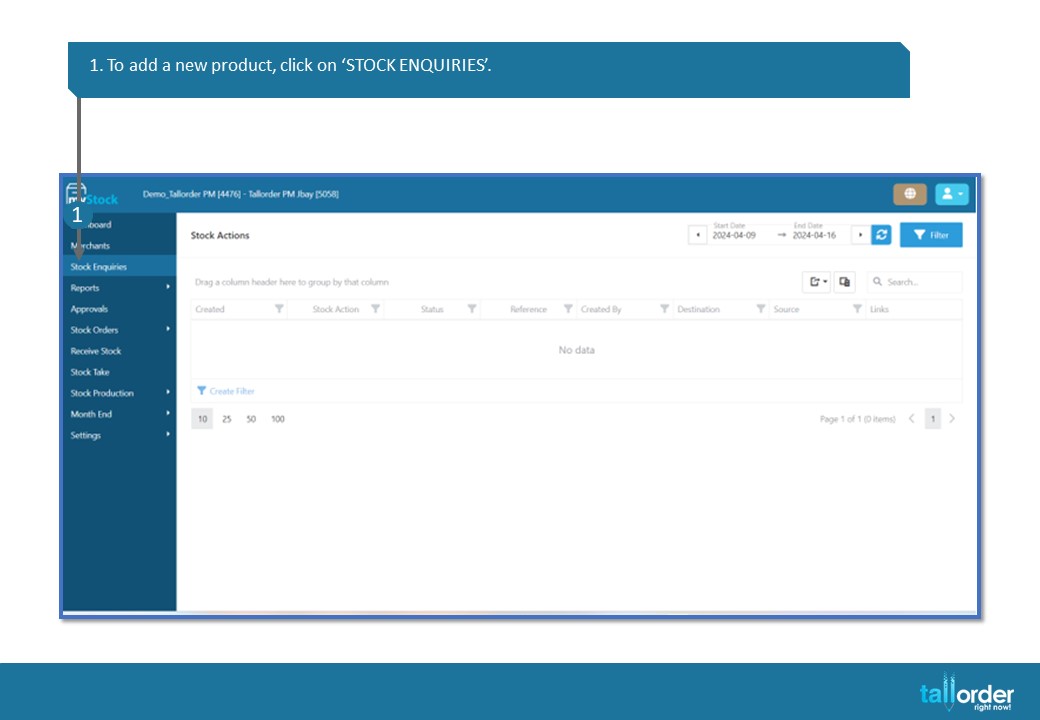
- To add a new product, click on ‘STOCK ENQUIRIES’.
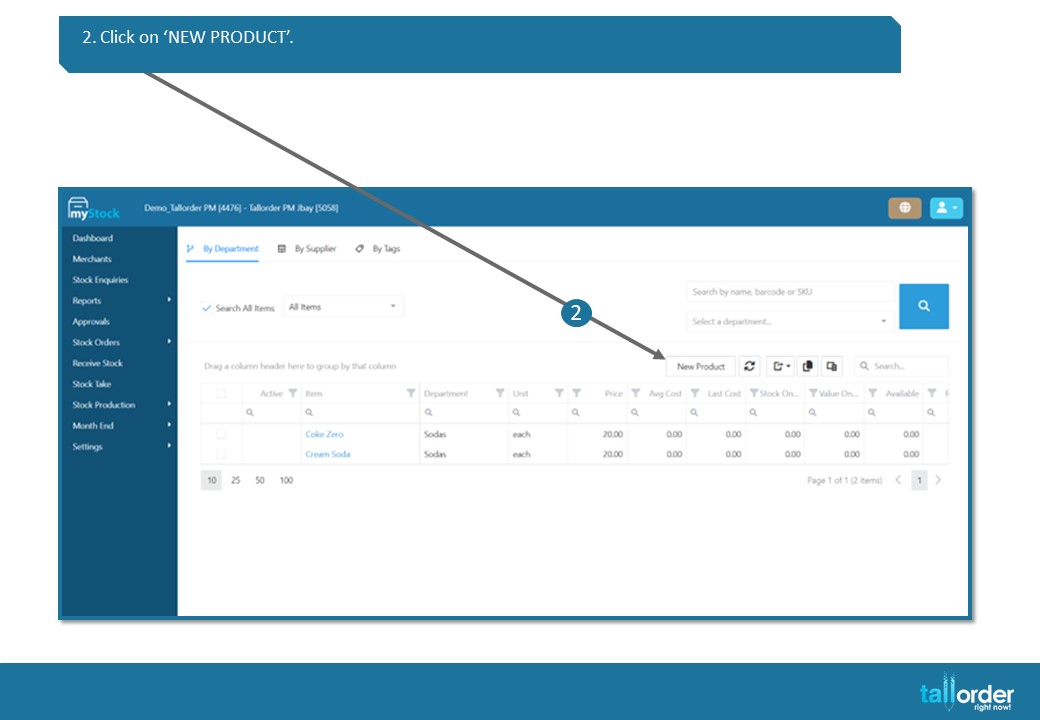
- Click on ‘NEW PRODUCT’.

- The ‘CREATE A PRODUCT’ page will appear.
- It is important to complete all the sections with a red * next to them, otherwise the product will not be saved.
- The ‘DEFAULT LIST PRICE’ is the selling price which is added here.
- The ‘UNIT COST’ refers to the price you as owner paid for the product.
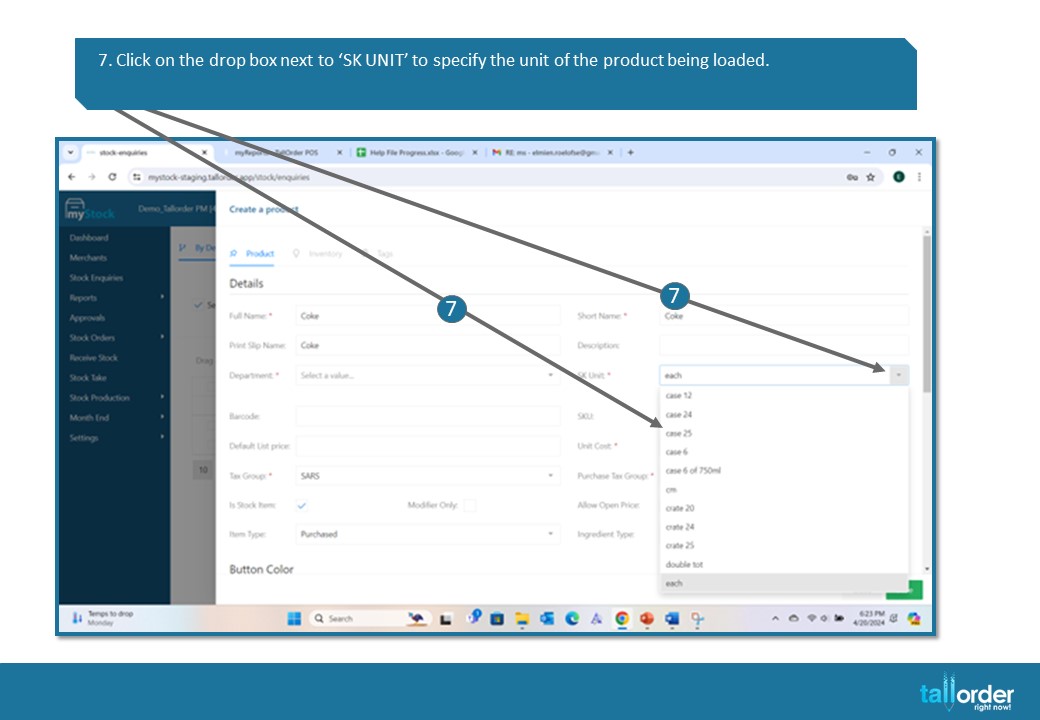
- Click on the drop box next to ‘SK UNIT’ to specify the unit of the product being loaded.

- Clicking on the drop box next to ‘DEPARTMENT’ to specify the department which the product falls under.
- Only loaded departments will be listed here.
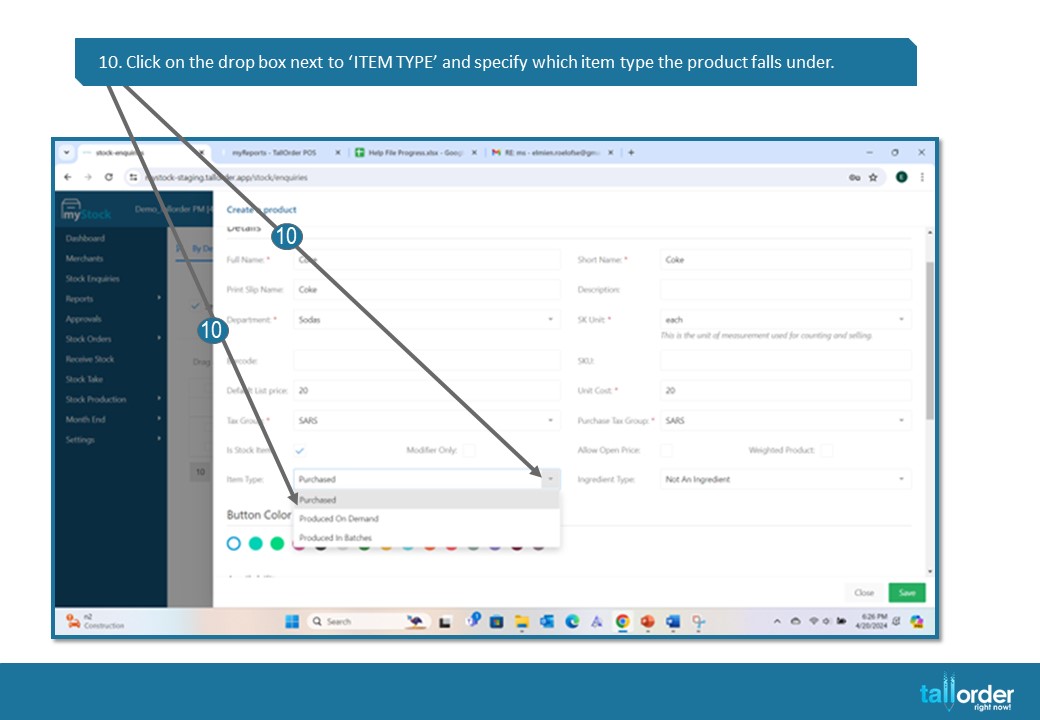
- Click on the drop box next to ‘ITEM TYPE’ and specify which item type the product falls under.

- Click the drop box next to ‘INGREDIENT TYPE’ and specify what ingredient type the product falls under.
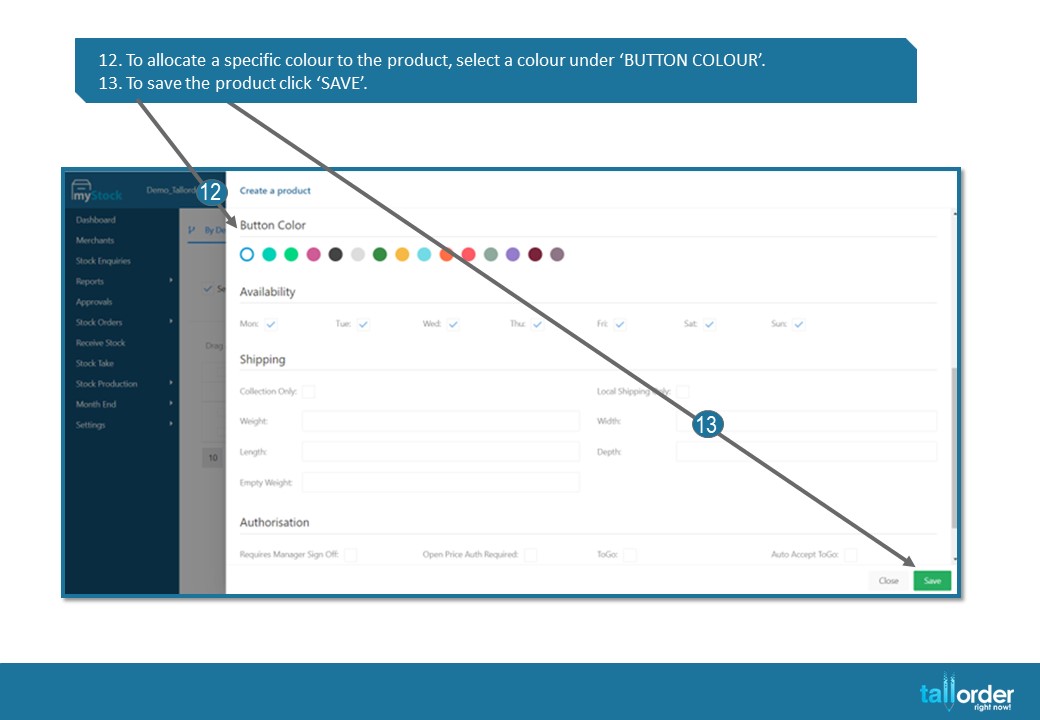
- To allocate a specific colour to the product, select a colour under ‘BUTTON COLOUR’.
- To save the product click ‘SAVE’.

- The saved product will now be displayed in the list below.
STEP-BY-STEP BREAKDOWN
- To add a new product, click on ‘STOCK ENQUIRIES’.
- Click on ‘NEW PRODUCT’.
- The ‘CREATE A PRODUCT’ page will appear.
- It is important to complete all the sections with a red * next to them, otherwise the product will not be saved.
- The ‘DEFAULT LIST PRICE’ is the selling price which is added here.
- The ‘UNIT COST’ refers to the price you as owner paid for the product.
- Click on the drop box next to ‘SK UNIT’ to specify the unit of the product being loaded.
- Clicking on the drop box next to ‘DEPARTMENT’ to specify the department which the product falls under.
- Only loaded departments will be listed here.
- Click on the drop box next to ‘ITEM TYPE’ and specify which item type the product falls under.
- Click the drop box next to ‘INGREDIENT TYPE’ and specify what ingredient type the product falls under.
- To allocate a specific colour to the product, select a colour under ‘BUTTON COLOUR’.
- To save the product click ‘SAVE’.
- The saved product will now be displayed in the list below.