
How can we help you?
TallOrder In Browser PDF Viewer Manual
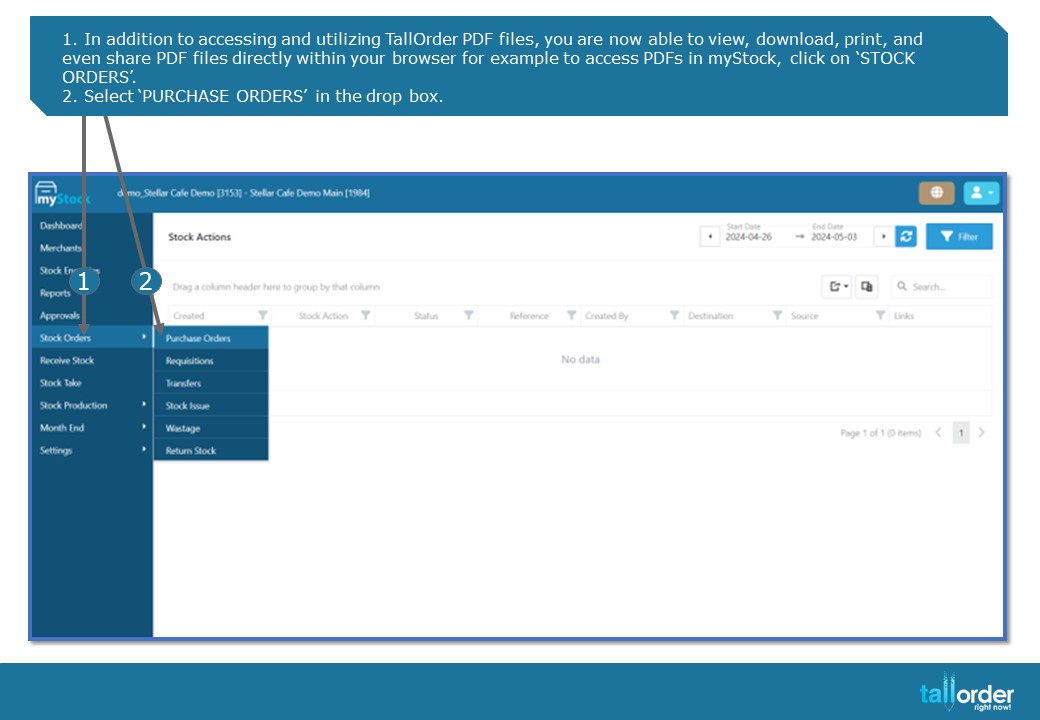
- In addition to accessing and utilizing TallOrder PDF files, you are now able to view, download, print, and even share PDF files directly within your browser for example to access PDFs in myStock, click on ‘STOCK ORDERS’.
- Select ‘PURCHASE ORDERS’ in the drop box.
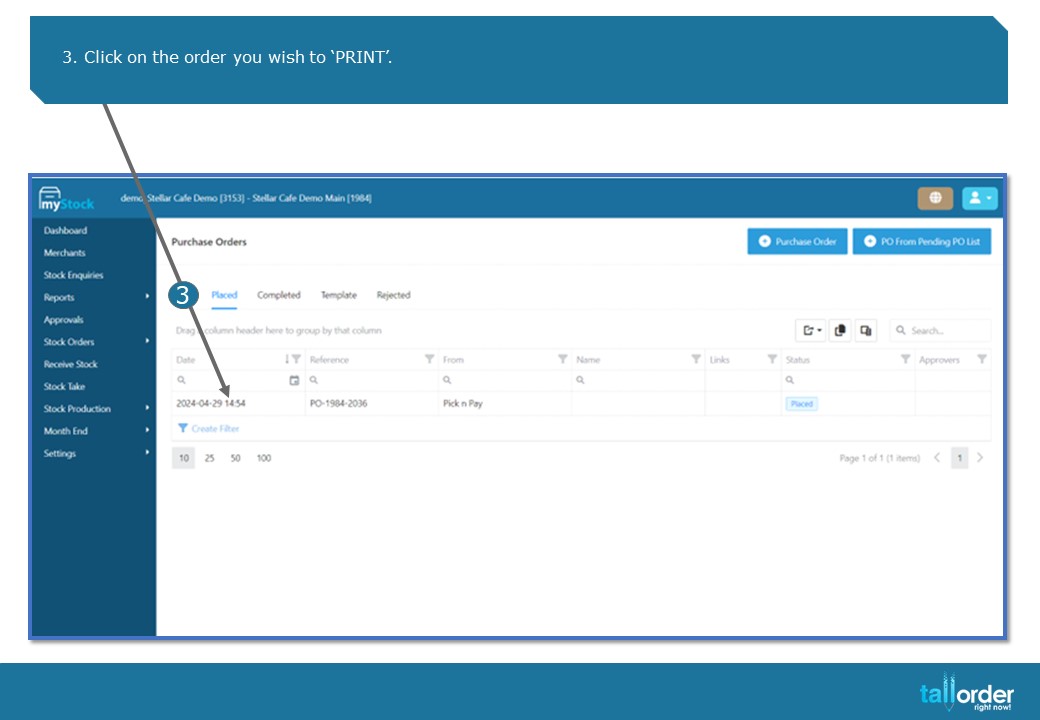
- Click on the order you wish to ‘PRINT’.
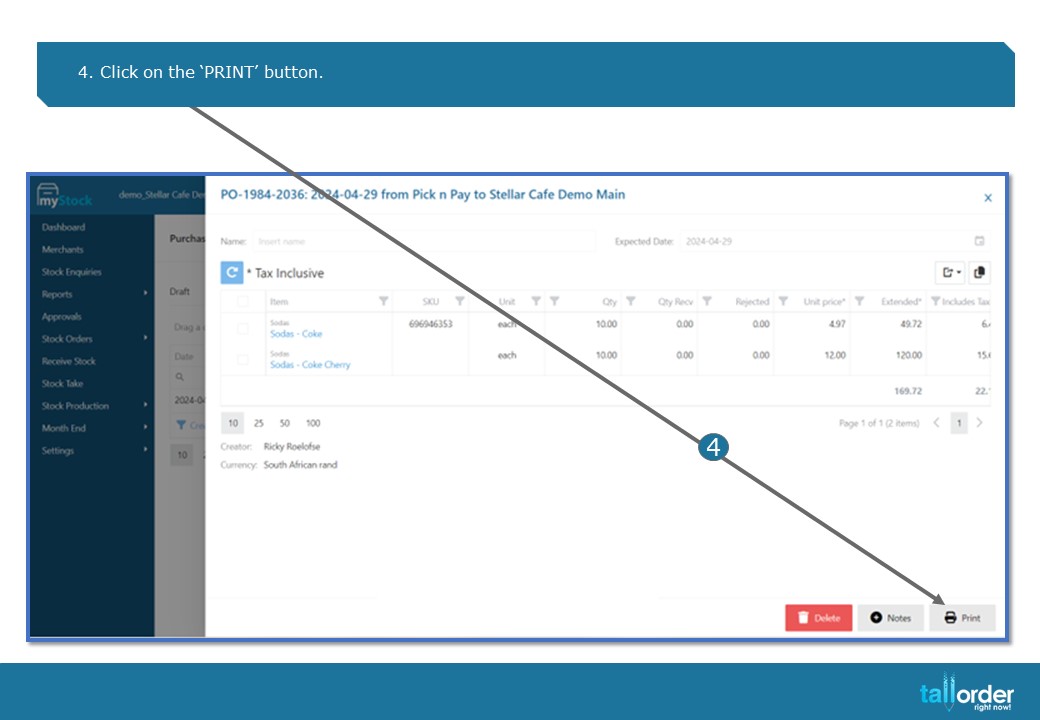
- Click on the ‘PRINT’ button.
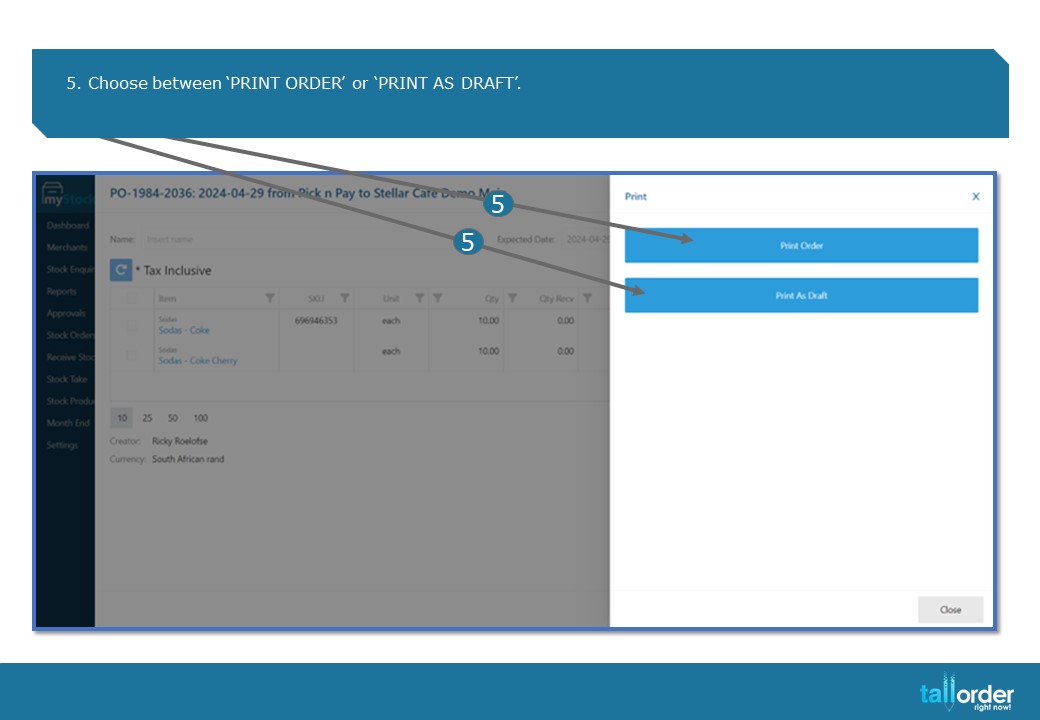
- Choose between ‘PRINT ORDER’ or ‘PRINT AS DRAFT’.
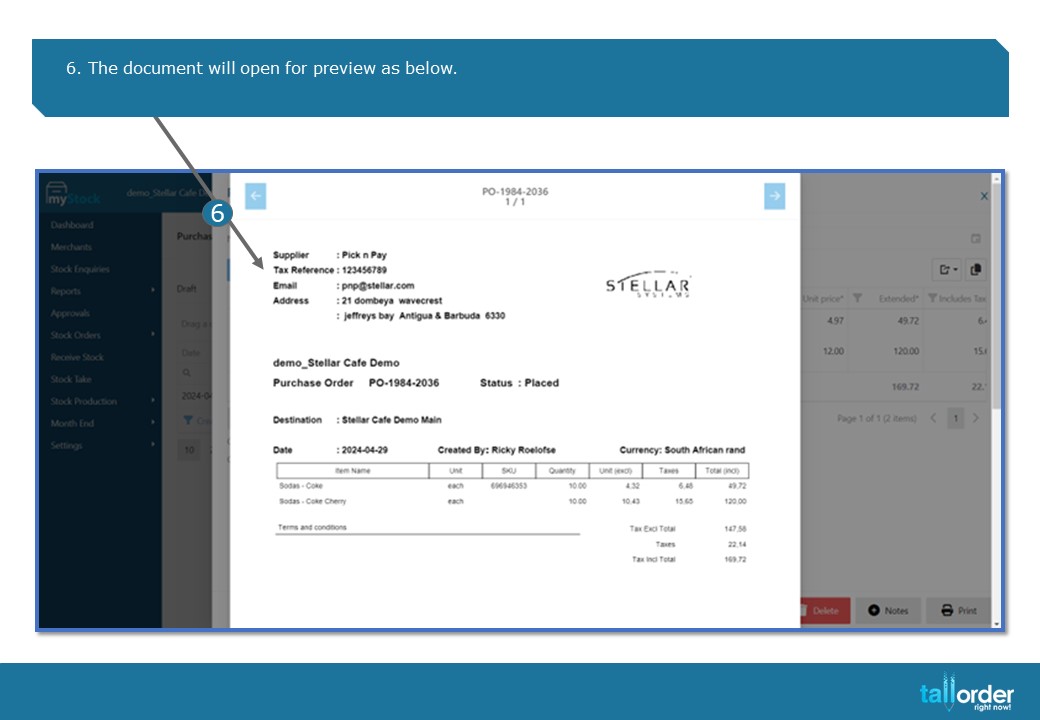
6. The document will open for preview as below.

- Scroll down to the bottom of the page, click on the ‘EMAIL’ icon.
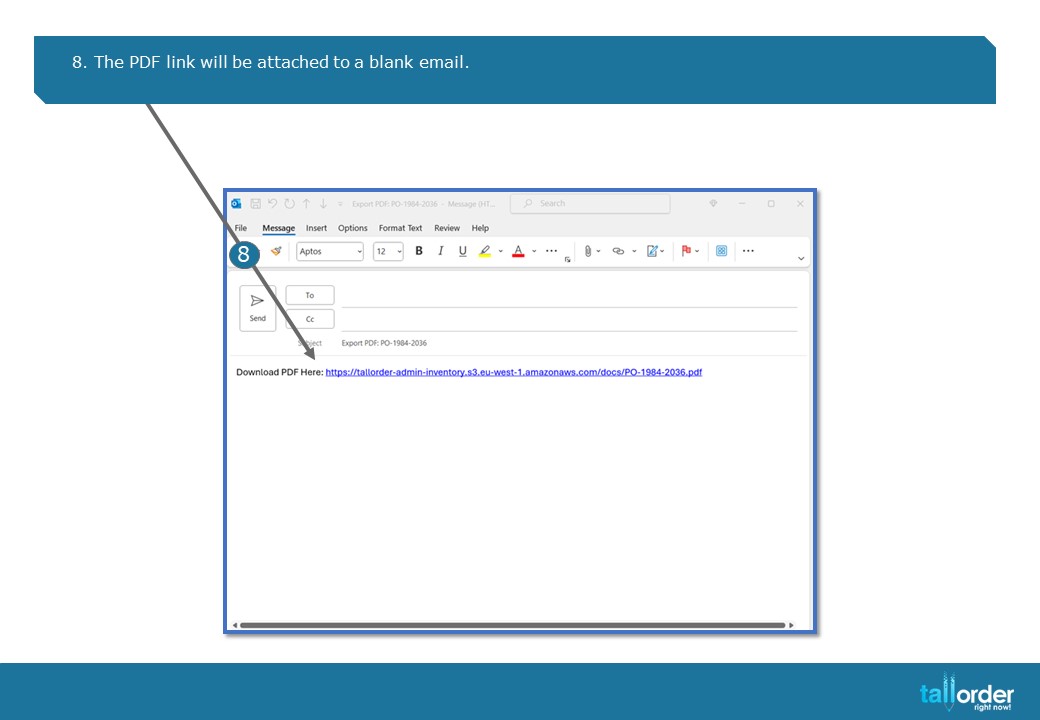
- The PDF link will be attached to a blank email.
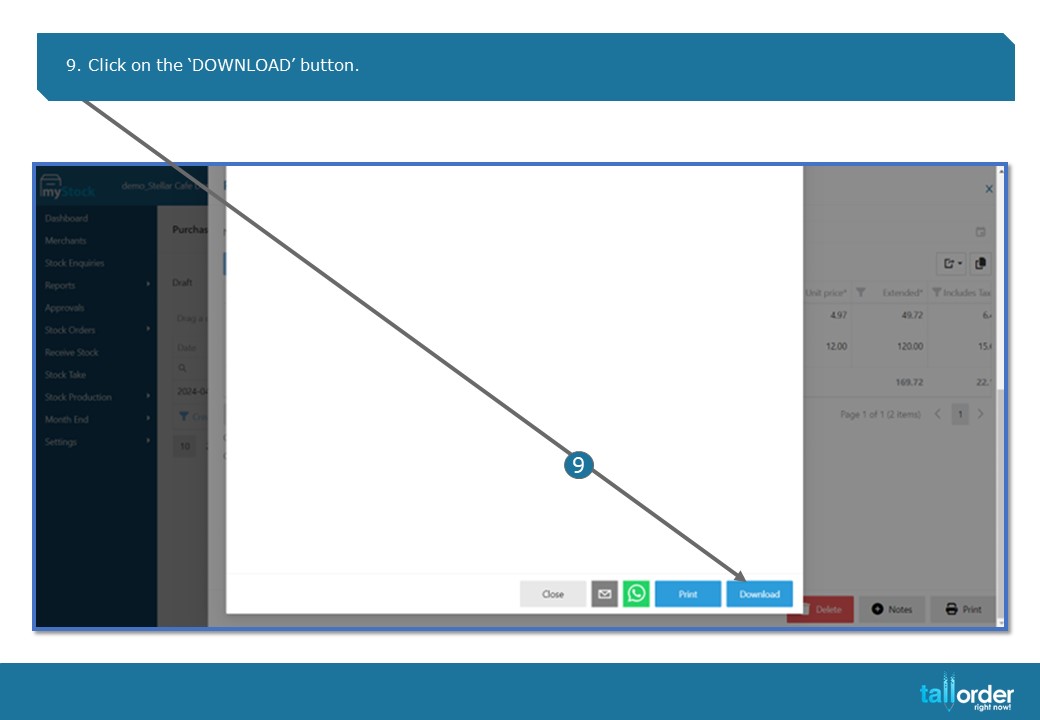
- Click on the ‘DOWNLOAD’ button.
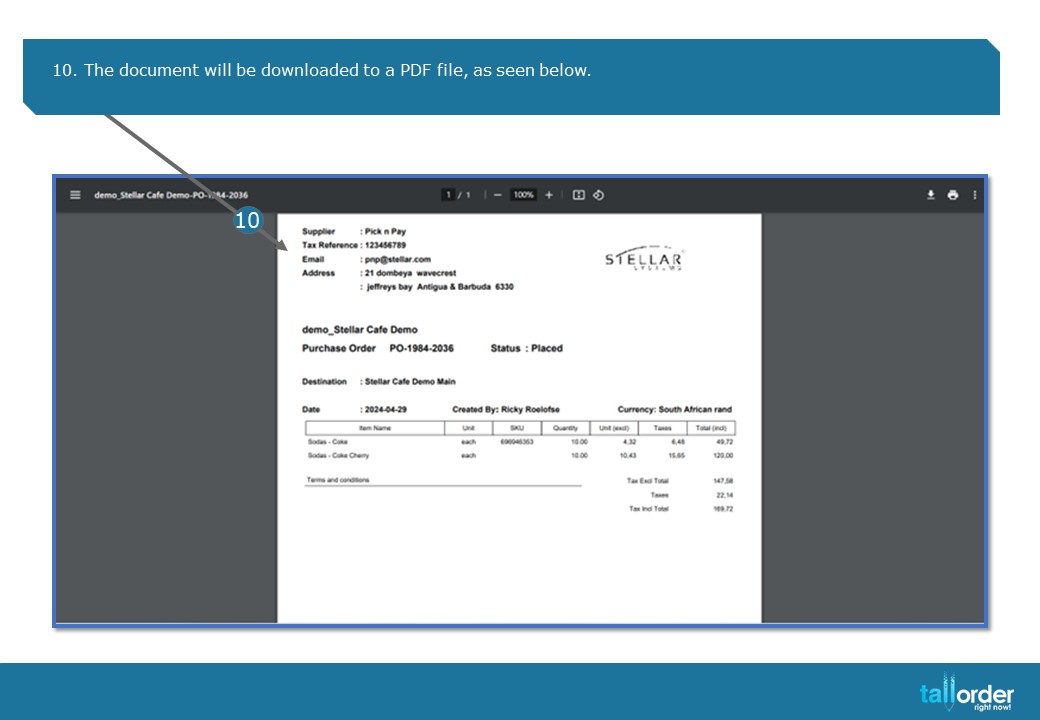
- The document will be downloaded to a PDF file, as seen below.
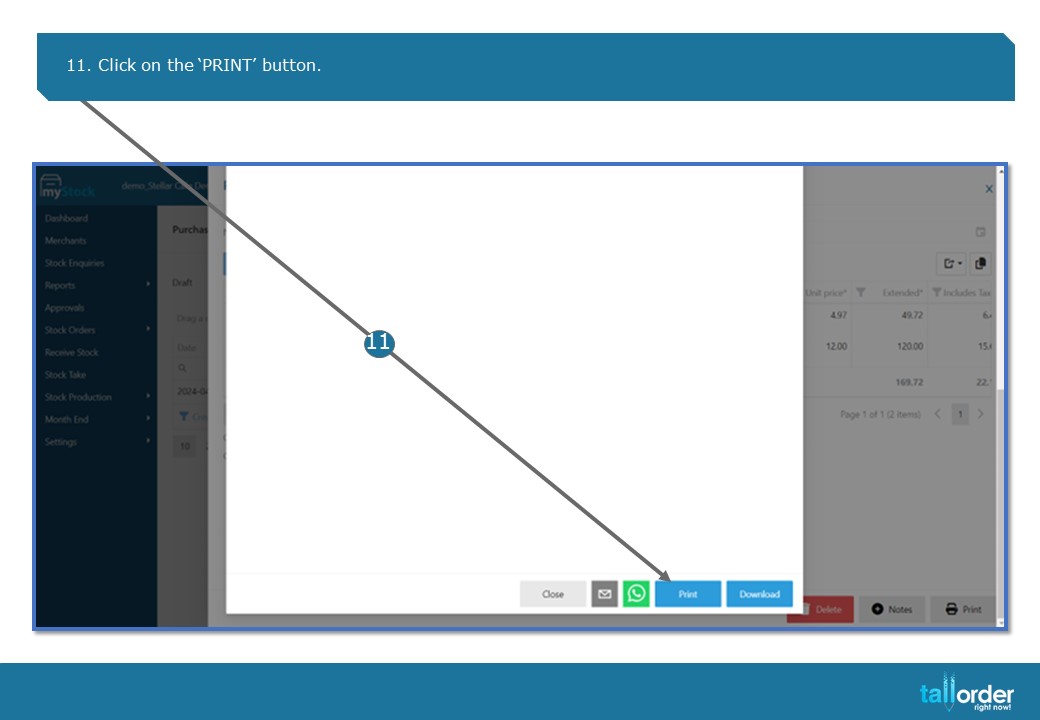
- Click on the ‘PRINT’ button.
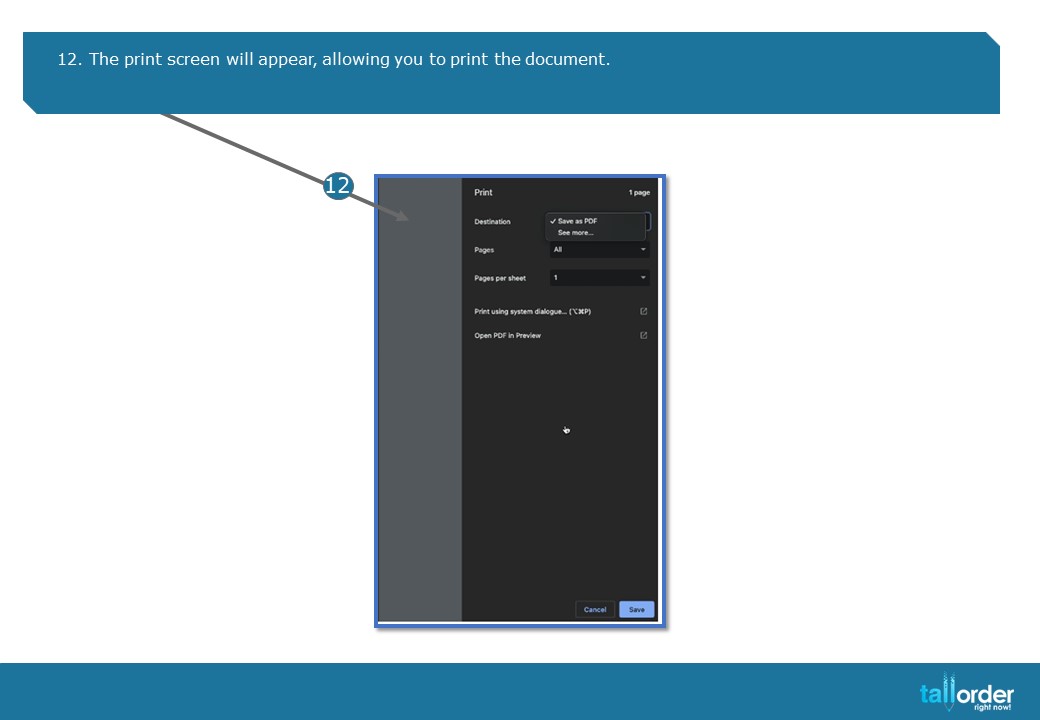
- The print screen will appear, allowing you to print the document.
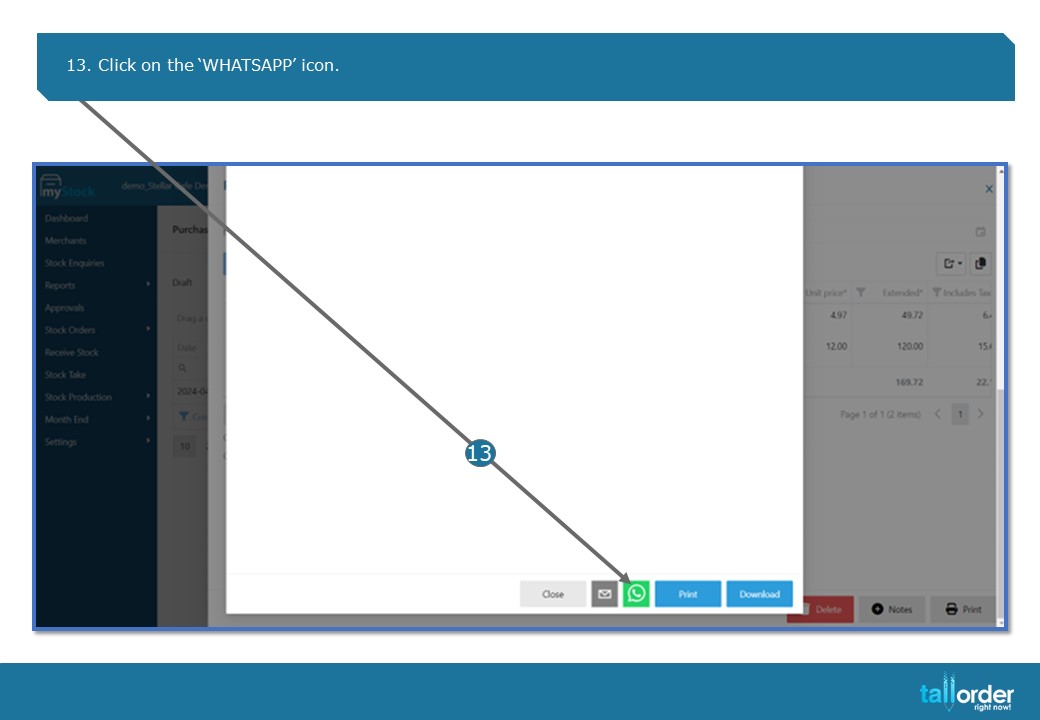
- Click on the ‘WHATSAPP’ icon.
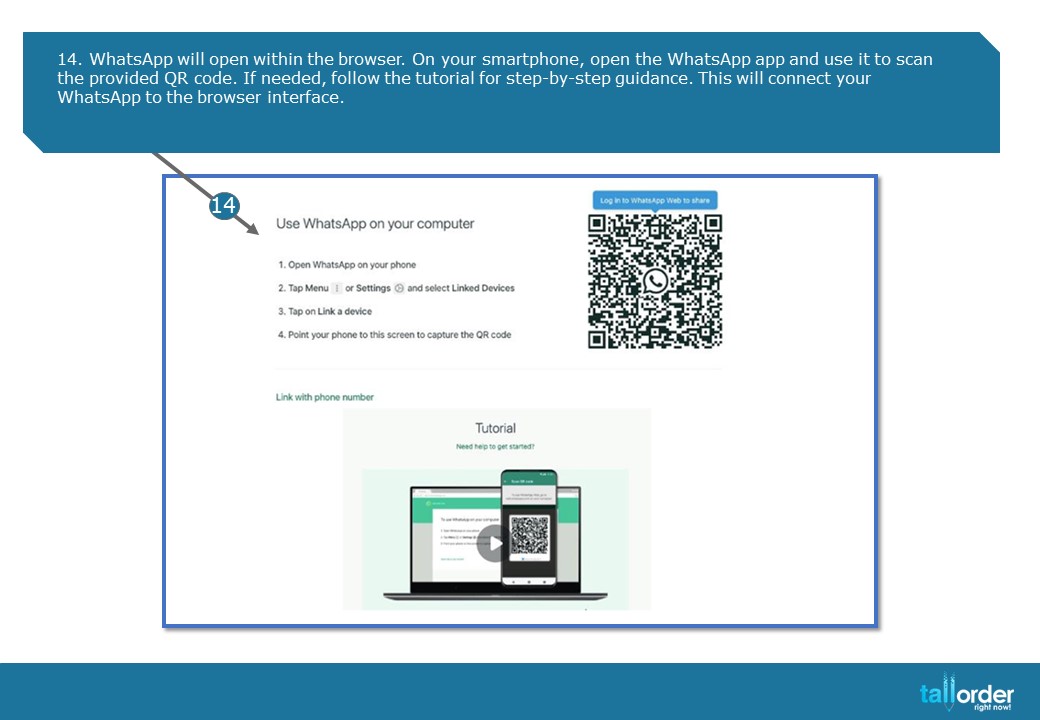
- WhatsApp will open within the browser. On your smartphone, open the WhatsApp app and use it to scan the provided QR code. If needed, follow the tutorial for step-by-step guidance. This will connect your WhatsApp to the browser interface.
STEP-BY-STEP BREAKDOWN
- In addition to accessing and utilizing TallOrder PDF files, you are now able to view, download, print, and even share PDF files directly within your browser for example to access PDFs in myStock, click on ‘STOCK ORDERS’.
- Select ‘PURCHASE ORDERS’ in the drop box.
- Click on the order you wish to ‘PRINT’.
- Click on the ‘PRINT’ button.
- Choose between ‘PRINT ORDER’ or ‘PRINT AS DRAFT’.
- The document will open for preview as below.
- Scroll down to the bottom of the page, click on the ‘EMAIL’ icon.
- The PDF link will be attached to a blank email.
- Click on the ‘DOWNLOAD’ button.
- The document will be downloaded to a PDF file, as seen below.
- Click on the ‘PRINT’ button.
- The print screen will appear, allowing you to print the document.
- Click on the ‘WHATSAPP’ icon.
- WhatsApp will open within the browser. On your smartphone, open the WhatsApp app and use it to scan the provided QR code. If needed, follow the tutorial for step-by-step guidance. This will connect your WhatsApp to the browser interface.