
How can we help you?
Sage Setup on TallOrder
- Please login to admin.tallorder.mobi.
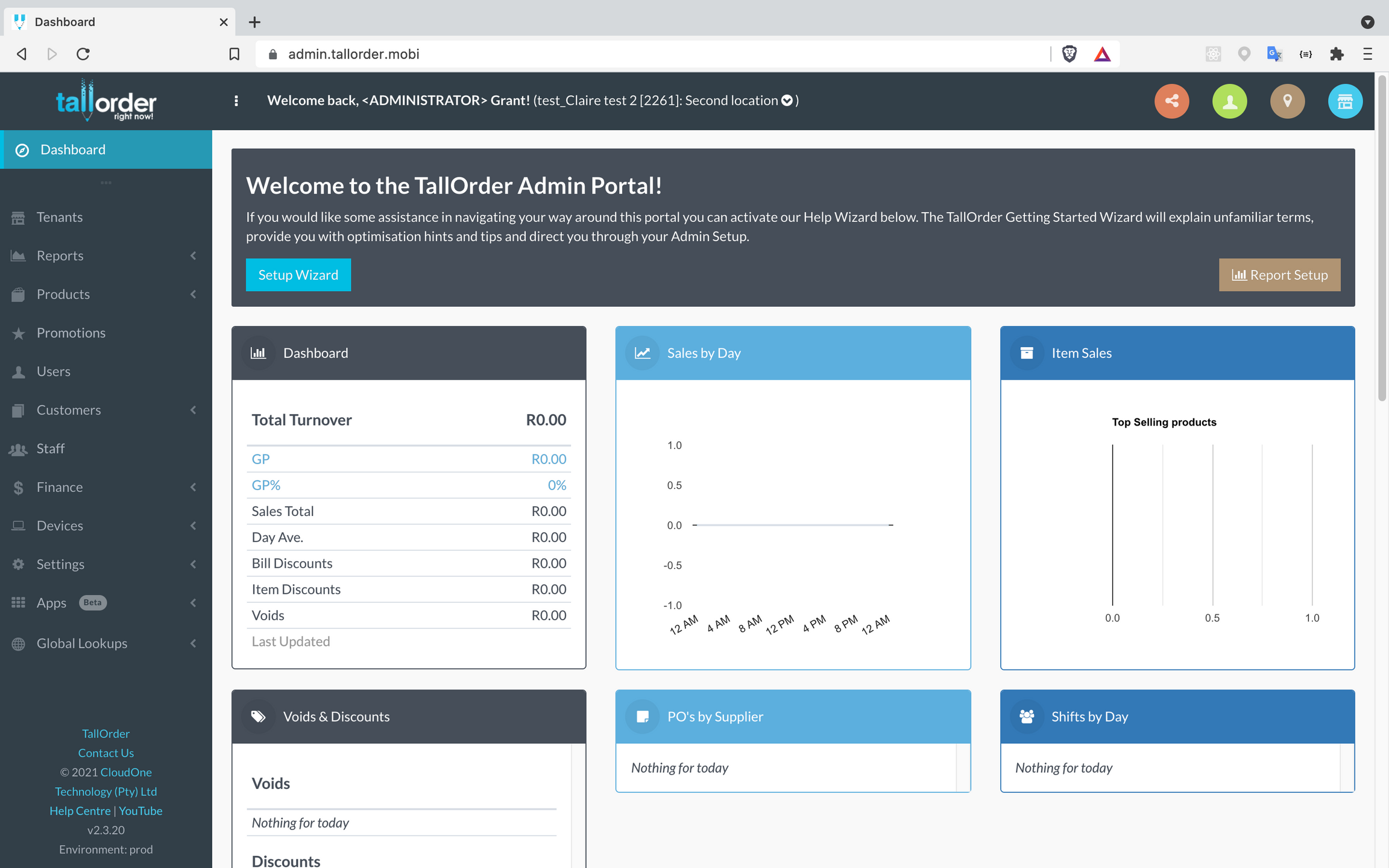
- Move to Finance link on the left hand side
- Click on Finance.
- Click on Accounting integration.
- Click on Sage Accounting.
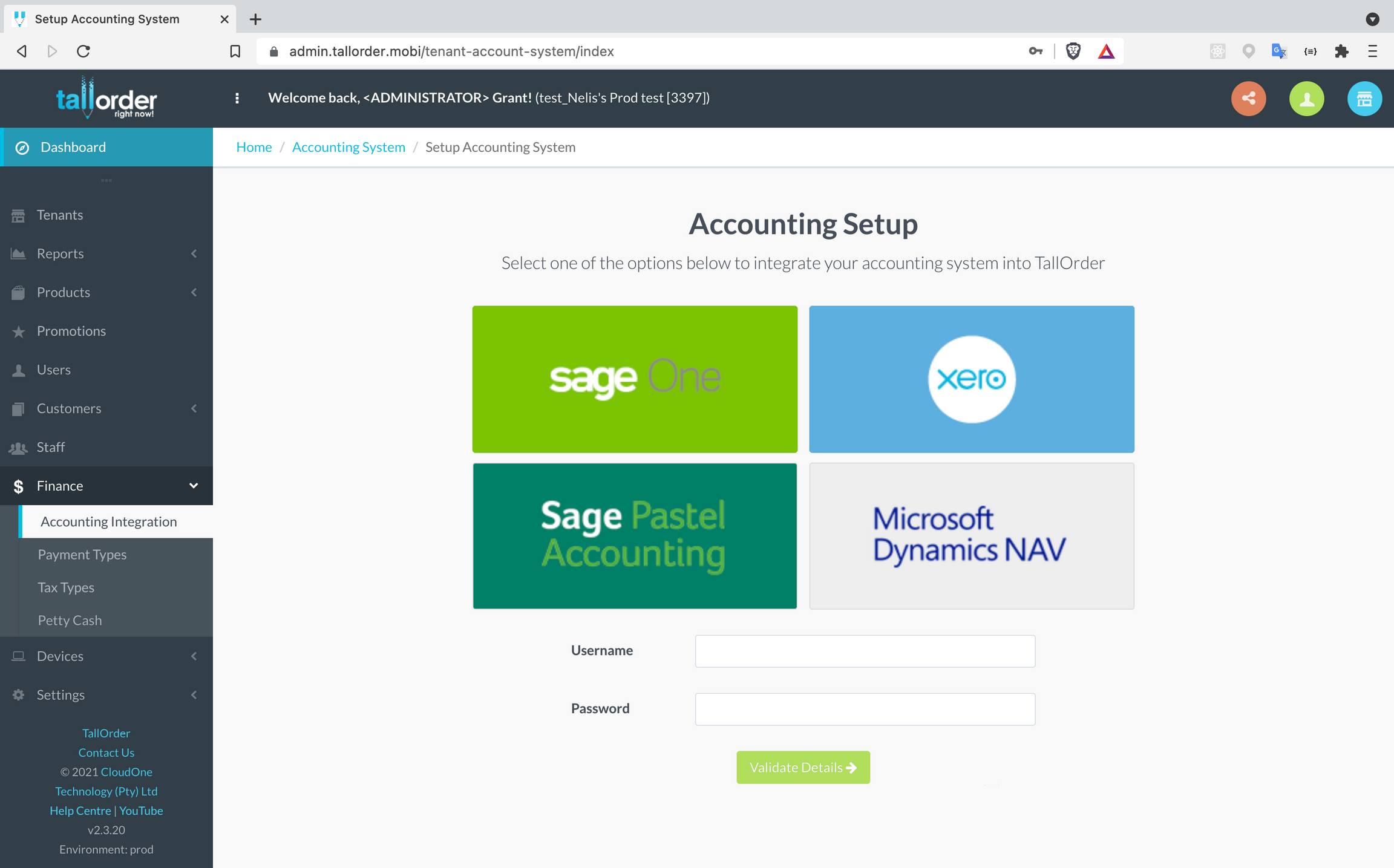
- Add your user name and password and press go.
- If you have more than one company under your sage login, you can choose the company that you would like to connect.
- You can also choose to link either via detailed or summary mode.
Overview of what we do:
- With a sale we will debit the TallOrder cash customer account and credit sales and vat (if applicable). We will also credit the Gratuity account if you make use of gratuity. Your item count will become less with the amount of the items sold.
- With a receipt (payment of the invoice) we will credit the cash customer account and debit the relevant control account.
- You will need to reconcile the control account as soon as you receive your funds from the different payment methods.
- You will reconcile your gratuity account to your salary and wages out payment.
- Purchase orders and supplier invoices can be synced to Sage.
- We are also able to do a journal entry for you to move the average cost of sale of a product sold from Inventory to Cost of Sales. You can either make use of this functionality or just use our reports to do a monthly journal entry.
Setting up the link:
- Choose to connect via either detailed sync or summary mode (The detailed sync will allow you to have each and every invoice sync to Sage from the POS. Summary mode will sync all tabs as one to Sage at the end of the day. We will still sync customer account payments to Sage as
individual invoices). - Choose your tax type.
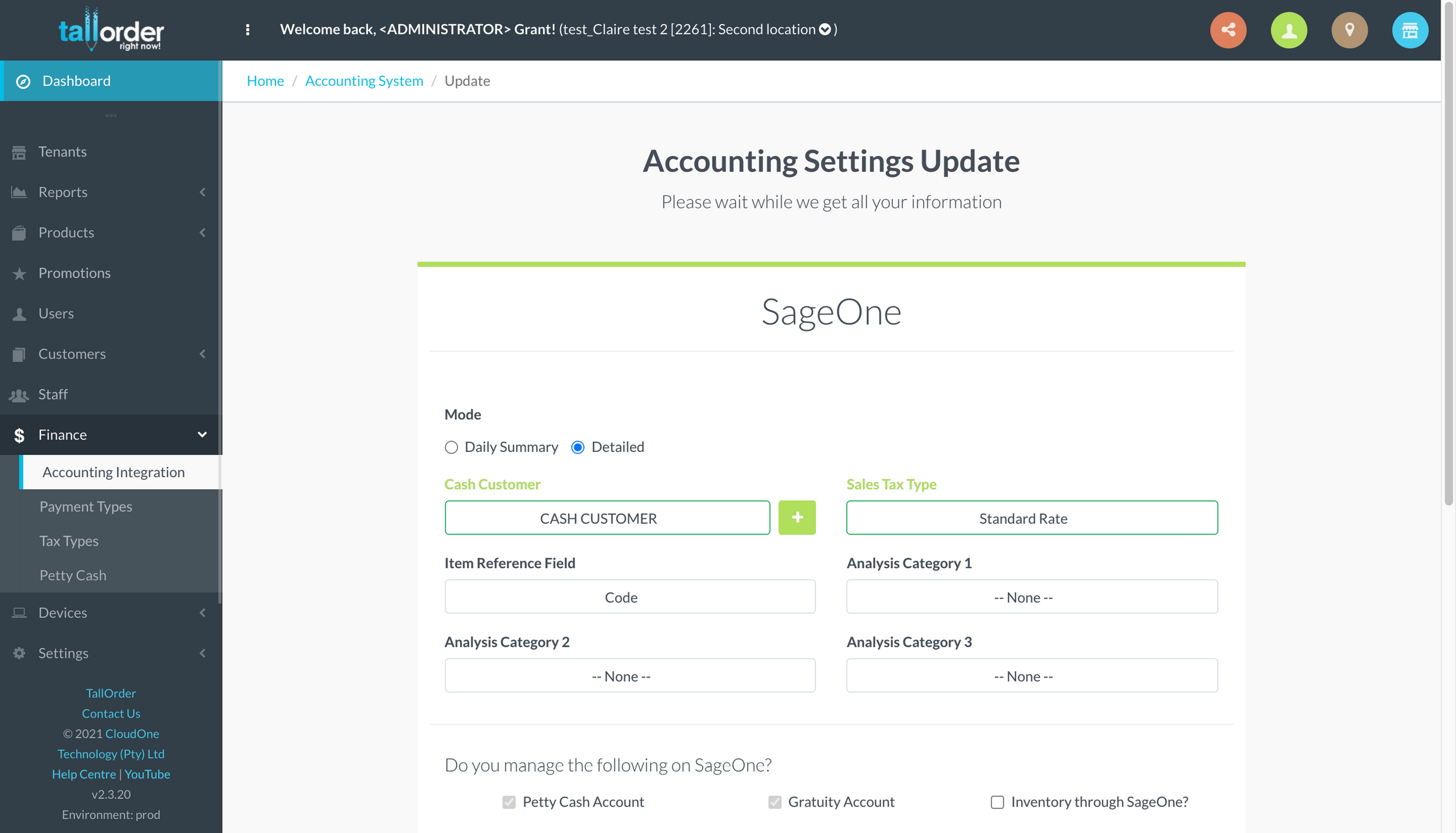
- Choose an gratuity account to be linked in Sage – we suggest that you create a TallOrder Gratuity account in Sage or link to Staff Loans.
- Choose a control account for your petty cash outpayments. This account will be the same control account as you cash control account. We suggest calling it TallOrder Cash control.
- Choose control accounts for all your payment methods.
We suggest calling it TallOrder (Payment method name) control account.
Example cash would be TallOrder cash control and SnapScan would be TallOrder SnapScan control account. - If you want to integrate your Purchase orders you need to click on the inventory button and then add an account for TallOrder Inventory and choose your Cost of Sale account.
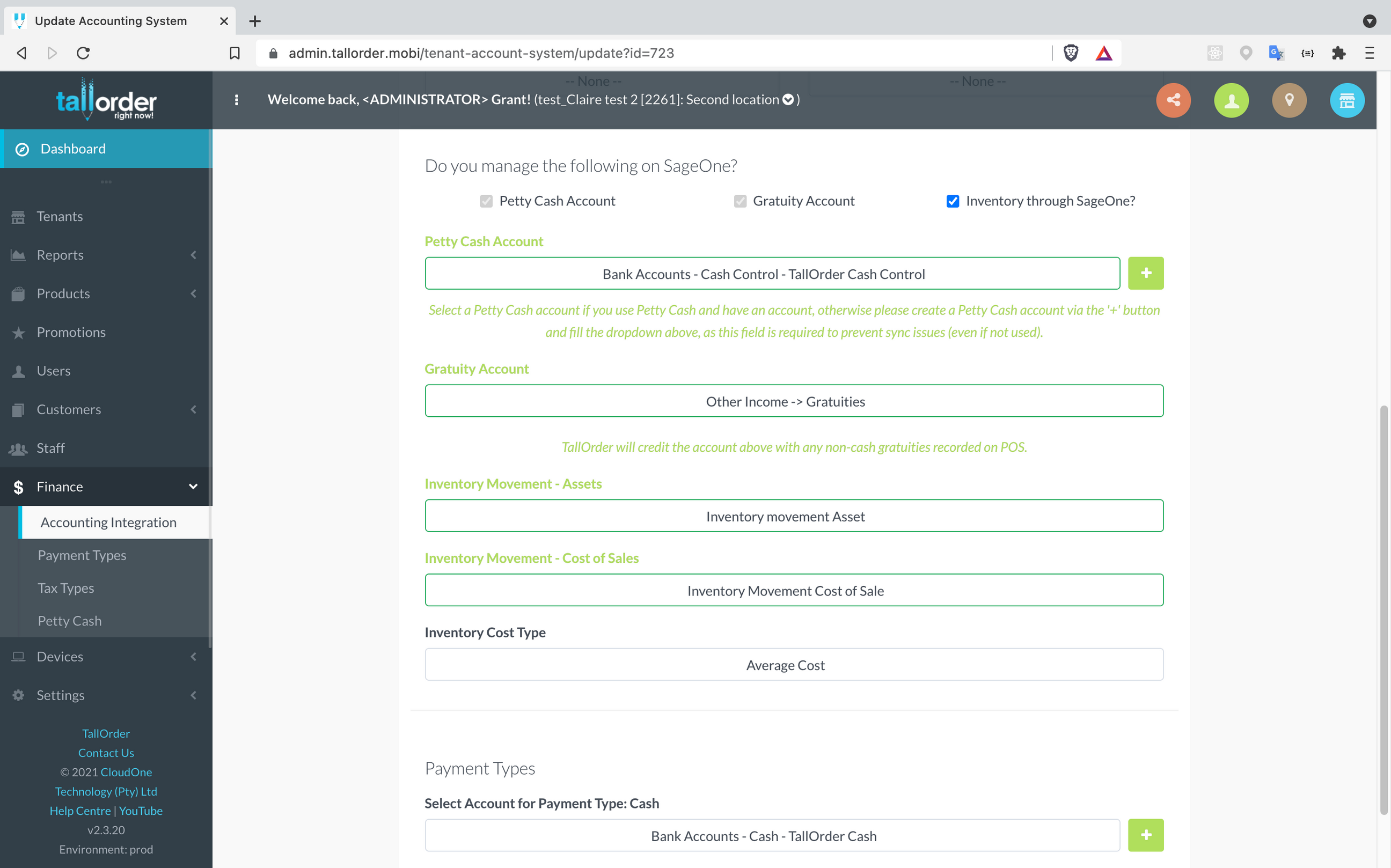
Save and update.
You can now sync your customers, suppliers and items.
Watch this process on our YouTube Channel
https://youtu.be/QsTC1YeoAEU