
How can we help you?
Stock issue
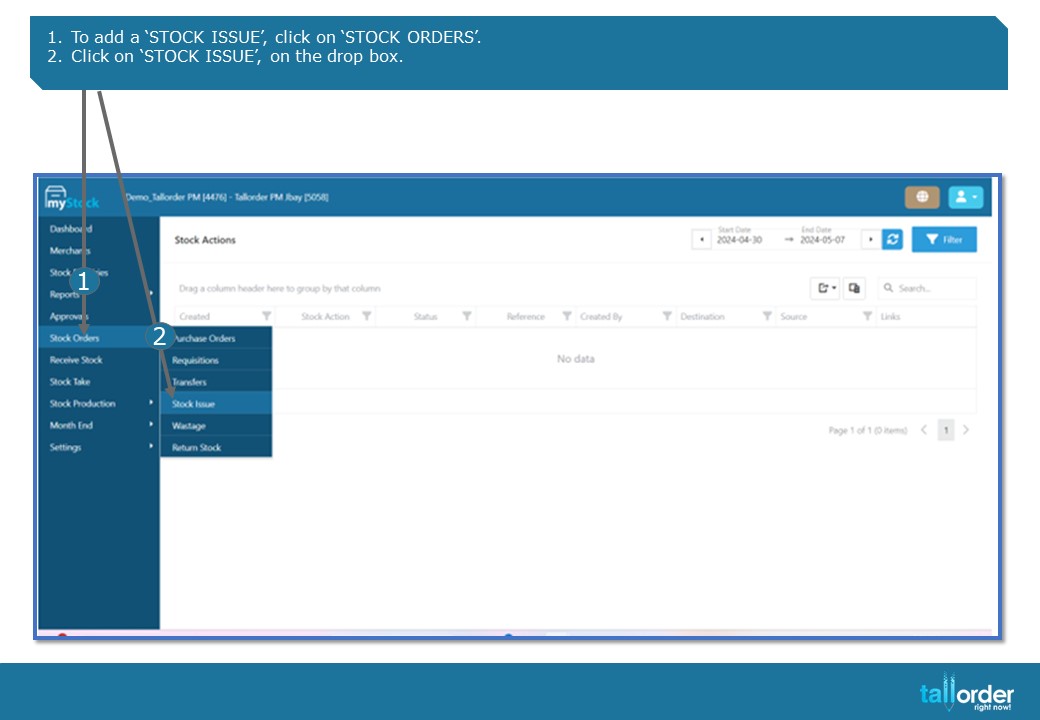
1.To add a ‘STOCK ISSUE’, click on ‘STOCK ORDERS’.
2.Click on ‘STOCK ISSUE’, on the drop box.
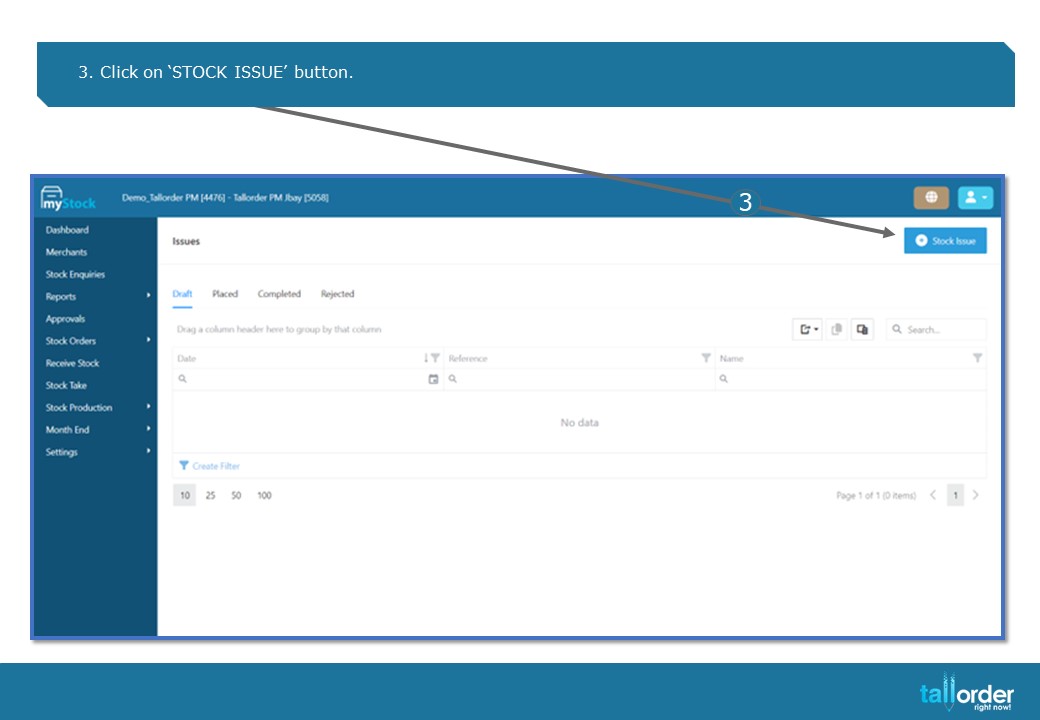
- Click on ‘STOCK ISSUE’ button.

4. Enter a name for the ‘STOCK ISSUE’ in the ‘INSERT NAME’ field

5. Select the ‘DATE’ , by clicking on the ‘DATE’ icon.
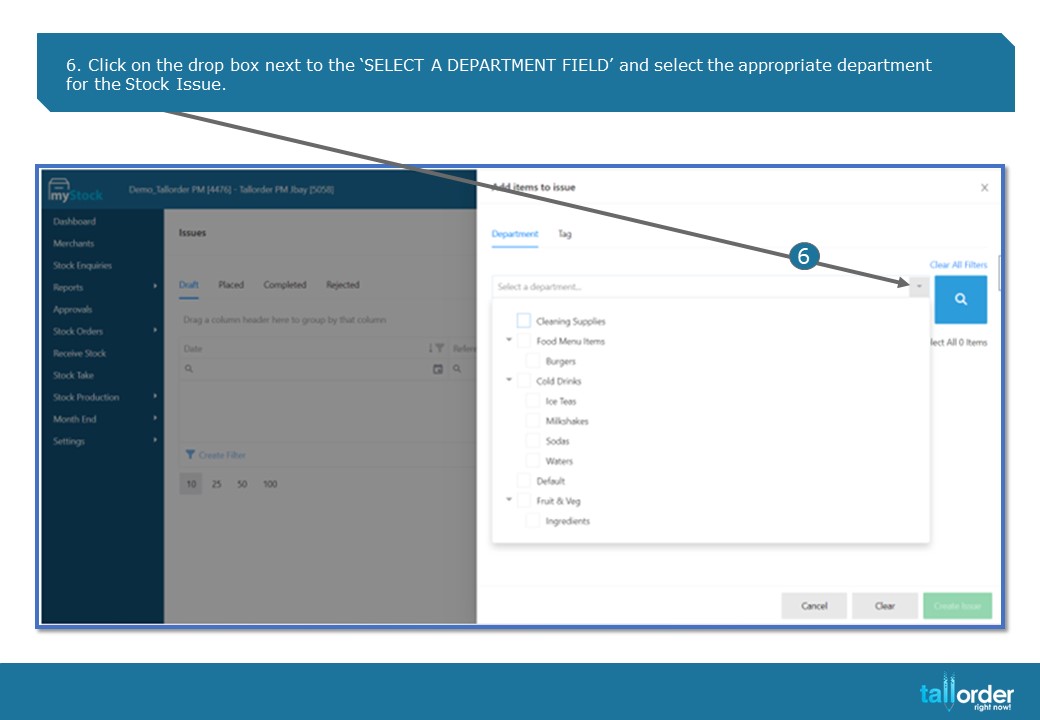
- Click on the drop box next to the ‘SELECT A DEPARTMENT FIELD’ and select the appropriate department for the Stock Issue.
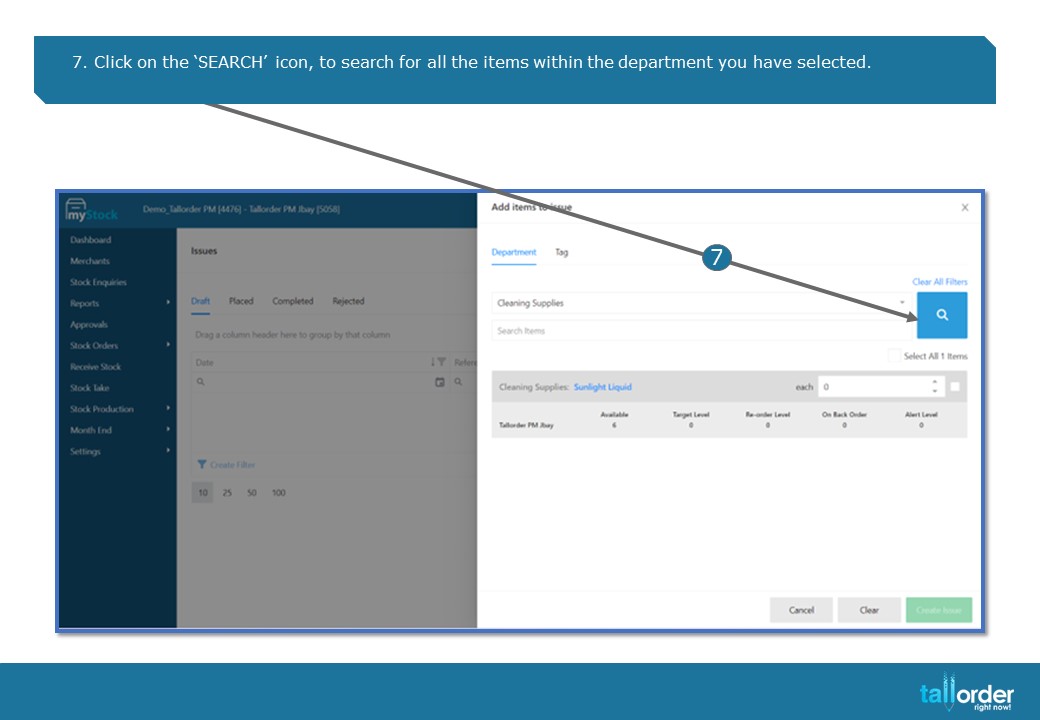
7. Click on the ‘SEARCH’ icon, to search for all the items within the department you have selected.
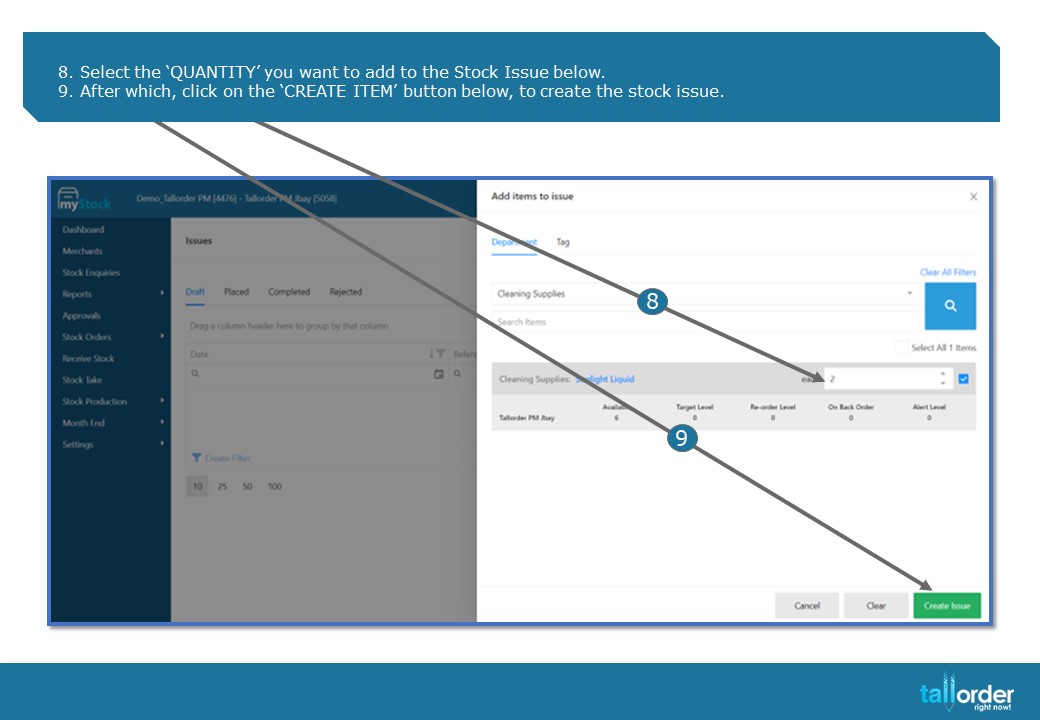
- Select the ‘QUANTITY’ you want to add to the Stock Issue below.
- After which, click on the ‘CREATE ITEM’ button below, to create the stock issue.

10. If you wish to make changes to the stock issue you have just created, click on the item below.

- You can now edit and make changes to the stock issue on the sheet below.
- After which, click the ‘DONE’ button below to return to the stock issue you have create.
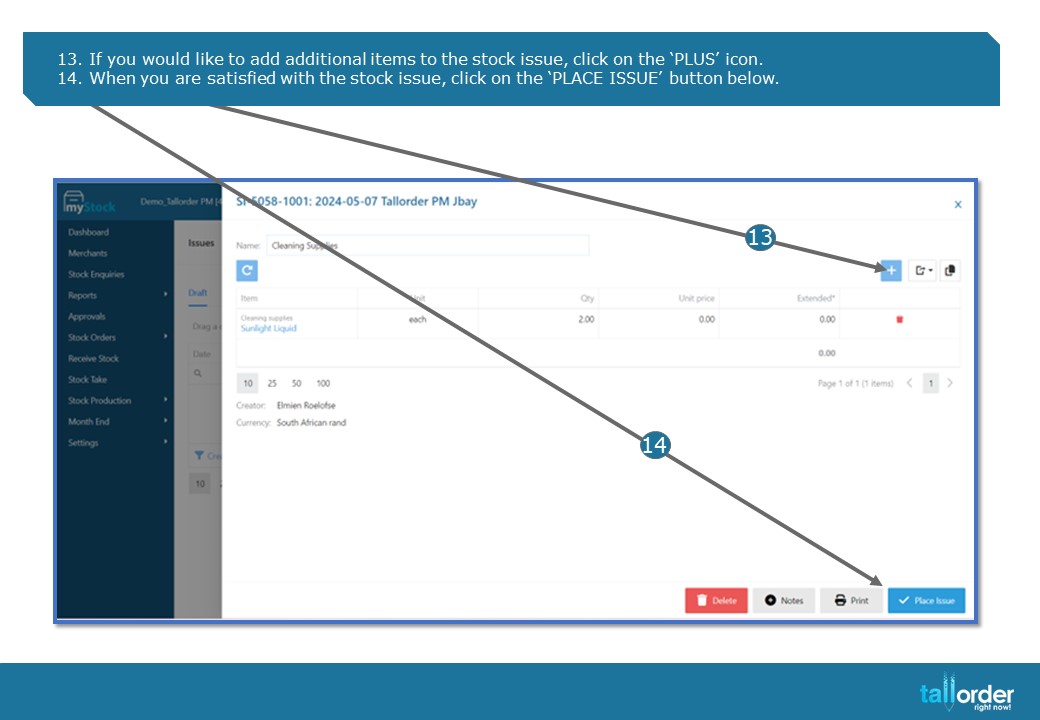
- If you would like to add additional items to the stock issue, click on the ‘PLUS’ icon.
- When you are satisfied with the stock issue, click on the ‘PLACE ISSUE’ button below.
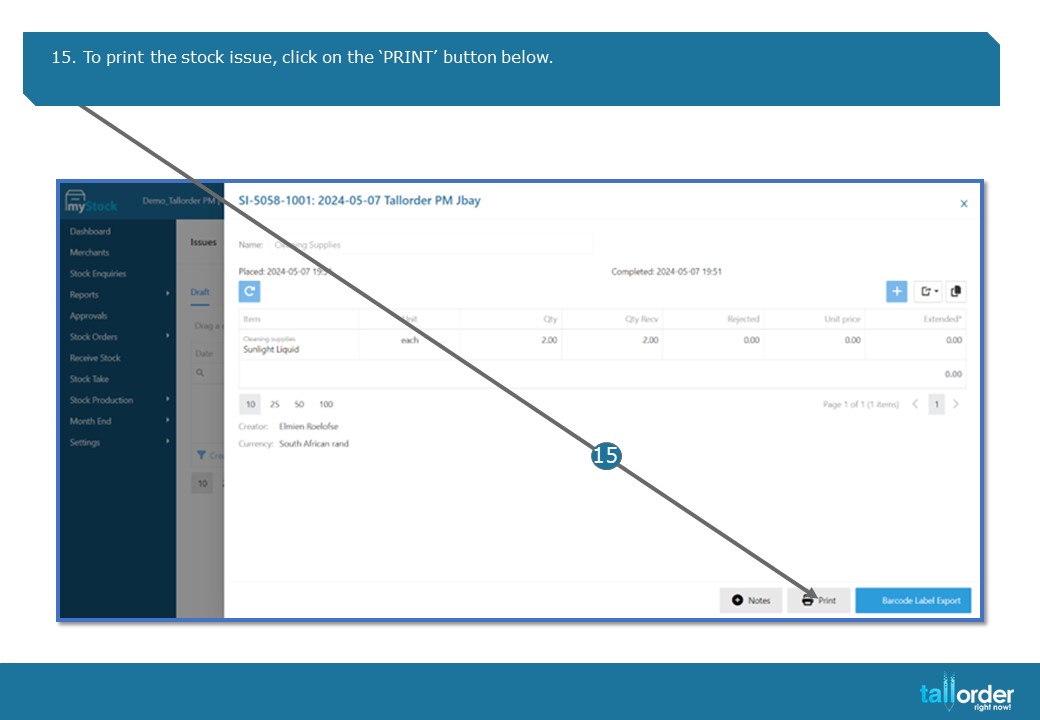
- To print the stock issue, click on the ‘PRINT’ button below.
STEP-BY-STEP BREAKDOWN
- To add a ‘STOCK ISSUE’, click on ‘STOCK ORDERS’.
- Click on ‘STOCK ISSUE’, on the drop box.
- Click on ‘STOCK ISSUE’ button.
- Enter a name for the ‘STOCK ISSUE’ in the ‘INSERT NAME’ field.
- Select the ‘DATE’ , by clicking on the ‘DATE’ icon.
- Click on the drop box next to the ‘SELECT A DEPARTMENT FIELD’ and select the appropriate department for the Stock Issue.
- Click on the ‘SEARCH’ icon, to search for all the items within the department you have selected.
- Select the ‘QUANTITY’ you want to add to the Stock Issue below.
- After which, click on the ‘CREATE ITEM’ button below, to create the stock issue.
- If you wish to make changes to the stock issue you have just created, click on the item below.
- You can now edit and make changes to the stock issue on the sheet below.
- After which, click the ‘DONE’ button below to return to the stock issue you have create.
- If you would like to add additional items to the stock issue, click on the ‘PLUS’ icon.
- When you are satisfied with the stock issue, click on the ‘PLACE ISSUE’ button below.
- To print the stock issue, click on the ‘PRINT’ button below.