
How can we help you?
Production orders (new)
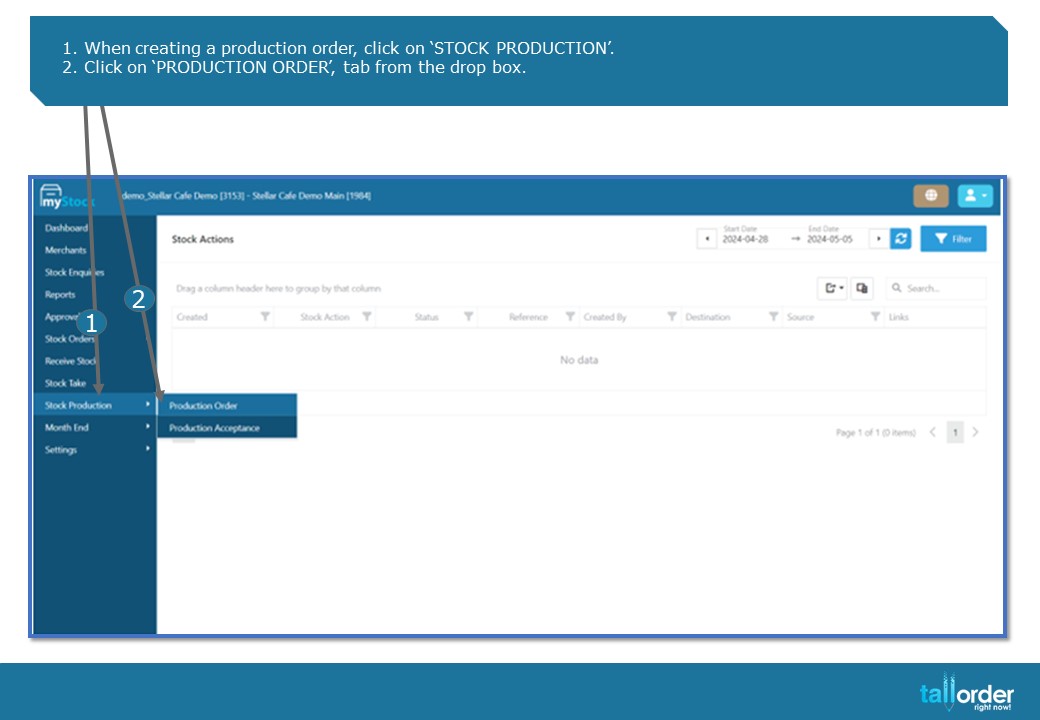
- When creating a production order, click on ‘STOCK PRODUCTION’.
- Click on ‘PRODUCTION ORDER’, tab from the drop box.
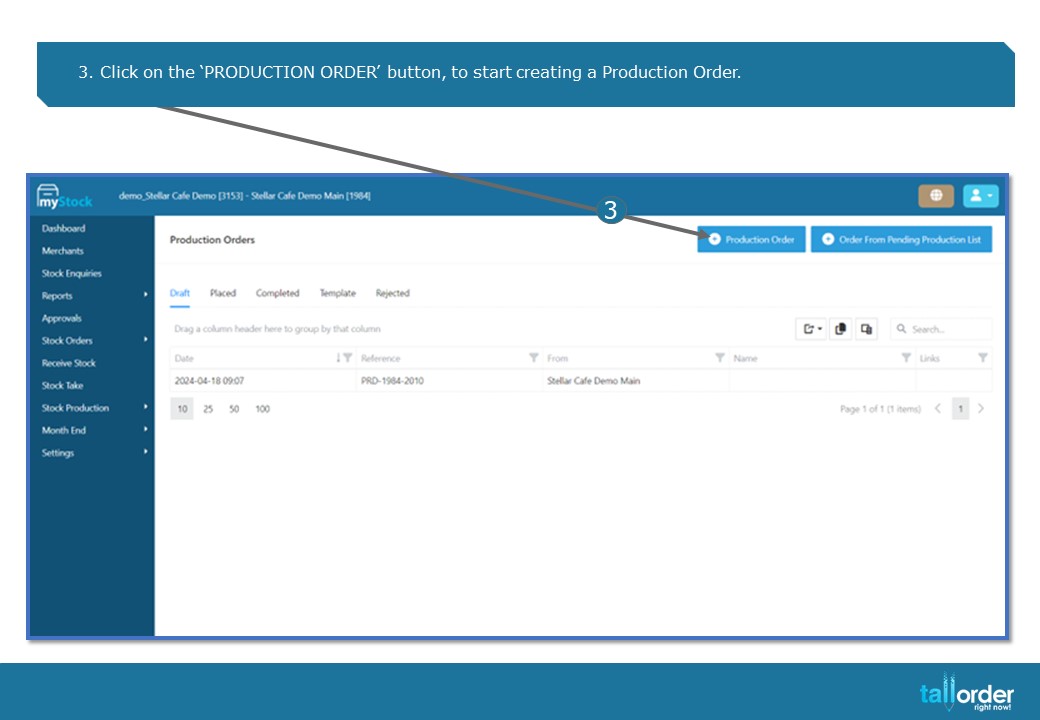
- Click on the ‘PRODUCTION ORDER’ button, to start creating a Production Order.
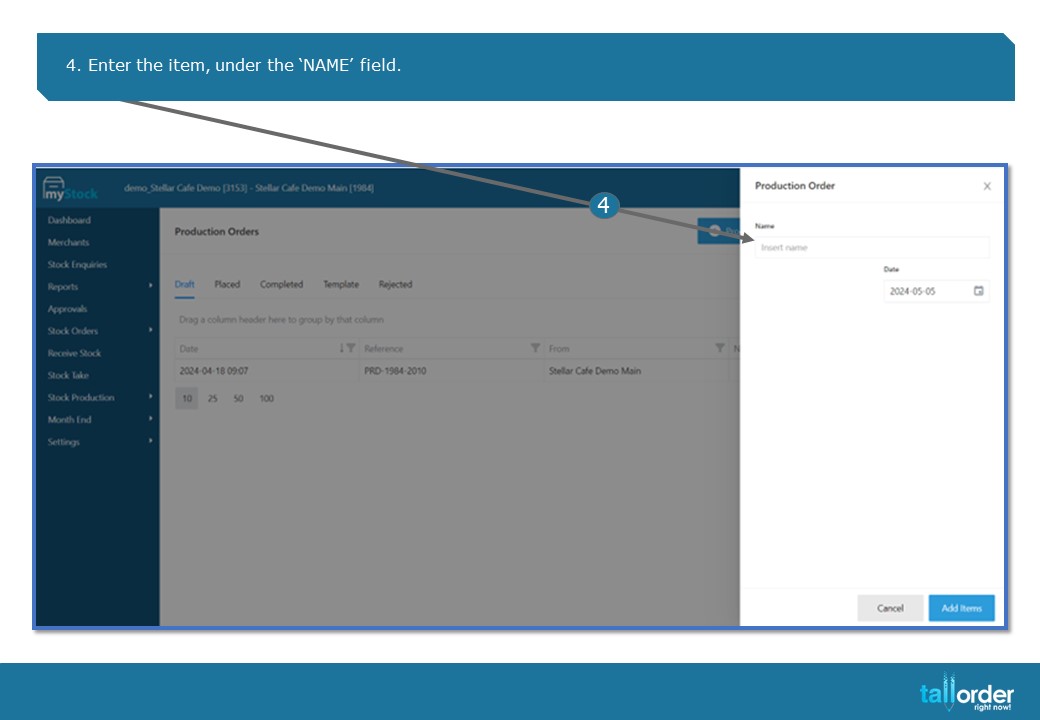
- Enter the item, under the ‘NAME’ field.

- Select the date, by clicking on the ‘DATE’ icon.
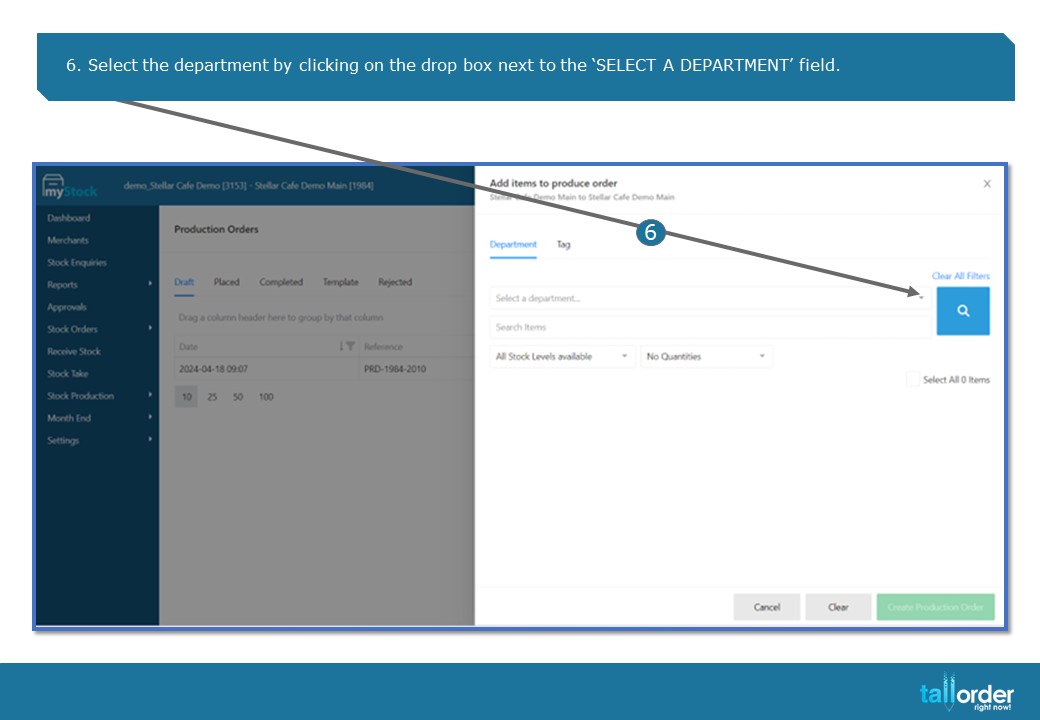
6. Select the department by clicking on the drop box next to the ‘SELECT A DEPARTMENT’ field.
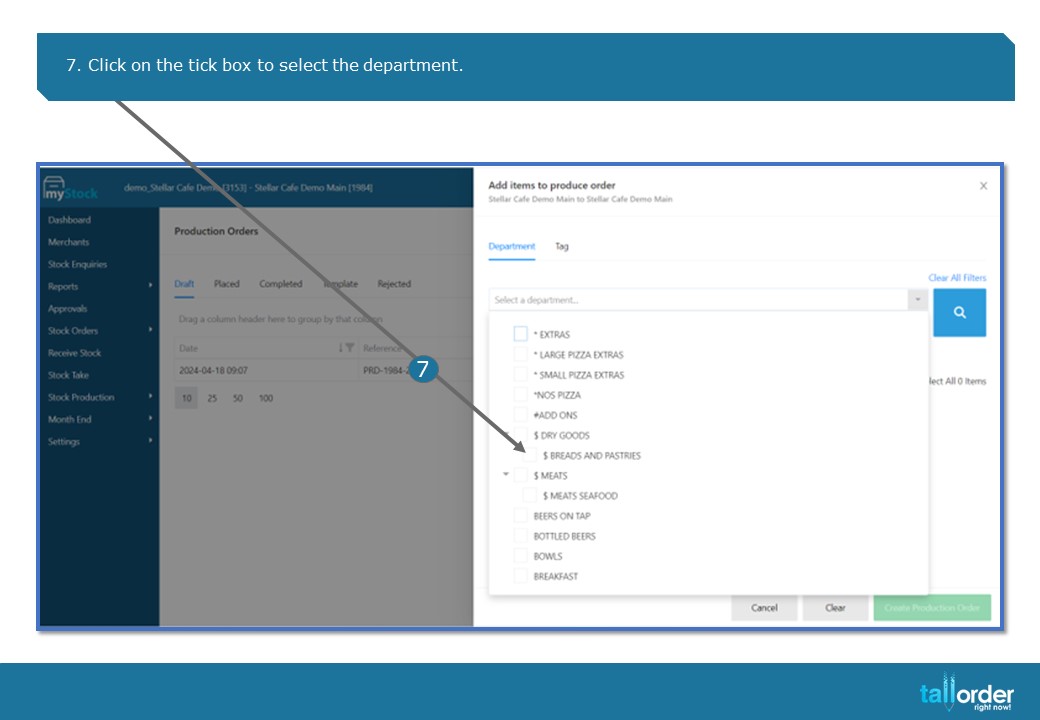
- Click on the tick box to select the department.

- Type the item into the ‘SEARCH ITEM’ field.
- Click on the ‘SEARCH’ icon.
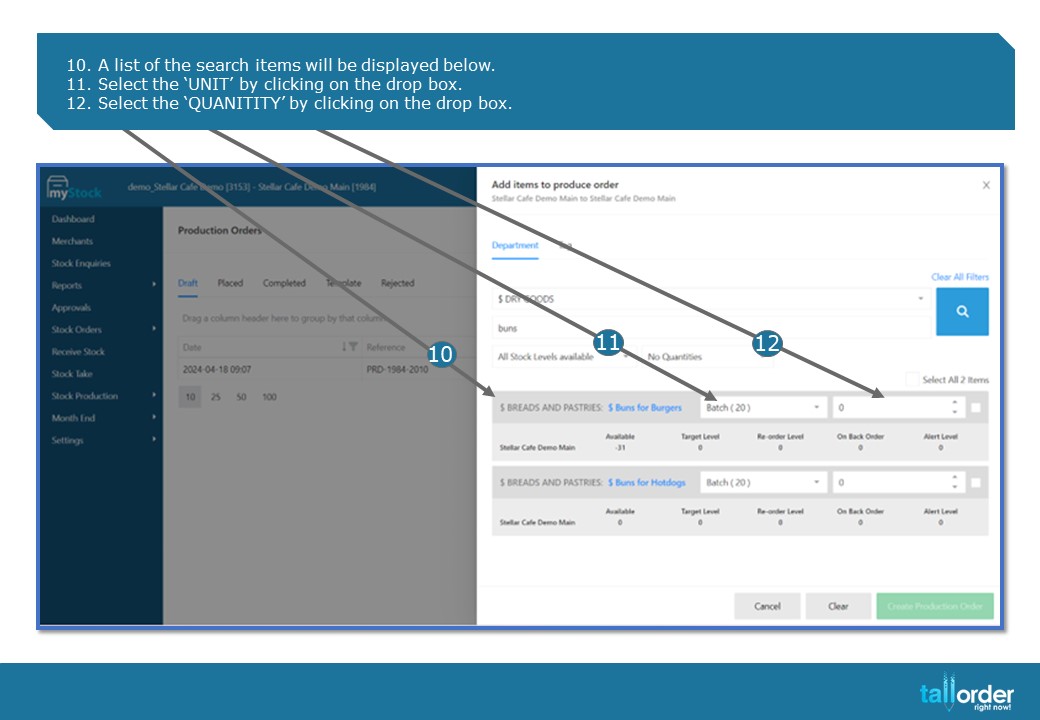
- A list of the search items will be displayed below.
- Select the ‘UNIT’ by clicking on the drop box.
- Select the ‘QUANITITY’ by clicking on the drop box.

- After entering the data in the above fields, click on ‘CREATE PRODUCTION ORDER’.
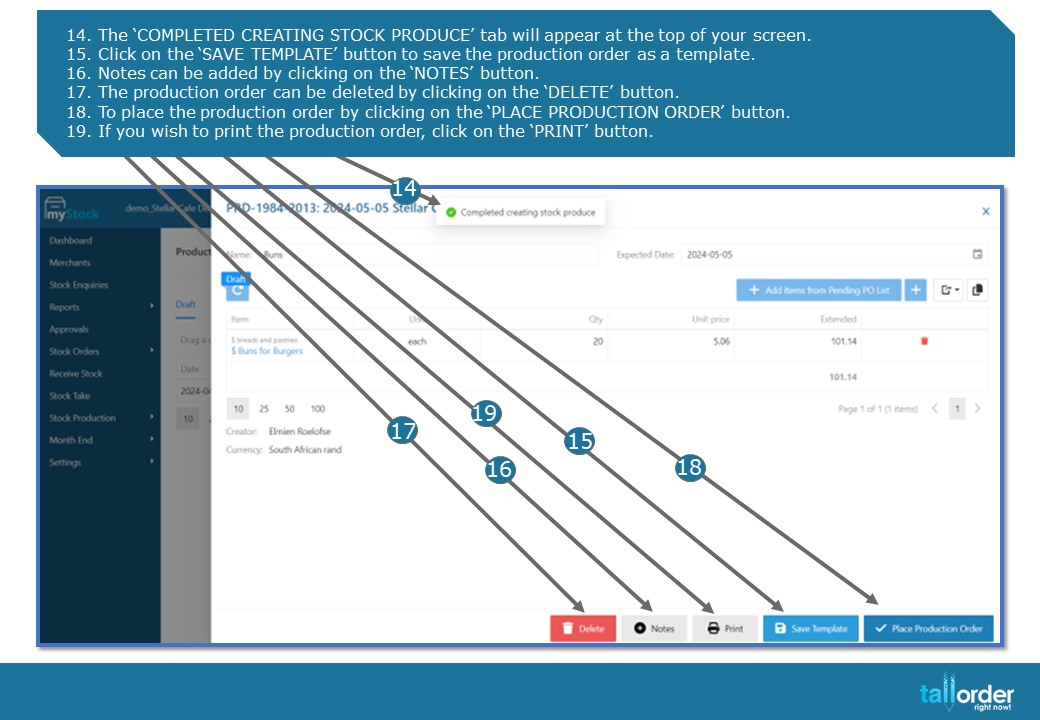
- The ‘COMPLETED CREATING STOCK PRODUCE’ tab will appear at the top of your screen.
- Click on the ‘SAVE TEMPLATE’ button to save the production order as a template.
- Notes can be added by clicking on the ‘NOTES’ button.
- The production order can be deleted by clicking on the ‘DELETE’ button.
- To place the production order by clicking on the ‘PLACE PRODUCTION ORDER’ button.
- If you wish to print the production order, click on the ‘PRINT’ button.

- A page will open displaying the ingredients needed to make the item and the exact quantity of each ingredient needed.
- Click the ‘PRINT’ button to print the full breakdown.
- Finally, click ‘PLACE PRODUCTION ORDER’.
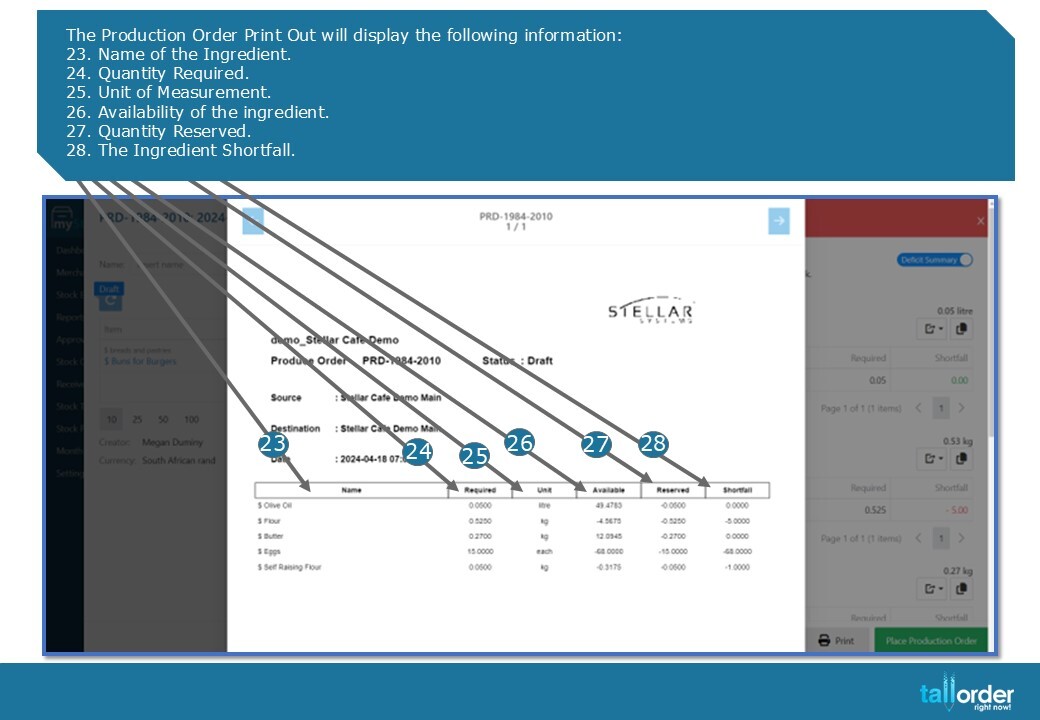
The Production Order Print Out will display the following information:
- Name of the Ingredient.
- Quantity Required.
- Unit of Measurement.
- Availability of the ingredient.
- Quantity Reserved.
- The Ingredient Shortfall.
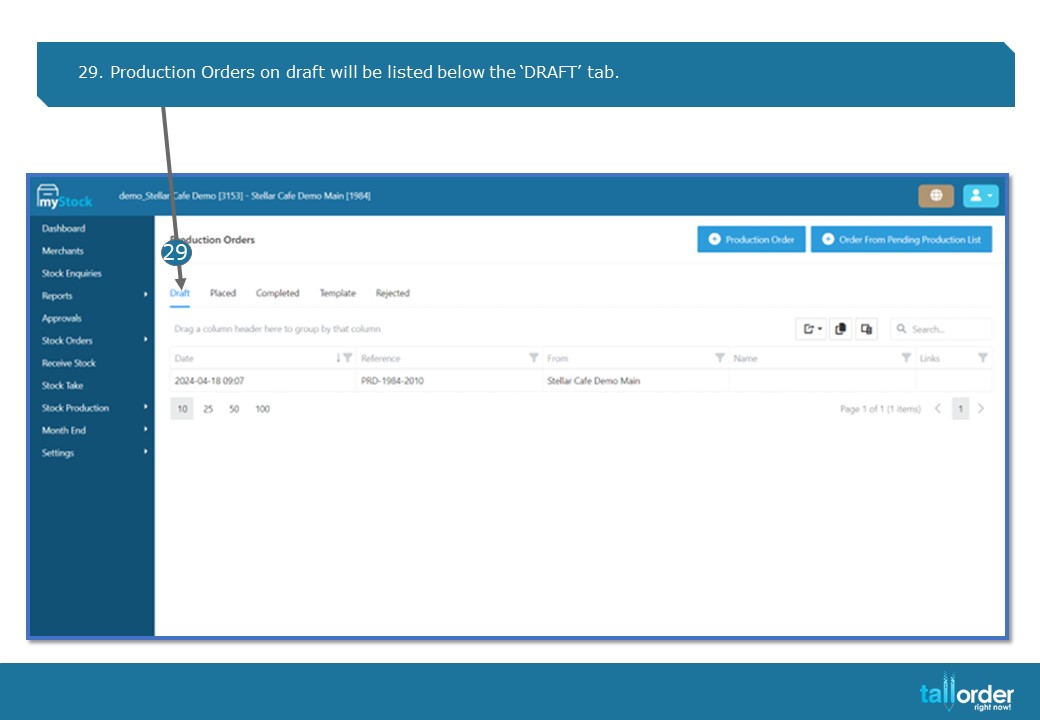
- Production Orders on draft will be listed below the ‘DRAFT’ tab.
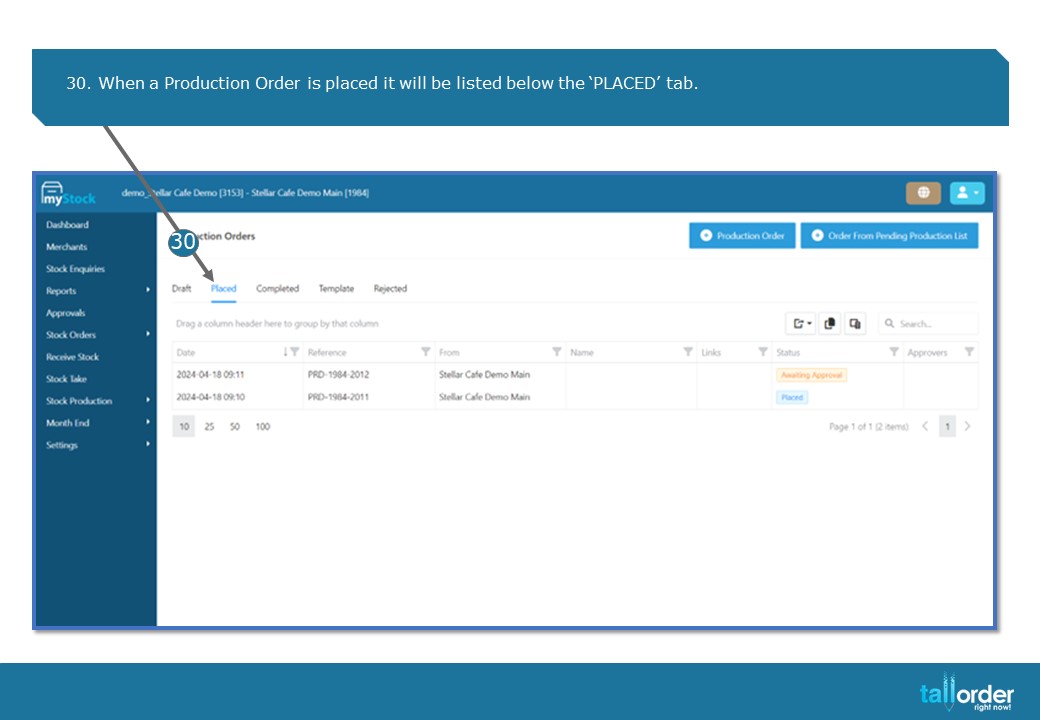
- When a Production Order is placed it will be listed below the ‘PLACED’ tab.
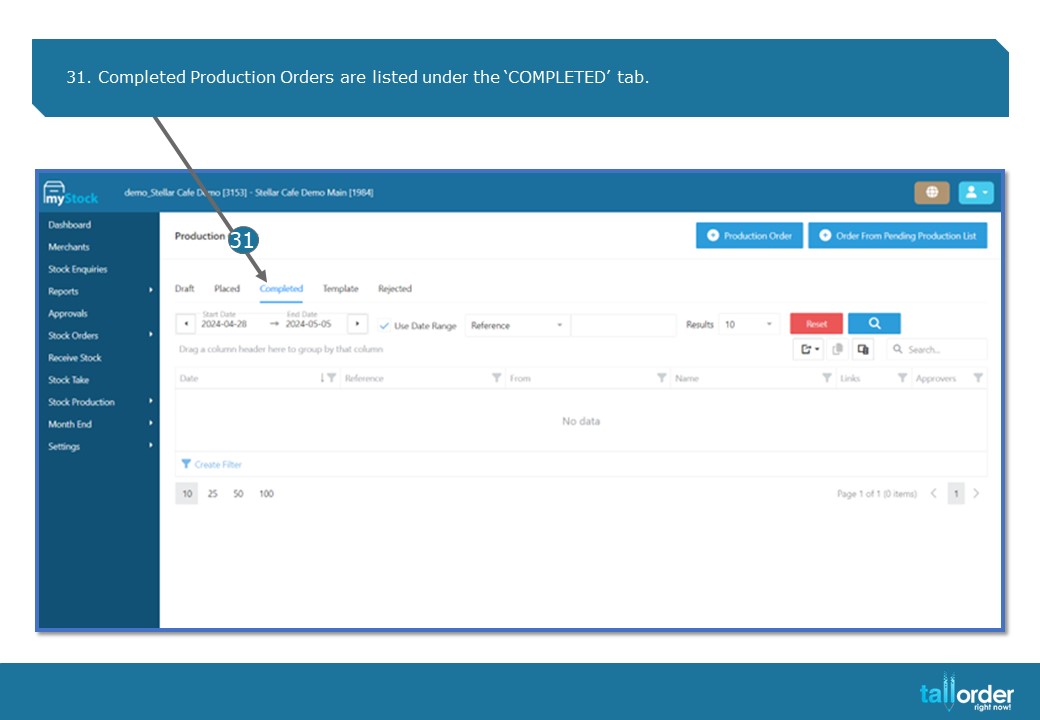
- Completed Production Orders are listed under the ‘COMPLETED’ tab.
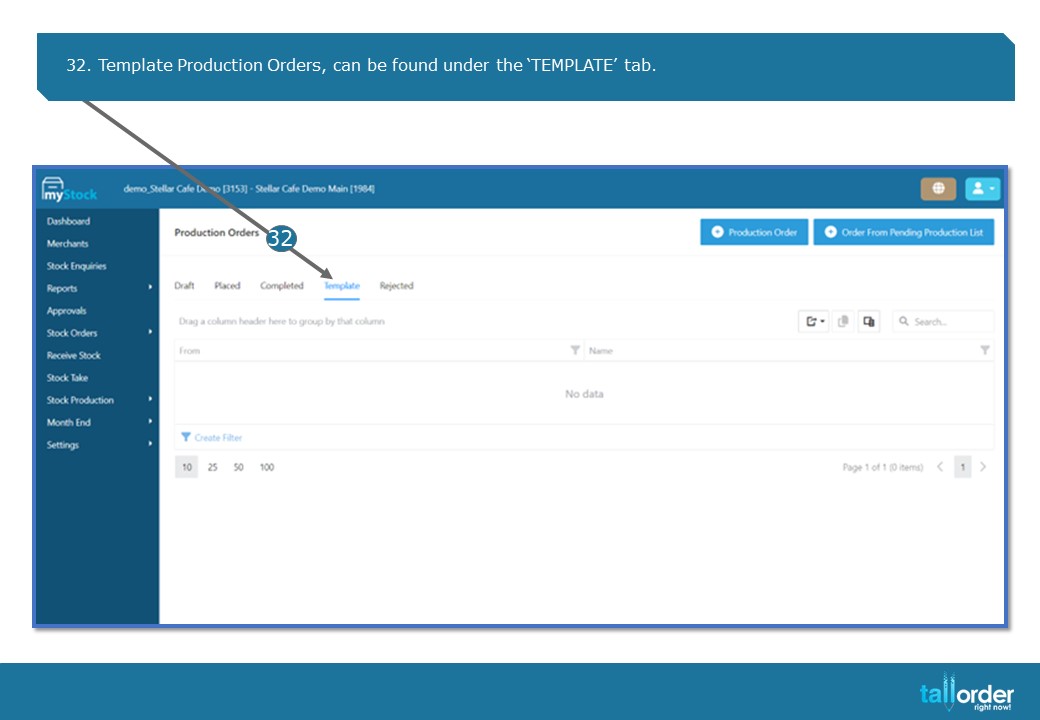
- Template Production Orders, can be found under the ‘TEMPLATE’ tab.
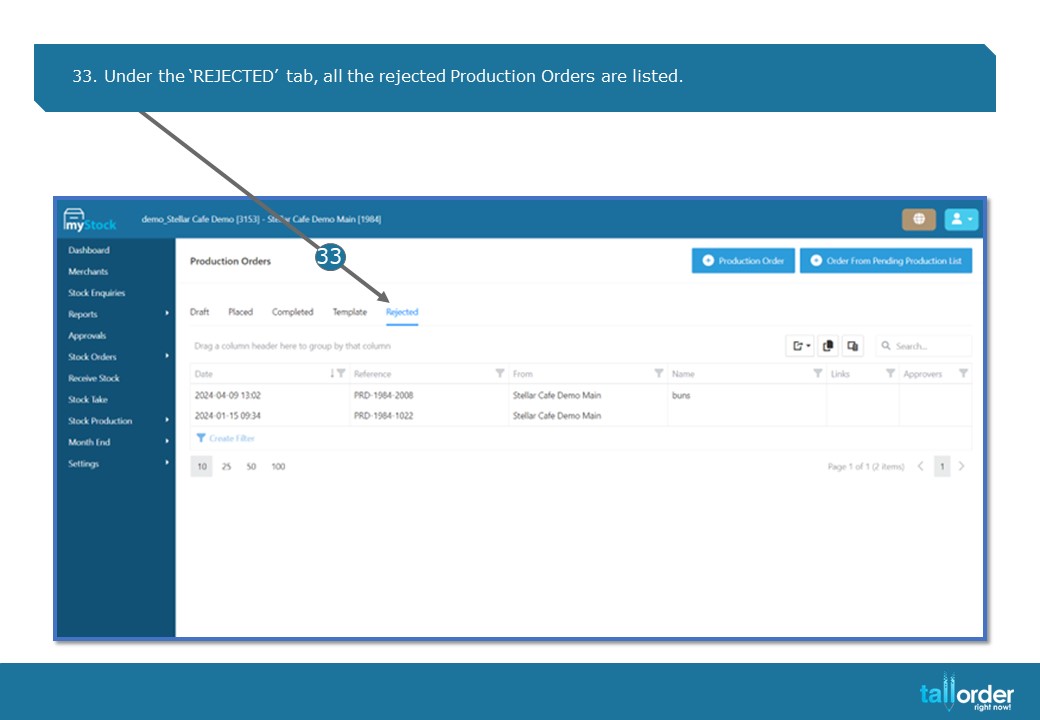
- Under the ‘REJECTED’ tab, all the rejected Production Orders are listed.
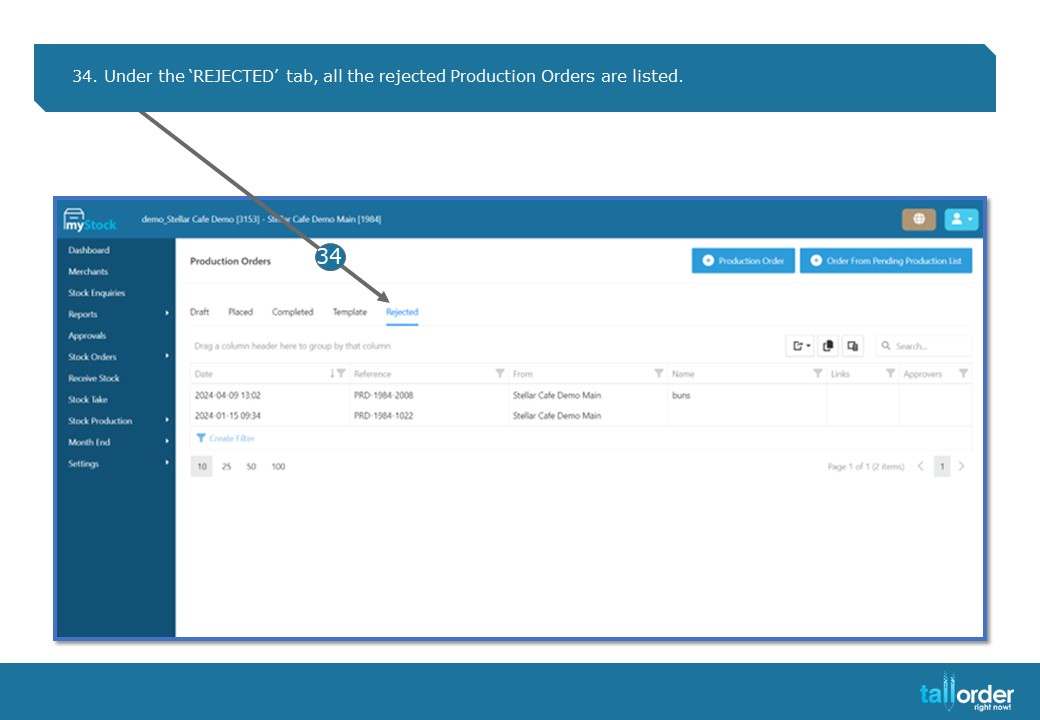
- Under the ‘REJECTED’ tab, all the rejected Production Orders are listed.
STEP-BY-STEP BREAKDOWN
- When creating a production order, click on ‘STOCK PRODUCTION’.
- Click on ‘PRODUCTION ORDER’, tab from the drop box.
- Click on the ‘PRODUCTION ORDER’ button, to start creating a Production Order.
- Enter the item, under the ‘NAME’ field.
- Select the date, by clicking on the ‘DATE’ icon.
- Select the department by clicking on the drop box next to the ‘SELECT A DEPARTMENT’ field.
- Click on the tick box to select the department.
- Type the item into the ‘SEARCH ITEM’ field.
- Click on the ‘SEARCH’ icon.
- A list of the search items will be displayed below.
- Select the ‘UNIT’ by clicking on the drop box.
- Select the ‘QUANITITY’ by clicking on the drop box.
- After entering the data in the above fields, click on ‘CREATE PRODUCTION ORDER’.
- The ‘COMPLETED CREATING STOCK PRODUCE’ tab will appear at the top of your screen.
- Click on the ‘SAVE TEMPLATE’ button to save the production order as a template.
- Notes can be added by clicking on the ‘NOTES’ button.
- The production order can be deleted by clicking on the ‘DELETE’ button.
- To place the production order by clicking on the ‘PLACE PRODUCTION ORDER’ button.
- If you wish to print the production order, click on the ‘PRINT’ button.
- A page will open displaying the ingredients needed to make the item and the exact quantity of each ingredient needed.
- Click the ‘PRINT’ button to print the full breakdown.
- Finally, click ‘PLACE PRODUCTION ORDER’.
The Production Order Print Out will display the following information:
- Name of the Ingredient.
- Quantity Required.
- Unit of Measurement.
- Availability of the ingredient.
- Quantity Reserved.
- The Ingredient Shortfall.
- Production Orders on draft will be listed below the ‘DRAFT’ tab.
- When a Production Order is placed it will be listed below the ‘PLACED’ tab.
- Completed Production Orders are listed under the ‘COMPLETED’ tab.
- Template Production Orders, can be found under the ‘TEMPLATE’ tab.
- Under the ‘REJECTED’ tab, all the rejected Production Orders are listed.
- Under the ‘REJECTED’ tab, all the rejected Production Orders are listed.