
How can we help you?
-
myStock
-
- Articles coming soon
-
- Adding Product Recipes and Viewing Items
- Adding recipes
- Bulk settings
- Edit active menu pricing
- How to add products
- How to edit products (average cost, recipes and more)
- How to print barcodes from myStock
- How to review stock movements in stock enquiries
- How to search for products
- Stock Enquiries Grid Edit
- When to use stock enquiries
- Show Remaining Articles (1) Collapse Articles
-
- Articles coming soon
-
-
- Articles coming soon
-
- Articles coming soon
-
- Articles coming soon
-
- Articles coming soon
-
- Articles coming soon
-
- Articles coming soon
-
- Articles coming soon
-
-
-
- Articles coming soon
-
-
-
Accounting Integrations
-
- 01 - Requirements
- 02 - Connecting to Xero
- 03 - Integration Configuration
- 04 - Data Sync – TallOrder → Xero
- 05 - Data Sync – Xero → mySTOCK
- 06 - Product Matching & Item Creation
- 07 - Sync Monitoring & Error Handling
- 08 - Reconciliation Guidance
- 09 - Troubleshooting
- 10 - Frequently Asked Questions
- 11 - Disconnecting the Integration
- 12 - Support
- 13 - Data Flow Diagram
- Show Remaining Articles (3) Collapse Articles
-
-
TallOrder POS
-
TallOrder Add-ons
-
Features
-
FAQs
-
Merchant Settings
- Articles coming soon
-
Product Settings
- Articles coming soon
-
Customer Accounts, Loyalty & Promotions
- Articles coming soon
-
Staff Details
- Articles coming soon
-
Finance Settings
- Articles coming soon
-
POS User Guide
- Articles coming soon
-
Hardware
- Articles coming soon
-
Getting Started
- Articles coming soon
Log into myStock Manual
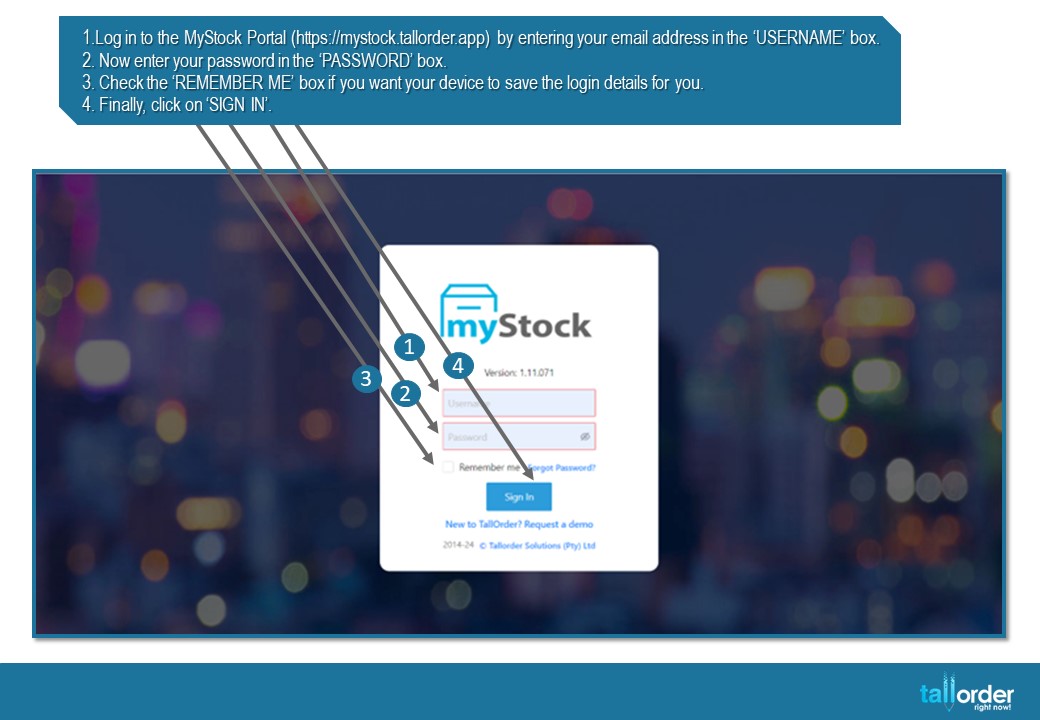
1.Log in to the MyStock Portal (https://mystock.tallorder.app) by entering your email address in the ‘USERNAME’ box.
2. Now enter your password in the ‘PASSWORD’ box.
3. Check the ‘REMEMBER ME’ box if you want your device to save the login details for you.
4. Finally, click on ‘SIGN IN’.

5. After logging in, you will be directed to the MyStock screen, which displays a list of the merchants linked to your profile.
6. Click on the merchant name you wish to work with.
7. Alternatively, you can type the merchant’s name in the search bar.
8. The merchant can also be searched for by merchant ID using the search bar.

9. The above bar will display the current merchant you are working on.
10. Click on the merchant name you wish to work with.
Step by Step Breakdown
1. Log in to the MyStock Portal (https://mystock.tallorder.app) by entering your email address in the ‘USERNAME’ box.
2. Now enter your password in the ‘PASSWORD’ box.
3. Check the ‘REMEMBER ME’ box if you want your device to save the login details for you.
4. Finally, click on ‘SIGN IN’.
5. After logging in, you will be directed to the MyStock screen, which displays a list of the merchants linked to your profile.
6. Click on the merchant name you wish to work with.
7. Alternatively, you can type the merchant’s name in the search bar.
8. The merchant can also be searched for by merchant ID using the search bar.
9. The above bar will display the current merchant you are working on.
10. Click on the merchant name you wish to work with.