
How can we help you?
Stock Returns

1.To ‘RETURN STOCK’, click on ‘STOCK ORDERS’.
2.Click on ‘RETURN STOCK’, on the drop box.
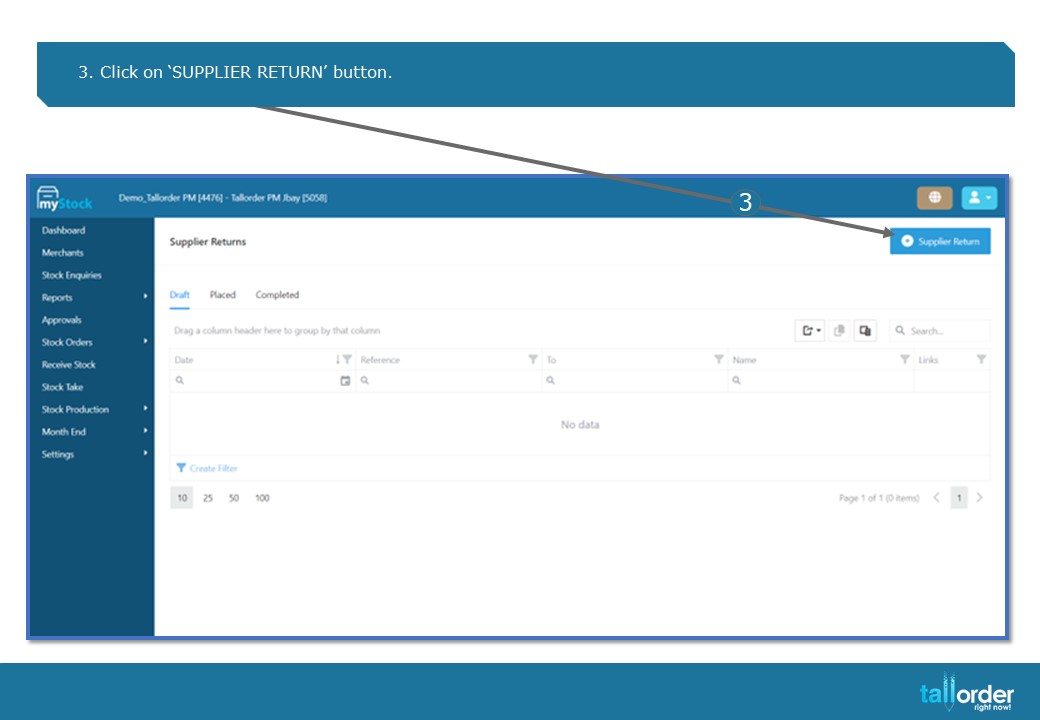
- Click on ‘SUPPLIER RETURN’ button.
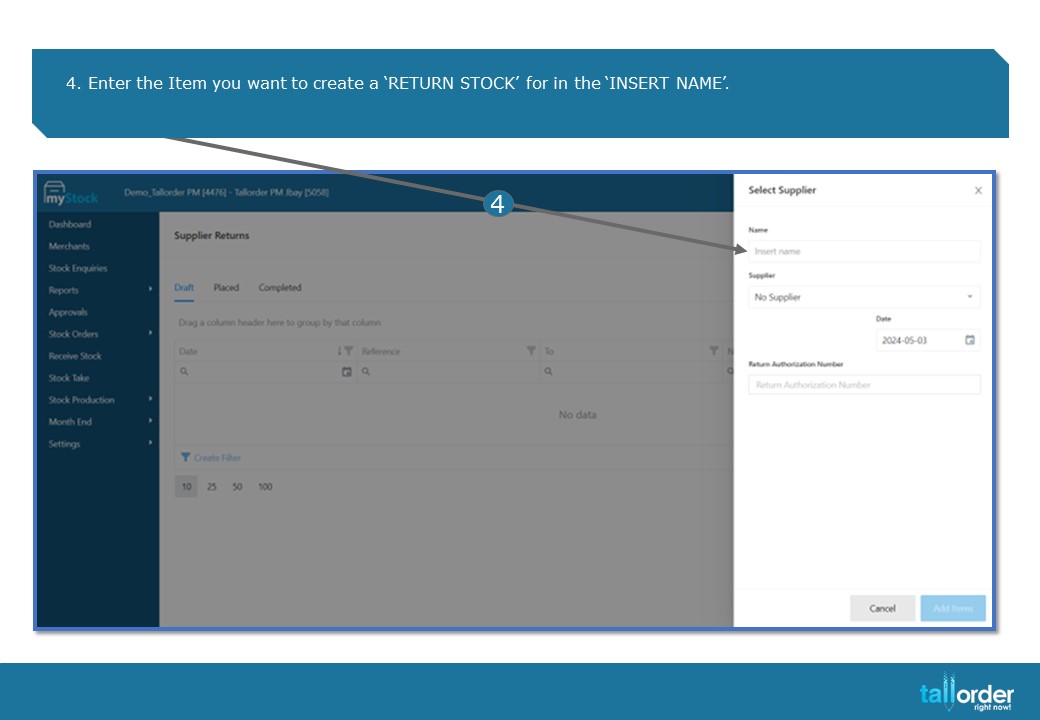
- Enter the Item you want to create a ‘RETURN STOCK’ for in the ‘INSERT NAME’.
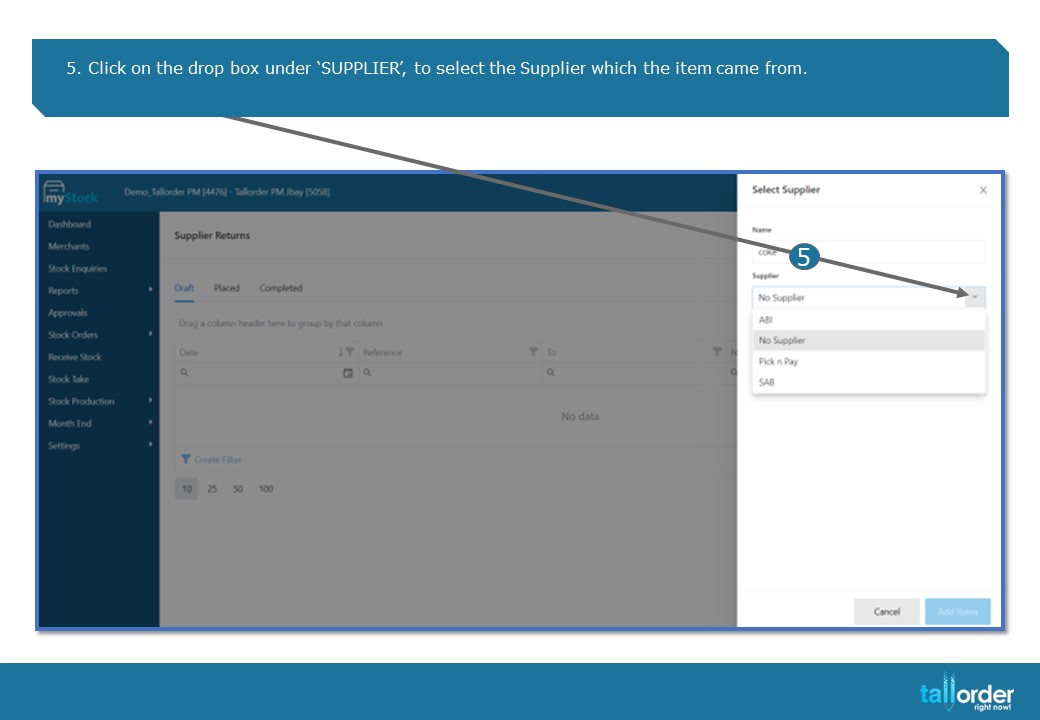
5. Click on the drop box under ‘SUPPLIER’, to select the Supplier which the item came from.
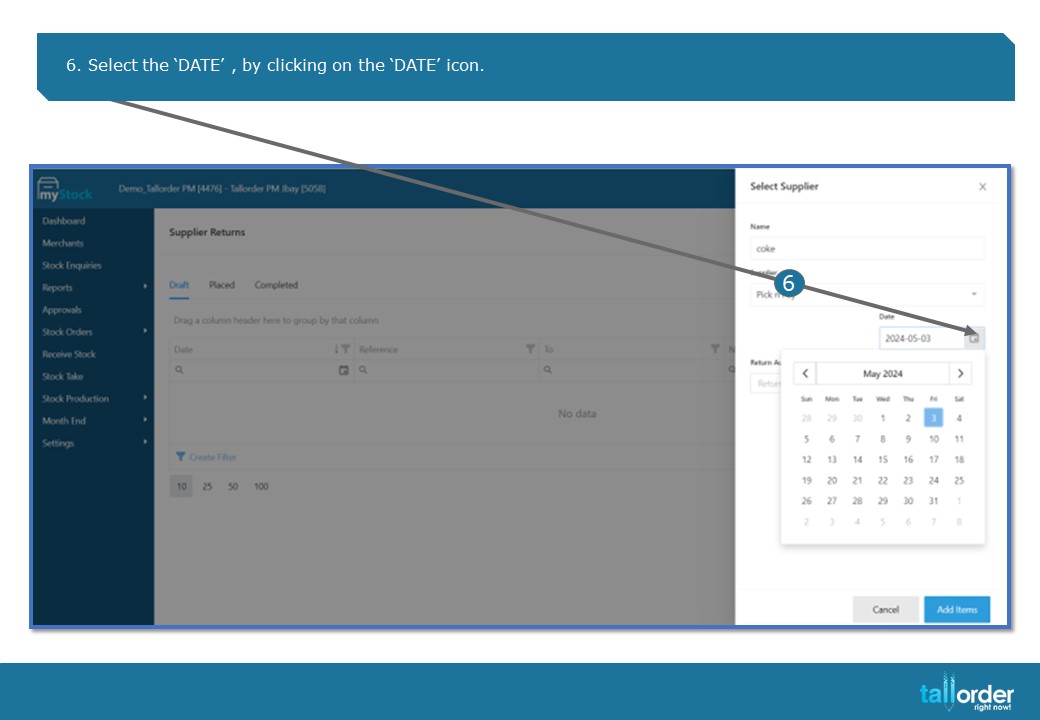
6. Select the ‘DATE’ , by clicking on the ‘DATE’ icon
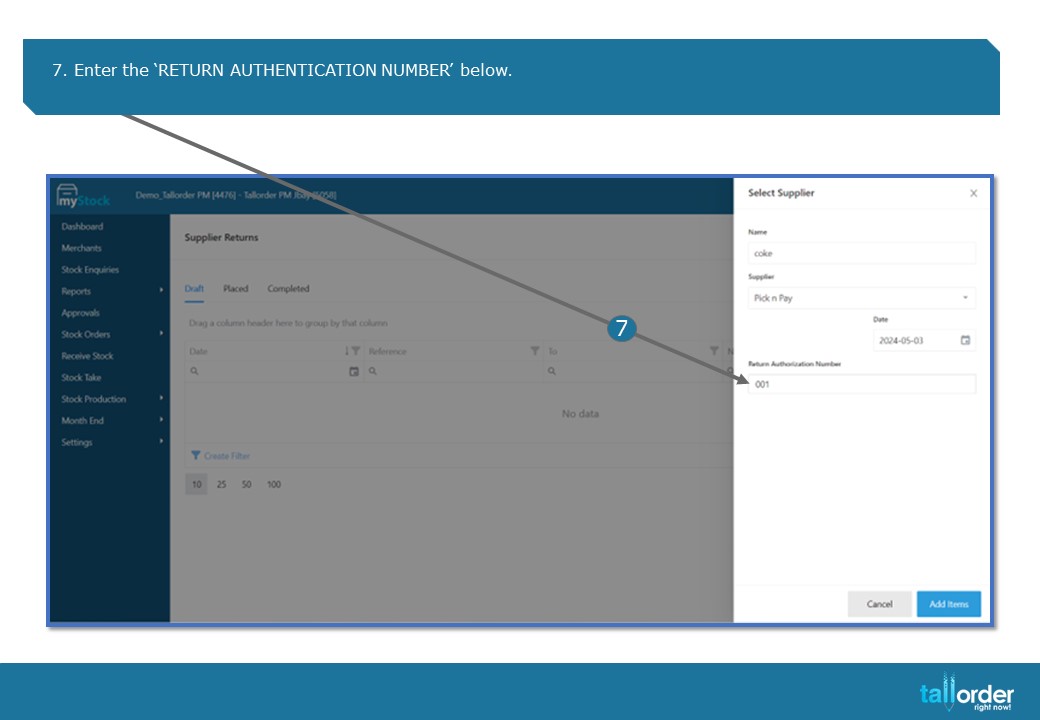
7. Enter the ‘RETURN AUTHENTICATION NUMBER’ below.
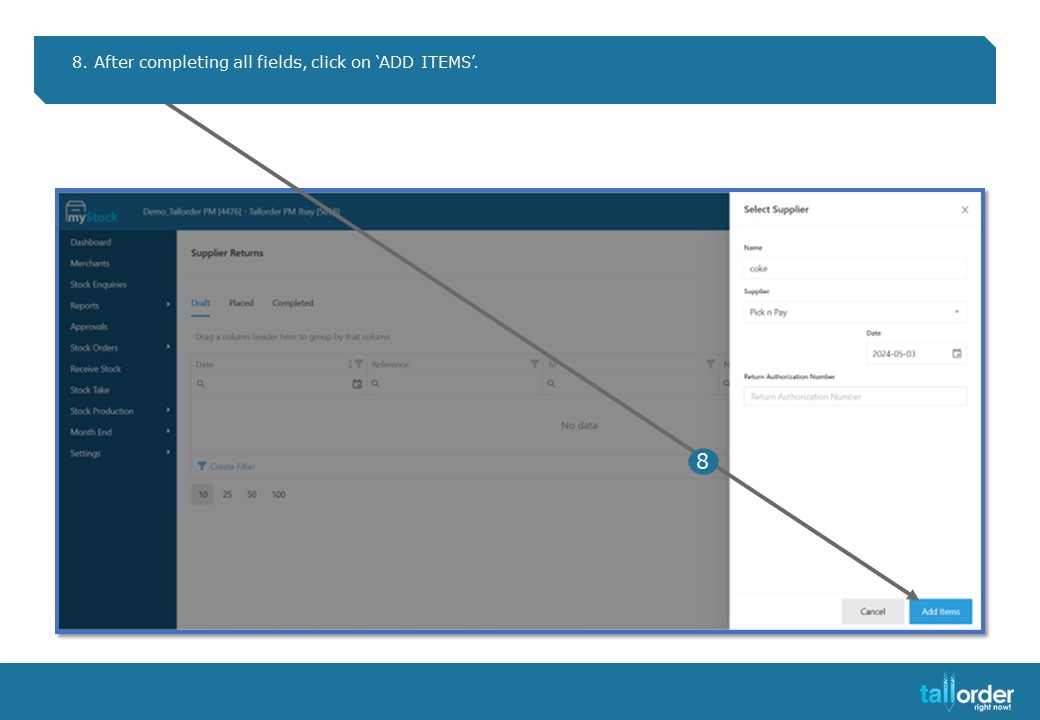
- After completing all fields, click on ‘ADD ITEMS’.
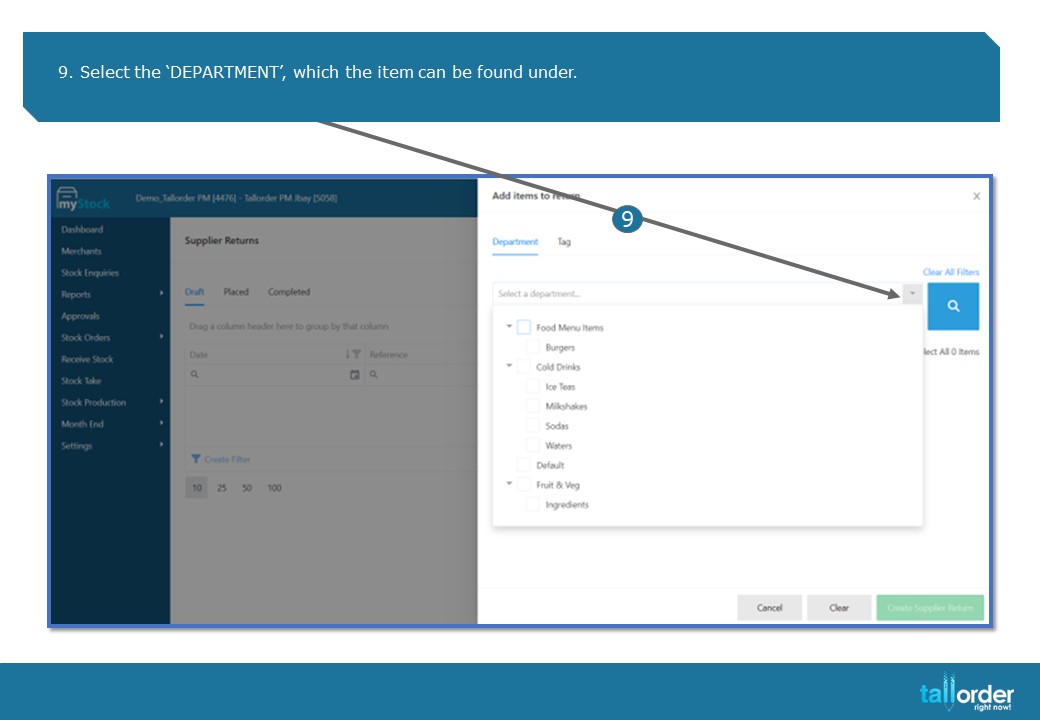
9. Select the ‘DEPARTMENT’, which the item can be found under.
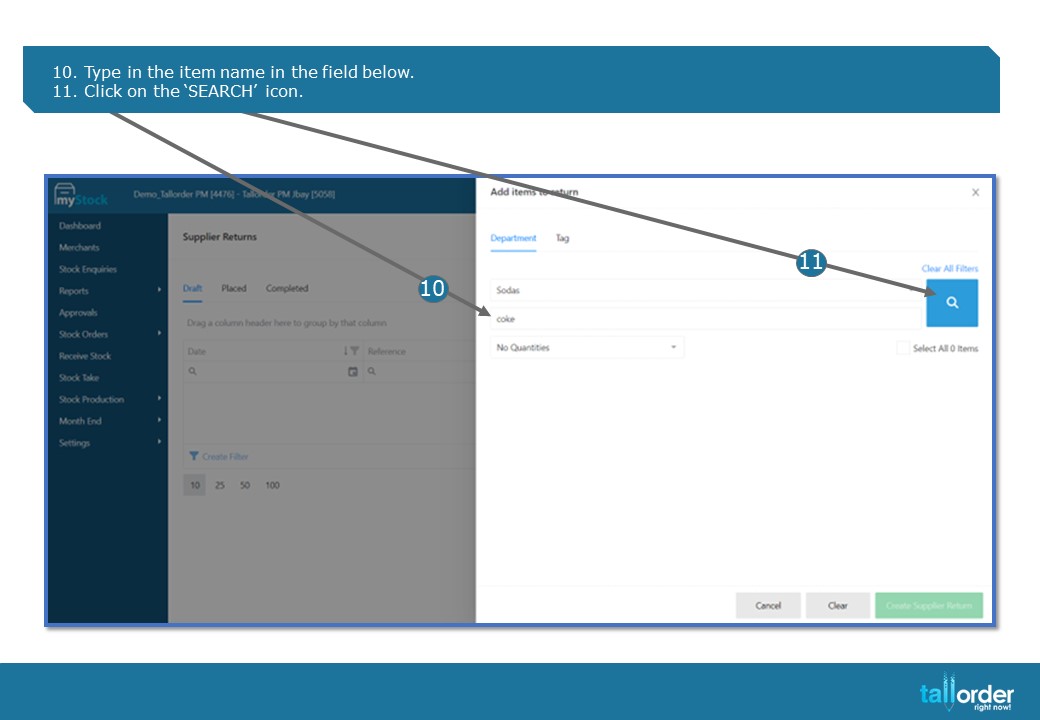
- Type in the item name in the field below.
- Click on the ‘SEARCH’ icon.
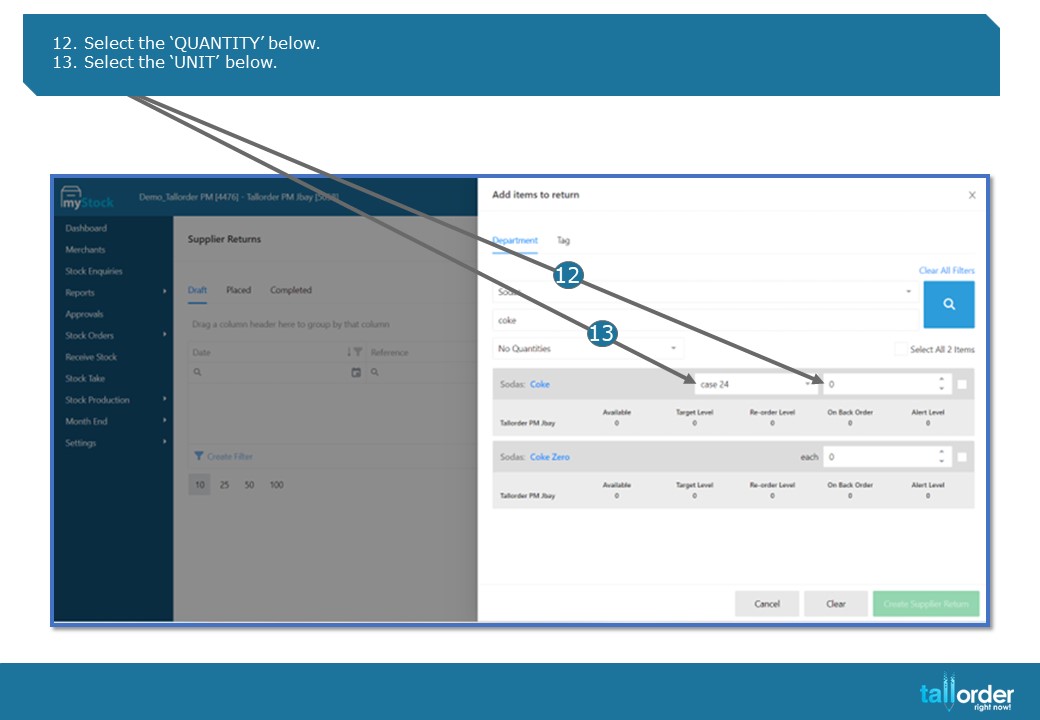
- Select the ‘QUANTITY’ below.
- Select the ‘UNIT’ below.
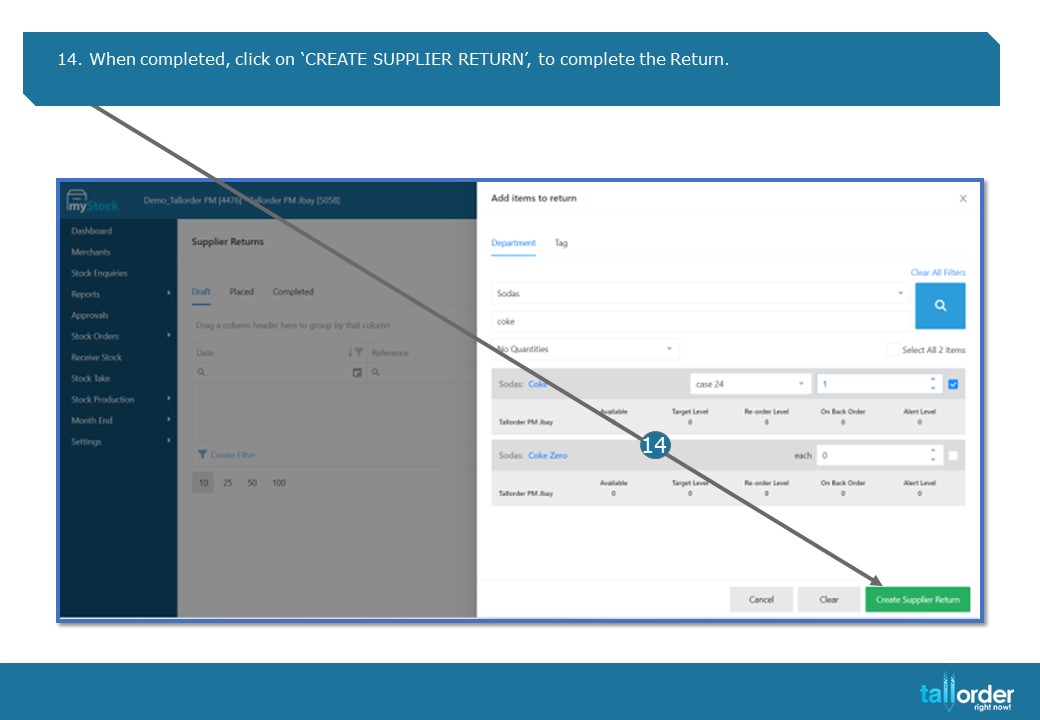
- When completed, click on ‘CREATE SUPPLIER RETURN’, to complete the Return.
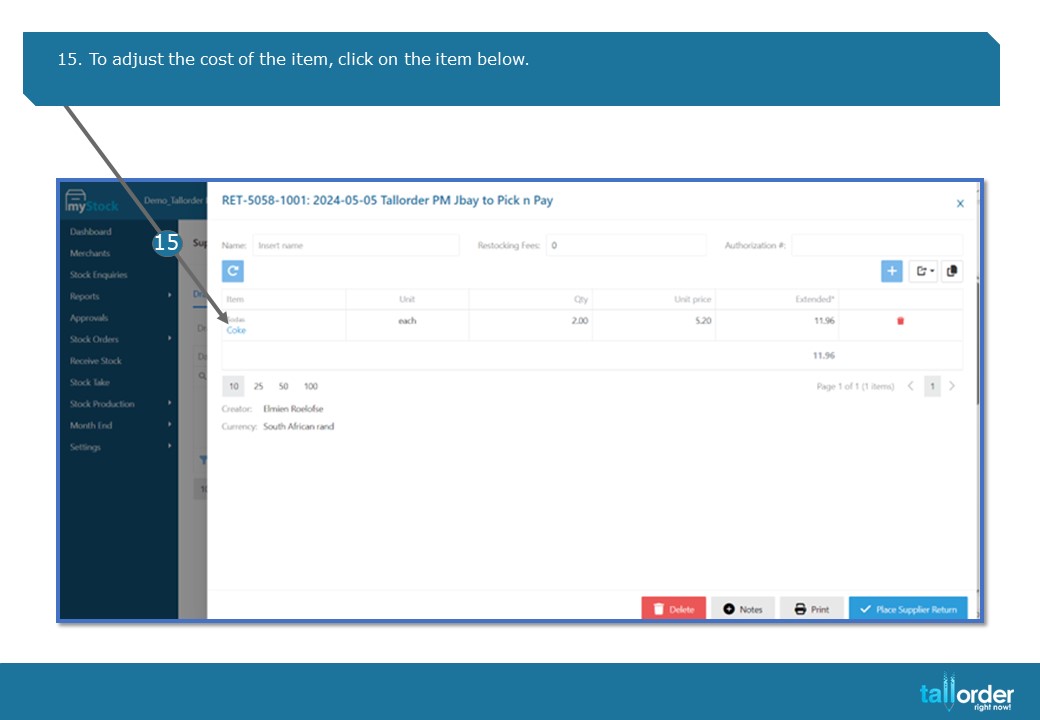
15. To adjust the cost of the item, click on the item below.
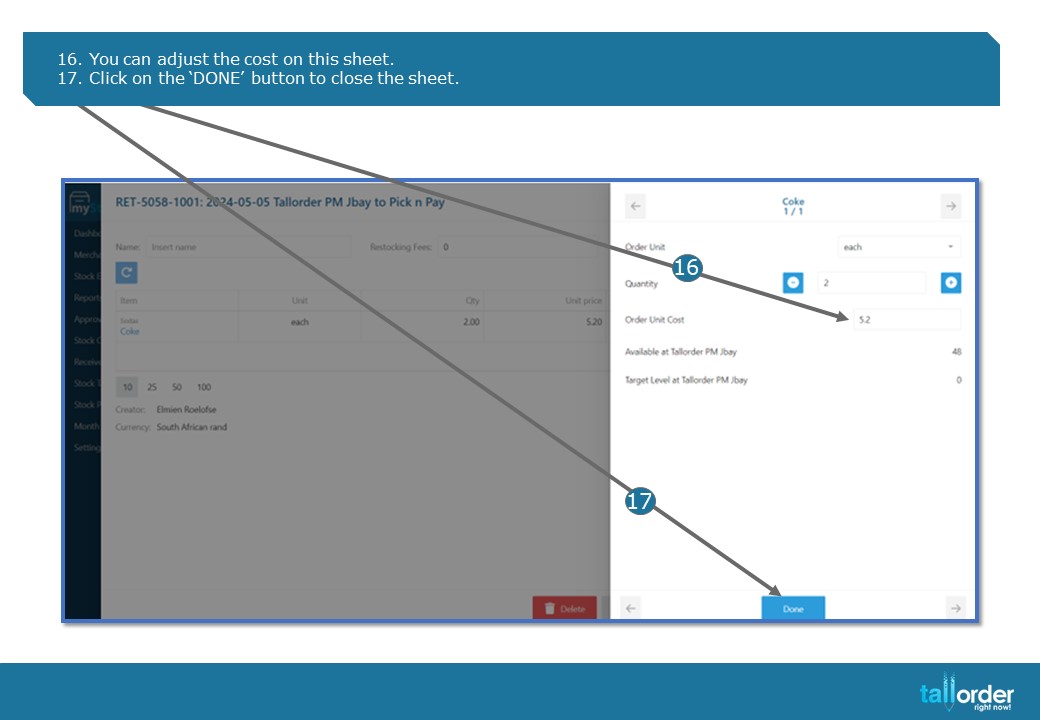
- You can adjust the cost on this sheet.
- Click on the ‘DONE’ button to close the sheet.
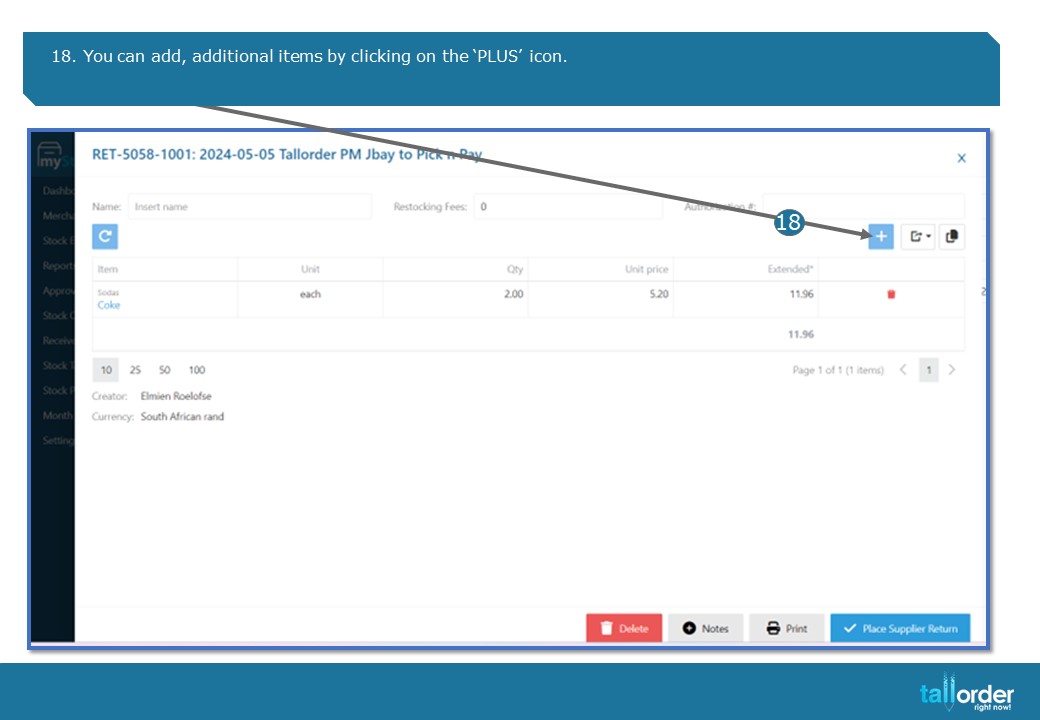
- You can add, additional items by clicking on the ‘PLUS’ icon.
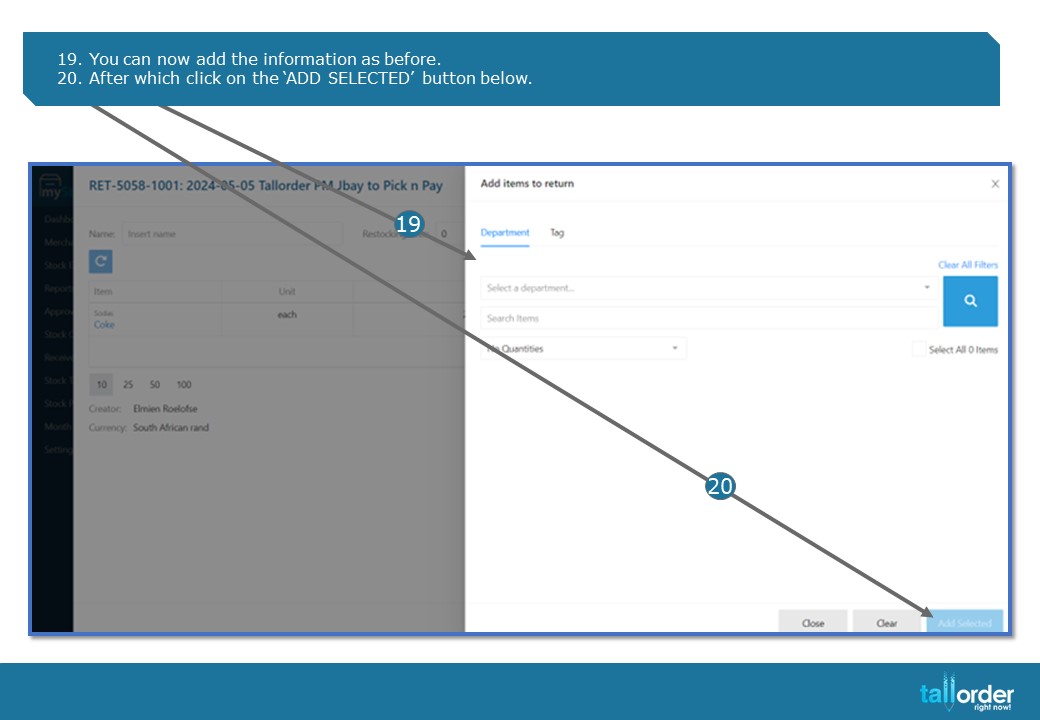
- You can now add the information as before.
- After which click on the ‘ADD SELECTED’ button below.
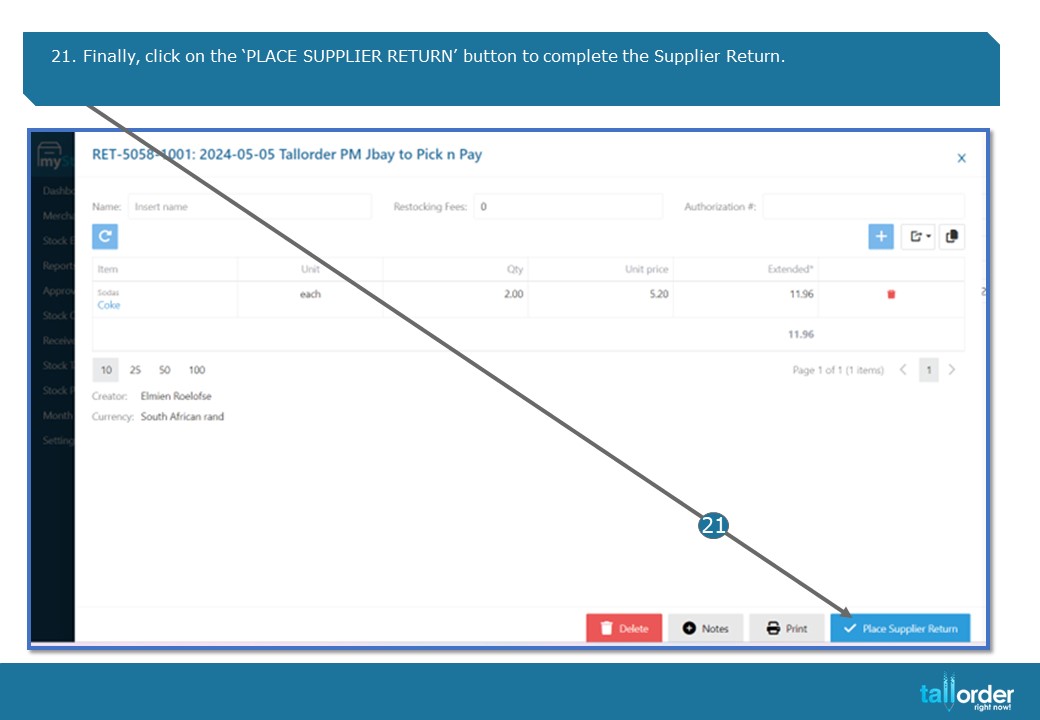
21. Finally, click on the ‘PLACE SUPPLIER RETURN’ button to complete the Supplier Return.
STEP-BY-STEP BREAKDOWN
- To ‘RETURN STOCK’, click on ‘STOCK ORDERS’.
- Click on ‘RETURN STOCK’, on the drop box.
- Click on ‘SUPPLIER RETURN’ button.
- Enter the Item you want to create a ‘RETURN STOCK’ for in the ‘INSERT NAME’.
- Click on the drop box under ‘SUPPLIER’, to select the Supplier which the item came from.
- Select the ‘DATE’, by clicking on the ‘DATE’ icon.
- Enter the ‘RETURN AUTHENTICATION NUMBER’ below.
- After completing all fields, click on ‘ADD ITEMS’.
- Select the ‘DEPARTMENT’, which the item can be found under.
- Type in the item name in the field below.
- Click on the ‘SEARCH’ icon.
- Select the ‘QUANTITY’ below.
- Select the ‘UNIT’ below.
- When completed, click on ‘CREATE SUPPLIER RETURN’, to complete the Return.
- To adjust the cost of the item, click on the item below.
- You can adjust the cost on this sheet.
- Click on the ‘DONE’ button to close the sheet.
- You can add, additional items by clicking on the ‘PLUS’ icon.
- You can now add the information as before.
- After which click on the ‘ADD SELECTED’ button below.
- Finally, click on the ‘PLACE SUPPLIER RETURN’ button to complete the Supplier Return.