
How can we help you?
-
myStock
-
- Articles coming soon
-
- Adding Product Recipes and Viewing Items
- Adding recipes
- Bulk settings
- Edit active menu pricing
- How to add products
- How to edit products (average cost, recipes and more)
- How to print barcodes from myStock
- How to review stock movements in stock enquiries
- How to search for products
- Stock Enquiries Grid Edit
- When to use stock enquiries
- Show Remaining Articles (1) Collapse Articles
-
- Articles coming soon
-
-
- Articles coming soon
-
- Articles coming soon
-
- Articles coming soon
-
- Articles coming soon
-
- Articles coming soon
-
- Articles coming soon
-
- Articles coming soon
-
-
-
- Articles coming soon
-
-
-
Accounting Integrations
-
- 01 - Requirements
- 02 - Connecting to Xero
- 03 - Integration Configuration
- 04 - Data Sync – TallOrder → Xero
- 05 - Data Sync – Xero → mySTOCK
- 06 - Product Matching & Item Creation
- 07 - Sync Monitoring & Error Handling
- 08 - Reconciliation Guidance
- 09 - Troubleshooting
- 10 - Frequently Asked Questions
- 11 - Disconnecting the Integration
- 12 - Support
- 13 - Data Flow Diagram
- Show Remaining Articles (3) Collapse Articles
-
-
TallOrder POS
-
TallOrder Add-ons
-
Features
-
FAQs
-
Merchant Settings
- Articles coming soon
-
Product Settings
- Articles coming soon
-
Customer Accounts, Loyalty & Promotions
- Articles coming soon
-
Staff Details
- Articles coming soon
-
Finance Settings
- Articles coming soon
-
POS User Guide
- Articles coming soon
-
Hardware
- Articles coming soon
-
Getting Started
- Articles coming soon
How to receive stock

1. When receiving stock, click on the ‘RECEIVE STOCK’ tab.
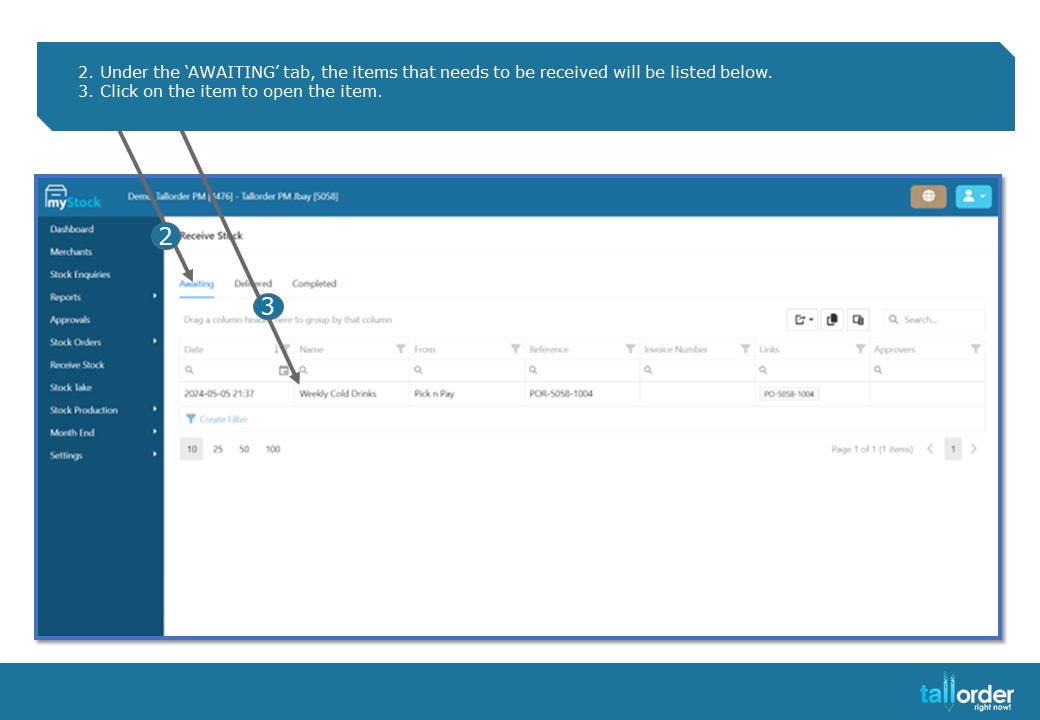
- Under the ‘AWAITING’ tab, the items that needs to be received will be listed below.
- Click on the item to open the item.
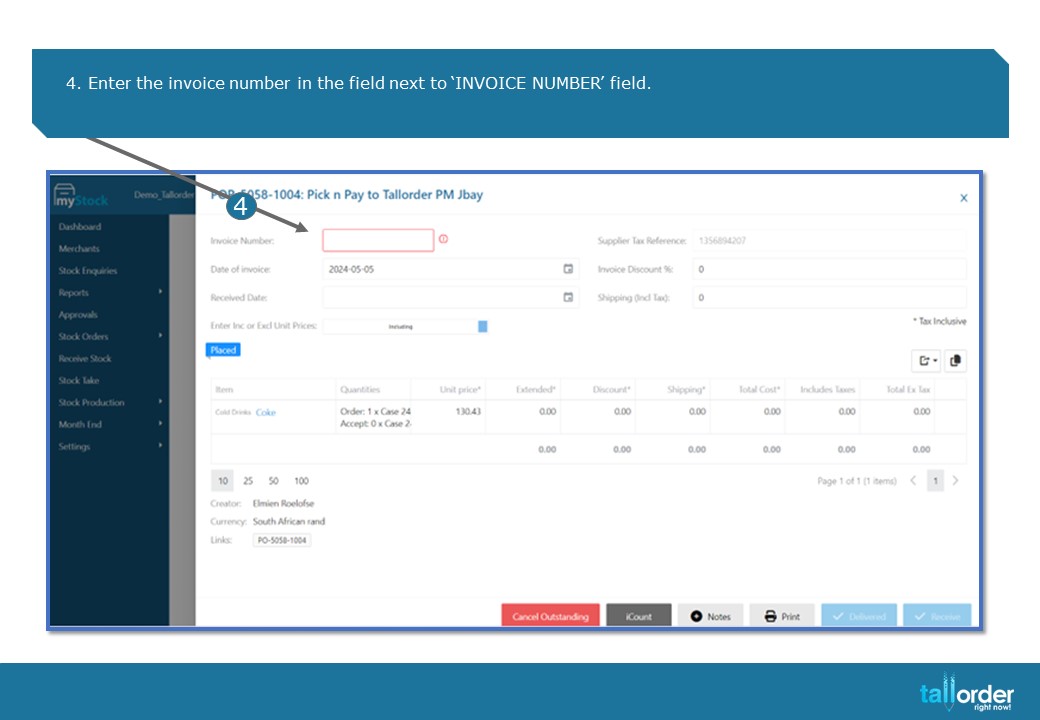
- Enter the invoice number in the field next to ‘INVOICE NUMBER’ field.
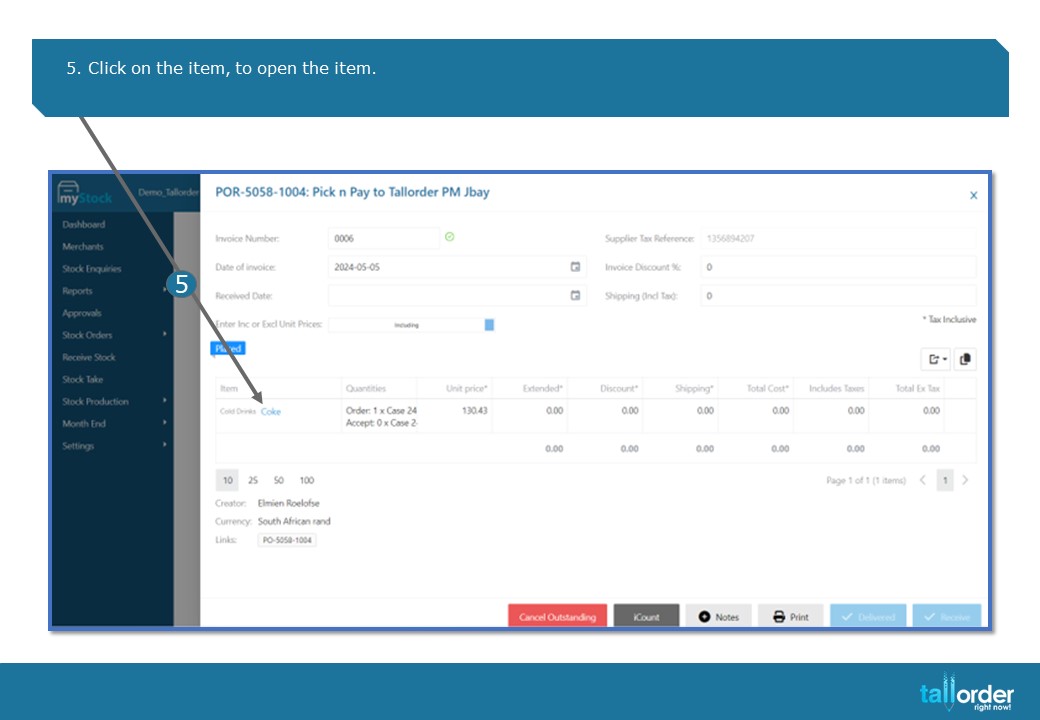
- Click on the item, to open the item.
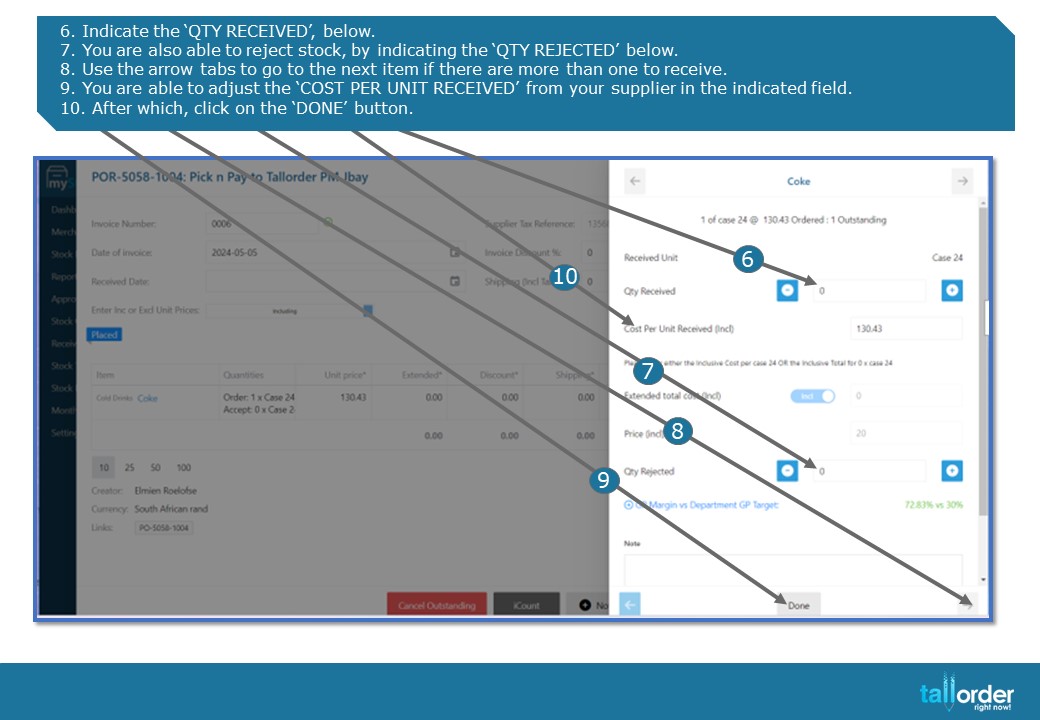
- Indicate the ‘QTY RECEIVED’, below.
- You are also able to reject stock, by indicating the ‘QTY REJECTED’ below.
- Use the arrow tabs to go to the next item if there are more than one to receive.
- You are able to adjust the ‘COST PER UNIT RECEIVED’ from your supplier in the indicated field.
- After which, click on the ‘DONE’ button.
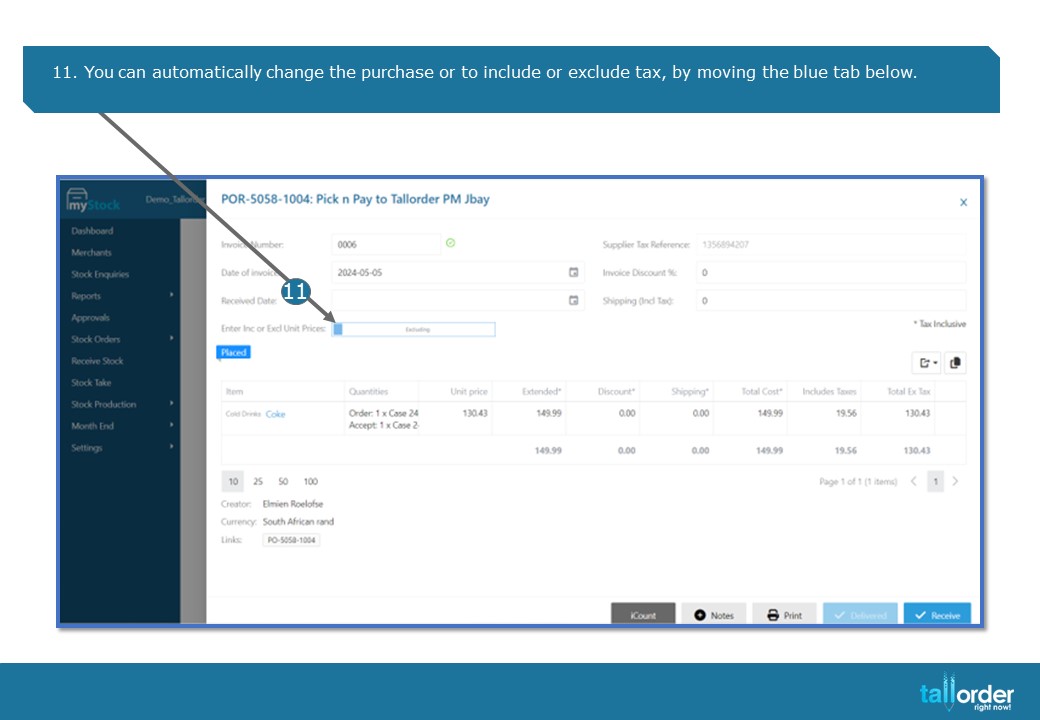
11. You can automatically change the purchase or to include or exclude tax, by moving the blue tab below.
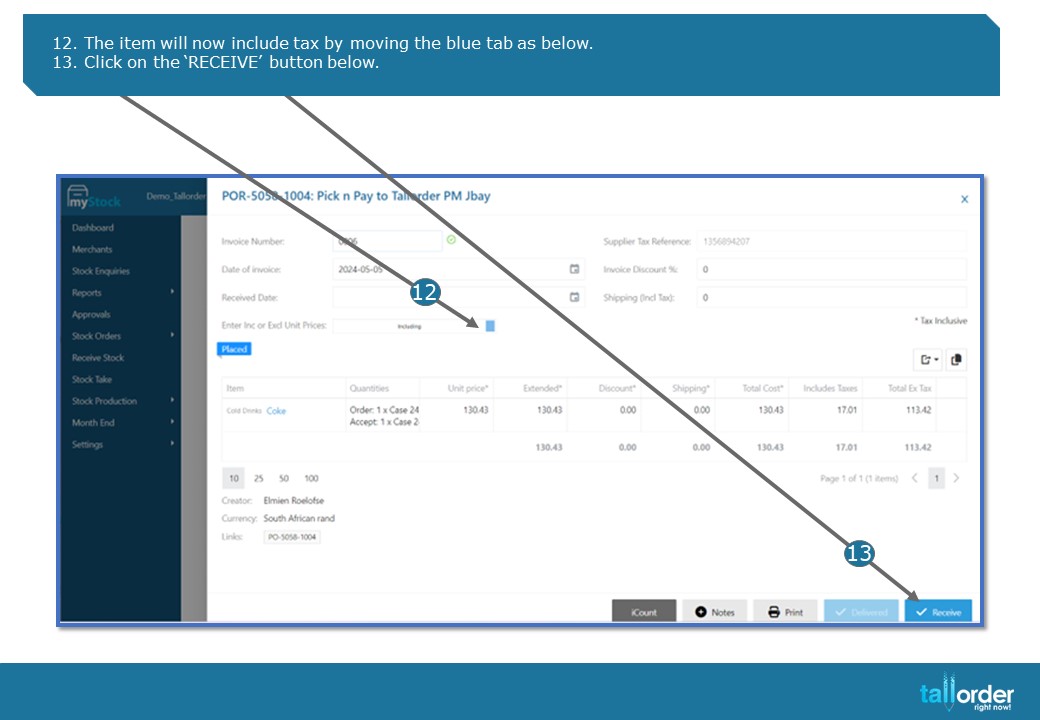
12. The item will now include tax by moving the blue tab as below.
13. Click on the ‘RECEIVE’ button below.
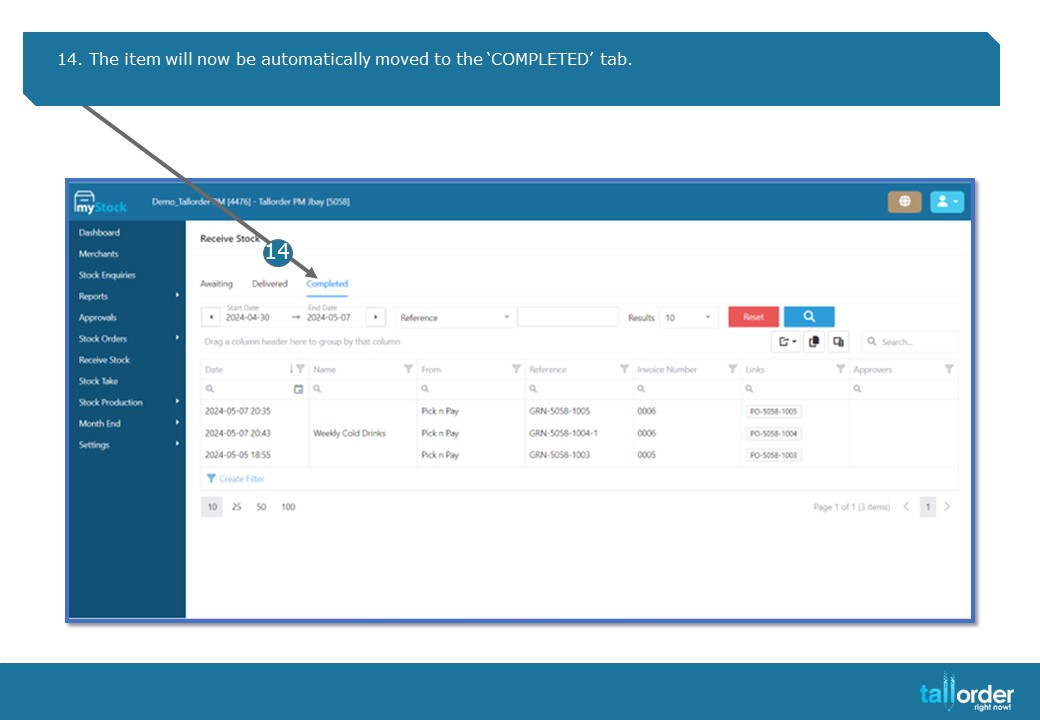
14. The item will now be automatically moved to the ‘COMPLETED’ tab.
STEP-BY-STEP BREAKDOWN
- When receiving stock, click on the ‘RECEIVE STOCK’ tab.
- Under the ‘AWAITING’ tab, the items that needs to be received will be listed below.
- Click on the item to open the item.
- Enter the invoice number in the field next to ‘INVOICE NUMBER’ field.
- Click on the item, to open the item.
- Indicate the ‘QTY RECEIVED’, below.
- You are also able to reject stock, by indicating the ‘QTY REJECTED’ below.
- Use the arrow tabs to go to the next item if there are more than one to receive.
- You are able to adjust the ‘COST PER UNIT RECEIVED’ from your supplier in the indicated field.
- After which, click on the ‘DONE’ button.
- You can automatically change the purchase or to include or exclude tax, by moving the blue tab below.
- The item will now include tax by moving the blue tab as below.
- Click on the ‘RECEIVE’ button below.
- The item will now be automatically moved to the ‘COMPLETED’ tab.