
How can we help you?
Staff Sales Report

1.To access the ‘STAFF SALES REPORT’, click on ‘REPORTS’.
2.Click on ‘SALES’.
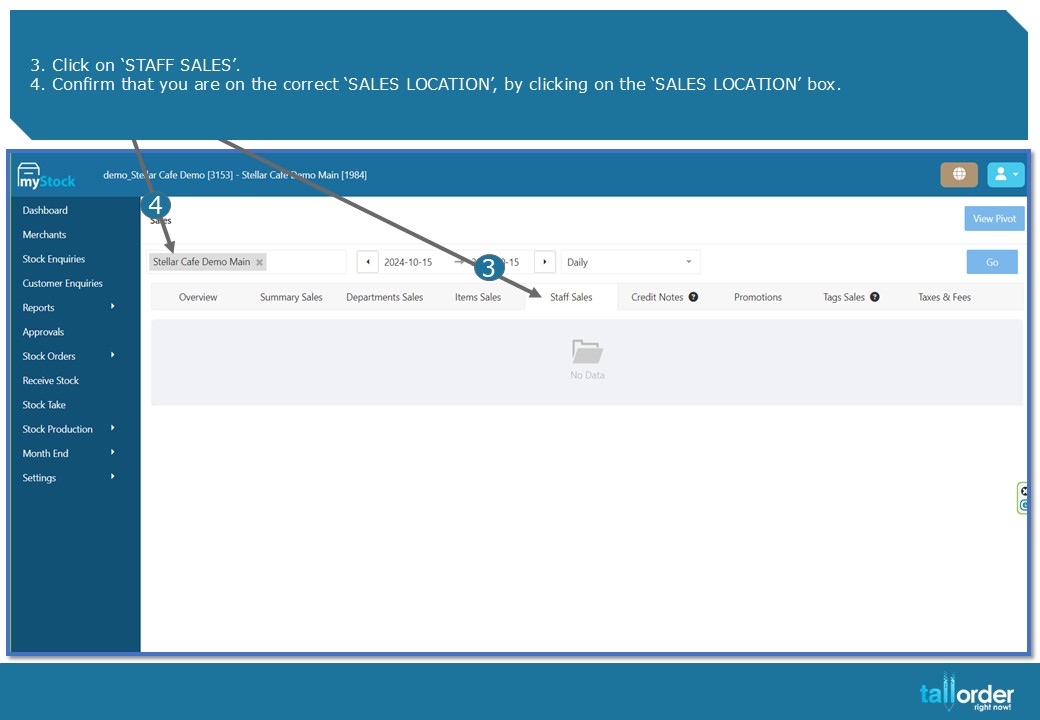
- Click on ‘STAFF SALES’.
- Confirm that you are on the correct ‘SALES LOCATION’, by clicking on the ‘SALES LOCATION’ box.
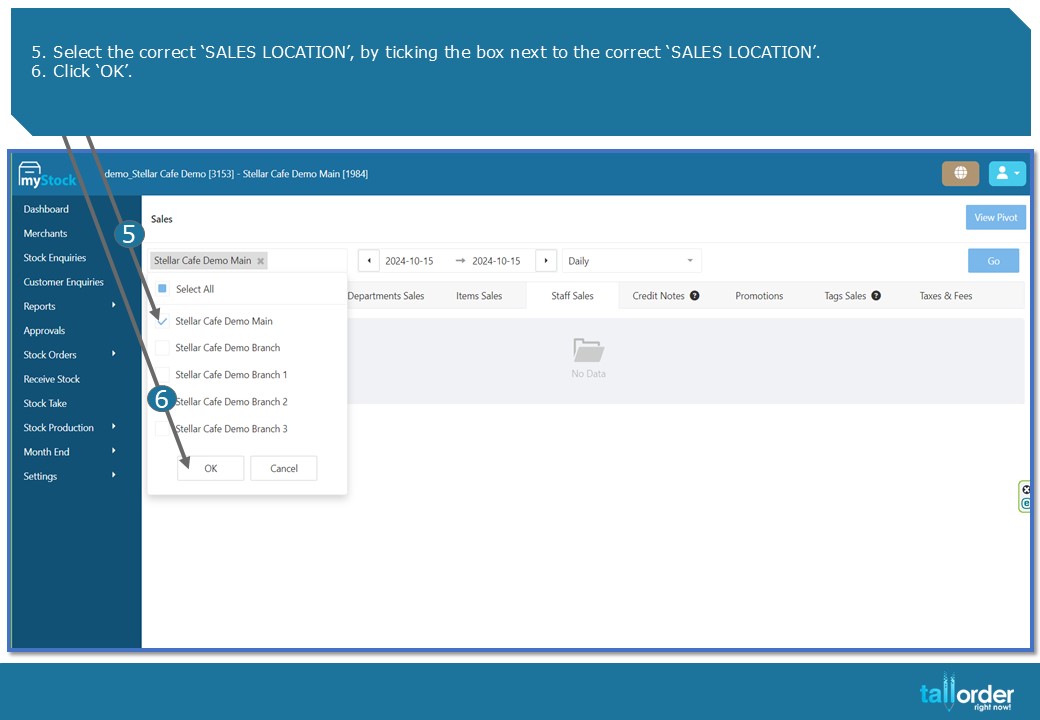
- Select the correct ‘SALES LOCATION’, by ticking the box next to the correct ‘SALES LOCATION’.
- Click ‘OK’.

- Select the ‘START DATE’ of the report you wish to look at.
- Select the ‘END DATE’ of the report you wish to look at.
- Click ‘OK’.

- Click ‘GO’ to generate the report.
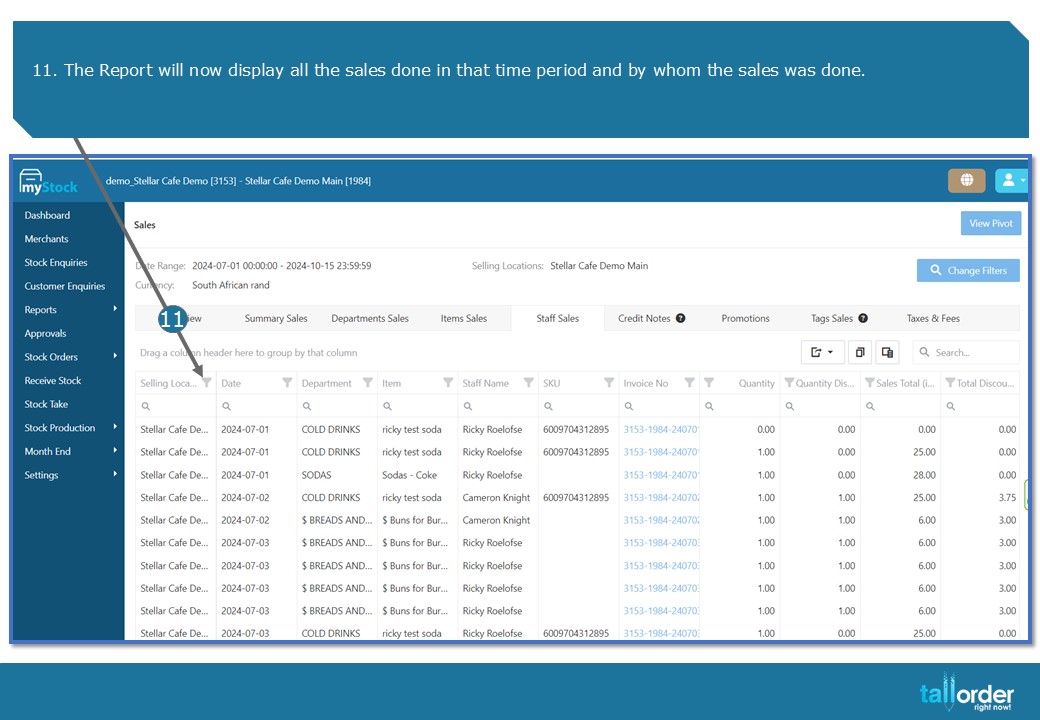
11. The Report will now display all the sales done in that time period and by whom the sales was done.

- You can modify your report by using the ‘DRAG AND DROP’ function, for example grouping the report by Staff member.

- The report can be exported to Excel or CSV, by clicking on the ‘EXPORT’ icon.
- To export to Excel, click ‘EXPORT ALL DATA TO EXCEL’.
- To export to CSV, click ‘EXPORT ALL DATA TO CSV’.

- To ‘EDIT’ the columns, click on the ‘COLUMN CHOOSER’ icon.
- The items ticked will display on the report.
- To remove the items, untick the item.
- Click the ‘CLOSE’ icon.

- To look at specific invoices, you click on the ‘BLUE INVOICE LINK’.

- You will now see an ‘SUMMARY OF THE TAX INVOICE’.
- To print the summary, click on ‘PRINT PDF’.
- To download the summary, click on ‘DOWNLOAD PDF’.
- To email the summary, click on ‘EMAIL PDF’.

- To see payments made on the selected tax invoice, click the ‘PAYMENTS’ tab.

26. To see orders made on the selected tax invoice, click the ‘ORDERS’ tab.

27. To see removed orders made on the selected tax invoice, click the ‘REMOVED ORDERS’ tab.

- To see voided orders made on the selected tax invoice, click the ‘VOIDED ORDERS’ tab.
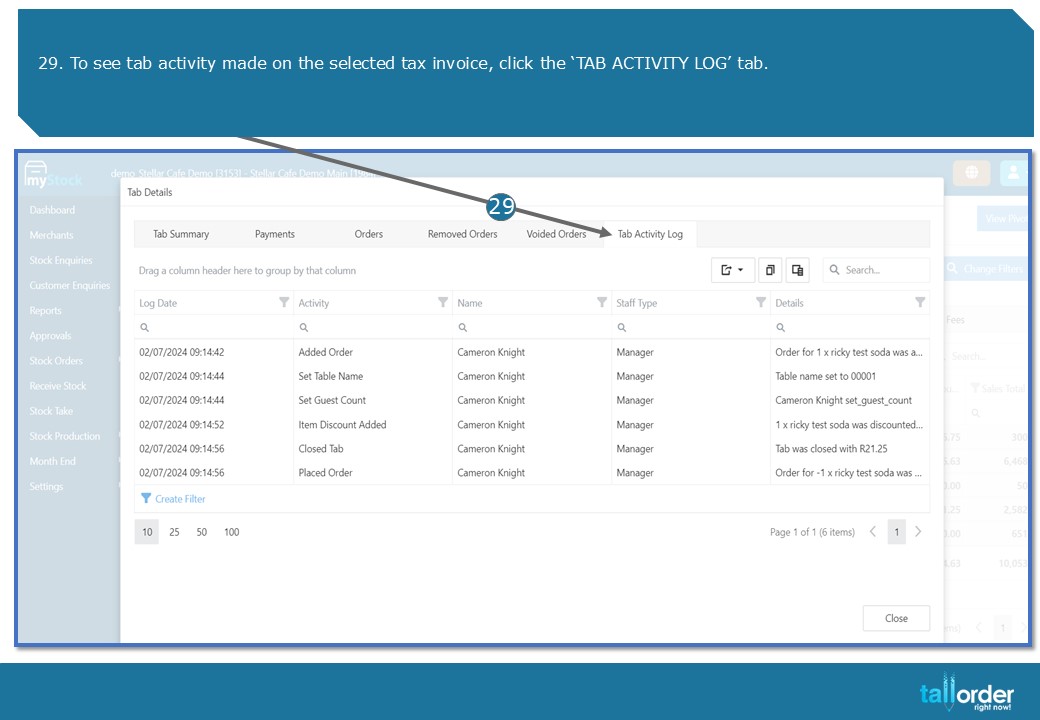
29. To see tab activity made on the selected tax invoice, click the ‘TAB ACTIVITY LOG’ tab.
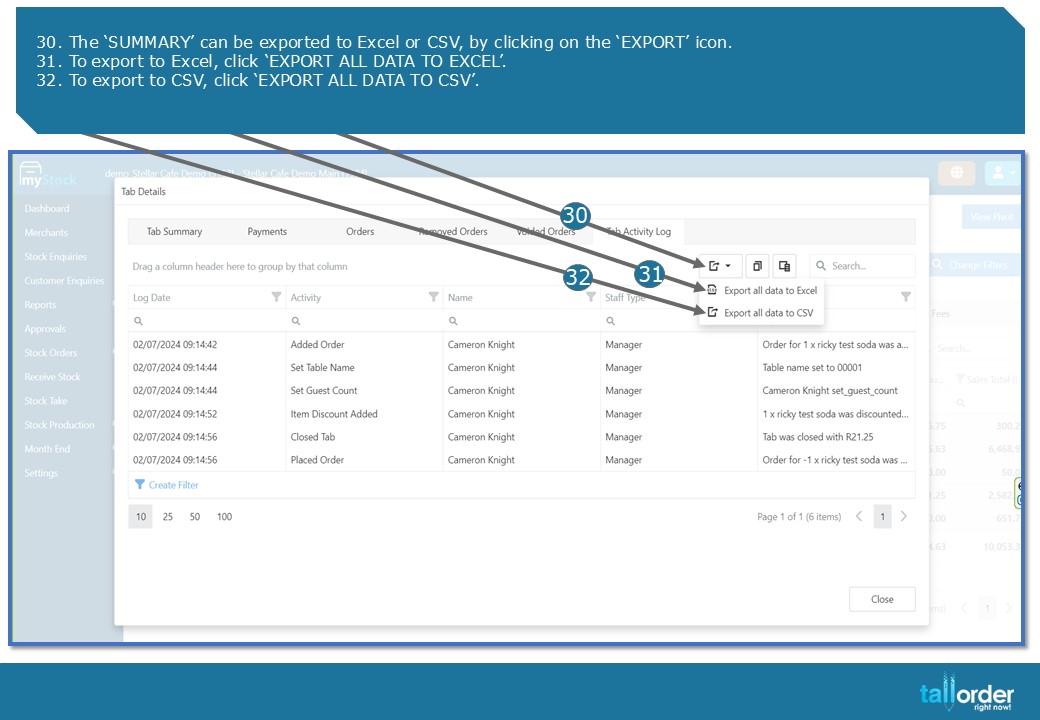
- The ‘SUMMARY’ can be exported to Excel or CSV, by clicking on the ‘EXPORT’ icon.
- To export to Excel, click ‘EXPORT ALL DATA TO EXCEL’.
- To export to CSV, click ‘EXPORT ALL DATA TO CSV’.
STEP-BY-STEP BREAKDOWN
- To access the ‘STAFF SALES REPORT’, click on ‘REPORTS’.
- Click on ‘SALES’.
- Click on ‘STAFF SALES’.
- Confirm that you are on the correct ‘SALES LOCATION’, by clicking on the ‘SALES LOCATION’ box.
- Select the correct ‘SALES LOCATION’, by ticking the box next to the correct ‘SALES LOCATION’.
- Click ‘OK’.
- Select the ‘START DATE’ of the report you wish to look at.
- Select the ‘END DATE’ of the report you wish to look at.
- Click ‘OK’.
- Click ‘GO’ to generate the report.
- The Report will now display all the sales done in that time period and by whom the sales was done.
- You can modify your report by using the ‘DRAG AND DROP’ function, for example grouping the report by Staff member.
- The report can be exported to Excel or CSV, by clicking on the ‘EXPORT’ icon.
- To export to Excel, click ‘EXPORT ALL DATA TO EXCEL’.
- To export to CSV, click ‘EXPORT ALL DATA TO CSV’.
- To ‘EDIT’ the columns, click on the ‘COLUMN CHOOSER’ icon.
- The items ticked will display on the report.
- To remove the items, untick the item.
- Click the ‘CLOSE’ icon.
- To look at specific invoices, you click on the ‘BLUE INVOICE LINK’.
- You will now see an ‘SUMMARY OF THE TAX INVOICE’.
- To print the summary, click on ‘PRINT PDF’.
- To download the summary, click on ‘DOWNLOAD PDF’.
- To email the summary, click on ‘EMAIL PDF’.
- To see payments made on the selected tax invoice, click the ‘PAYMENTS’ tab.
- To see orders made on the selected tax invoice, click the ‘ORDERS’ tab.
- To see removed orders made on the selected tax invoice, click the ‘REMOVED ORDERS’ tab.
- To see voided orders made on the selected tax invoice, click the ‘VOIDED ORDERS’ tab.
- To see tab activity made on the selected tax invoice, click the ‘TAB ACTIVITY LOG’ tab.
- The ‘SUMMARY’ can be exported to Excel or CSV, by clicking on the ‘EXPORT’ icon.
- To export to Excel, click ‘EXPORT ALL DATA TO EXCEL’.
- To export to CSV, click ‘EXPORT ALL DATA TO CSV’.