How can we help you?
Stock Take Explained
1.Introduction
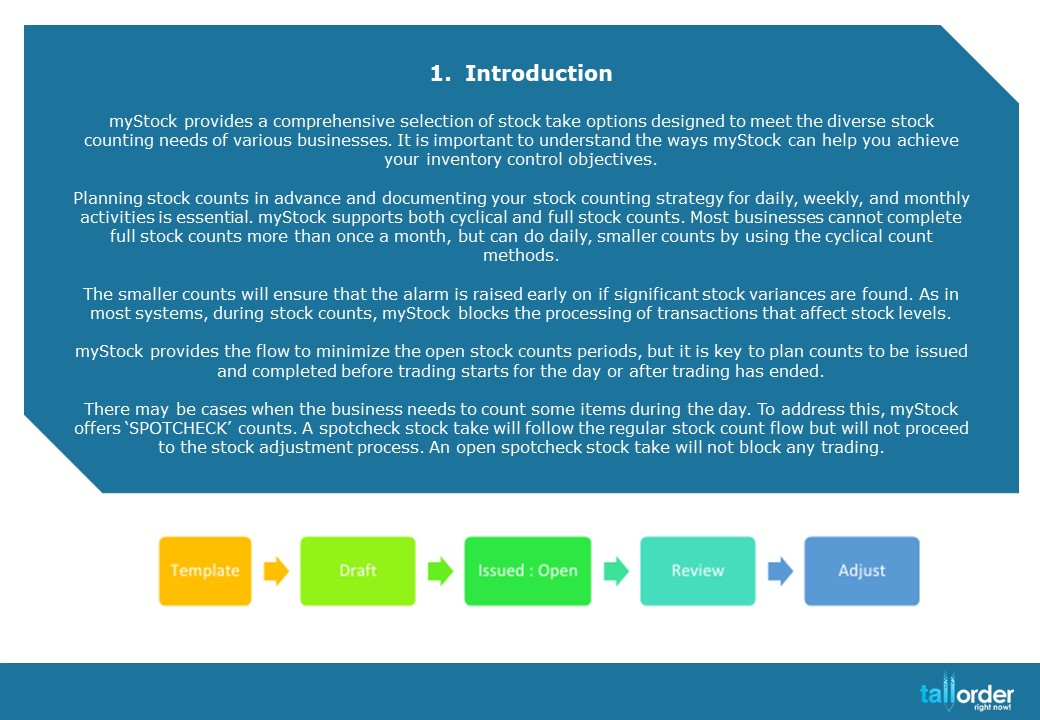
myStock provides a comprehensive selection of stock take options designed to meet the diverse stock counting needs of various businesses. It is important to understand the ways myStock can help you achieve your inventory control objectives.
Planning stock counts in advance and documenting your stock counting strategy for daily, weekly, and monthly activities is essential. myStock supports both cyclical and full stock counts. Most businesses cannot complete full stock counts more than once a month, but can do daily, smaller counts by using the cyclical count methods.
The smaller counts will ensure that the alarm is raised early on if significant stock variances are found. As in most systems, during stock counts, myStock blocks the processing of transactions that affect stock levels.
myStock provides the flow to minimize the open stock counts periods, but it is key to plan counts to be issued and completed before trading starts for the day or after trading has ended.
There may be cases when the business needs to count some items during the day. To address this, myStock offers ‘SPOTCHECK’ counts. A spotcheck stock take will follow the regular stock count flow but will not proceed to the stock adjustment process. An open spotcheck stock take will not block any trading.

- Stock Takes Follows the Typical myStock Flows:
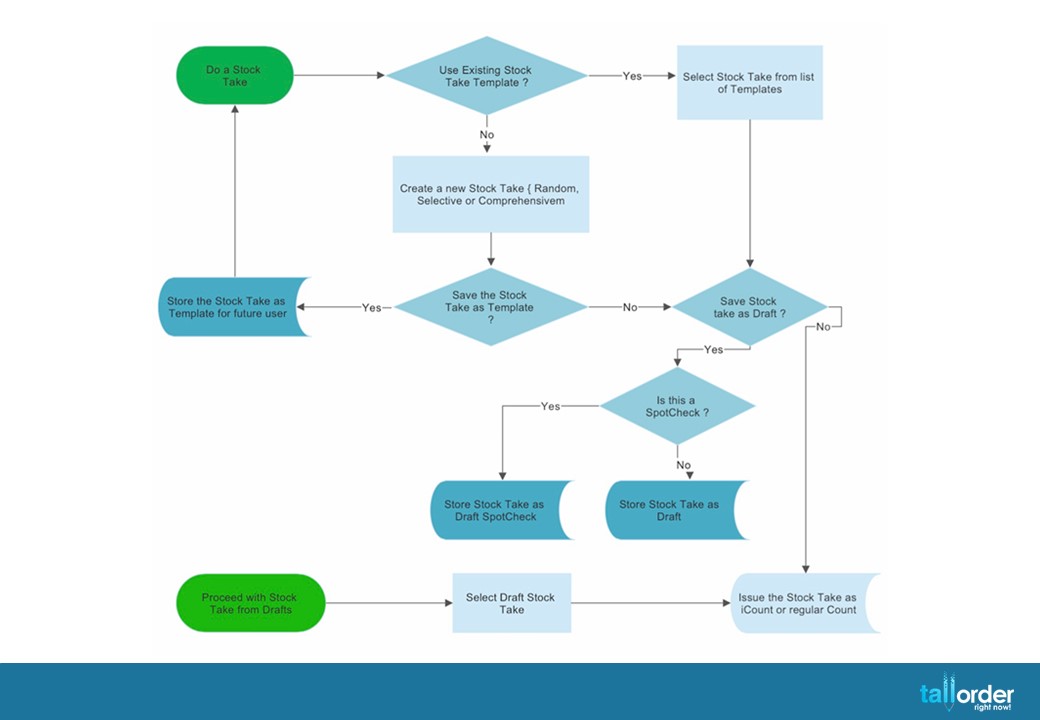
- A new stock take can be created as a random, selective, or comprehensive count. We will explain more about the types of stock counts below.
- A new stock count can be saved as a template for future use or as a draft for one-time use. Templates make it easy to plan and set up stock takes well in advance. One-time drafts are useful when specific items must be counted and not stored as template.
- A stock take template may be selected for use and either issued as an open count or saved as a draft ahead of actual issue. Draft stock takes allows for printing of stock count sheets prior to recording the system count levels.
- A draft stock take may be selected and them issued. myStock records the system count levels the moment when the stock take has been issued so that variances can be recorded.
- Once a stock take has been issued, the myStock records the current stock levels as the system count. The system levels as not shown during counts to ensure that stock counts are done ‘blind’.
- Once a non-stopcheck stock count has been issued, myStock marks the stock count as an open stock count and will block any trading until the stock count has been marked as complete. A warning banner on the myStock web page will clearly show when a stock location has one or more open stock counts.
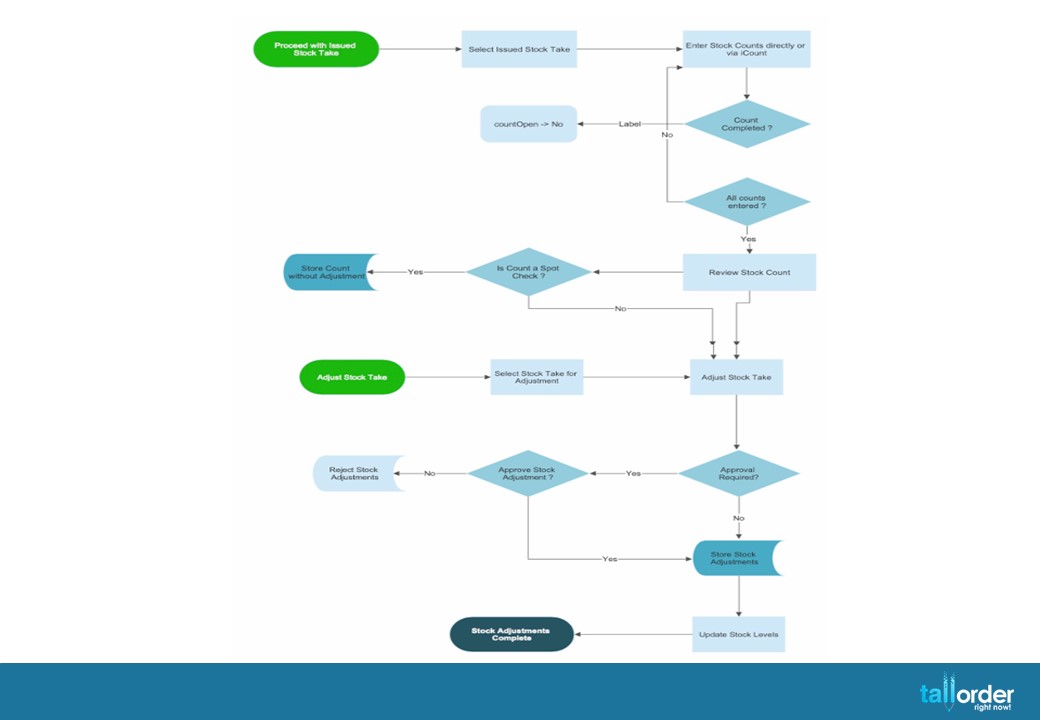
- Issued stock counts can be selected from the list displayed under the ‘ISSUED’ tab of Stock Takes. The actual counts may be entered directly into myStock or using our unique iCount applet (see below).
- myStock allows the user to declare the physical count as completed. This must only be done in cases where a large count still needs to be recorded and trading has to resume ahead of such large data entry process. Once the physical count has been declared as complete, the stock count will no longer be considered open.
- Once the stock count has been recorded, the next step is Review which will reveal the count recorded vs the system count, and any variances found. Once stock count has been selected for Review, the stock levels may not be edited any further and the count is no longer considered open. Trading may resume once there are no further open stock counts for the location.

- During the Review process it is possible to select items for recount. This is normally done when it looks like an error has been made in recording the count, or when a recount is required due to significant count variance. Items marked for recount will automatically be added to a new draft recount stock take and such items will not get processed for stock adjustment.
- The final step of the stock take process is adjustment. Stock adjustments require the appropriate level of access and may be subject to approvals. During the adjustment process the system will generate stock adjustments for the variances recorded.
- The adjustments process will only start once the stock location has completed its initial stock takes. Until the stock location has completed the initial stock take, the actual level counted will be recorded as the stock on hand.
- myStock Stock Take Types
- Comprehensive Stock Takes are generally used for major stock counts done at month or year end. When defining a comprehensive stock take, the user selects the department(s) to be counted. When generating the stock take, myStock will automatically add all the items that are active in the stock location selected for the count.
- Selective Stock Takes are used when there are some (typically high value) items that must be counted more regularly. These are fixed item list counts.
- Random stock takes enable the user to select departments and randomly choose items within those departments for stock counts. E.g. select 15 items from all the items that fall under the Beverages department. This is a very powerful type of stock take, as no one knows which items will be selected for count and a relatively small number will be counted at a time. This means random stock takes can be issued daily.
To minimize the duration during which myStock will block trading activities while stock takes are open, we recommend setting up the Comprehensive stock takes for no more than 300-500 items per stock take. It is easy to set up multiple stock takes when large numbers of items must be counted.

- Open Stock Takes
When there are open non-spotcheck stock takes, myStock will block trading. What does this mean for TallOrder/myStock users?
- myStock will mark a non-spotcheck stock take as ‘open’ once it has been issued either by direct or iCount method.
- The count will be regarded as open until the issued count has been deleted, or explicitly declared as ‘COUNT COMPLETED’ or when the count enters the Review phase.
- When there is one or more open stock takes under the issues tab of Stock Takes, the yellow ‘OPEN STOCK TAKES’ warning will be displayed along the top of the myStock screen and certain stock actions will be blocked:
- Receiving of Stock Transfers or Purchase Orders
- Placement of Stock Issues, Wastes or Supplier Returns
- Acceptance of Production Orders
- POS Sales and Credit Notes
- The users may still perform the following stock actions as they do not impact stock on hand:
- Creation of any ‘draft’ stock actions
- The placement of Stock Requisitions and Purchase Orders
- The placement of Production Orders
- Completing open stock takes

- Regular Count and iCount
- myStock supports the conventional method of stock takes which typically involves the printing of stock count sheets that list the items to be counted grouped by Departments and then alphabetically.
- In the near future myStock will also add sub-location-based counting whereby the items are sorted by bin or sub-location instead of department.
- The stock counters will then count the actual stock on hard, manually record these counts on the stock sheets and return the stock count sheets for entry into the system.
- The myStock iCount applet enables stock counters to receive stock count sheets via the iCount web application, compatible with any smartphone or tablet. This allows the counter to easily search for items when required by barcode or name, enter the count, and continue with the next item.
- Once the iCount has been completed, it will be retrieved automatically to the open stock count without further data entry. This saves on printing paper sheets and the data entry phase of the stock count. The result is a significant improvement in productivity and reduction in paper waste.
- Soon iCount will add support bulk barcode counting, including the automatic conversations between alternate and stock keeping units.
- Recounts
- myStock provides for the ability to select items that must be recounted at Review time. The helps where there are a few mistakes or significant variances found during a larger count and re-issuing the whole stock take results in a lot of extra data entry.
- Items selected for recount will automatically be added to a draft recount of the current stock take. The draft recount stock take can then easily be issued, so that the recount can dealt with quickly, as opposed to holding up a large count. The items sent back for recount will not be processed for stock adjustment during the Adjust final phase of the stock take process.