
How can we help you?
How to use Approval levels effectively

- You can view all stock actions that need to be approved, by clicking on the ‘APPROVALS’ report.
- To approve the stock action, simply click on the stock action below.

- The stock action page will open, and you are able to then approve the stock action by clicking the ‘APPROVE’ button.
- To edit the stock action, click on the ‘EDIT’ button.
- Notes can be made by clicking on the ‘NOTES’ button.
- If you wish to print the stock action, click on the ‘PRINT’ button.
- To reject the stock action, click on the ‘REJECT’ button.
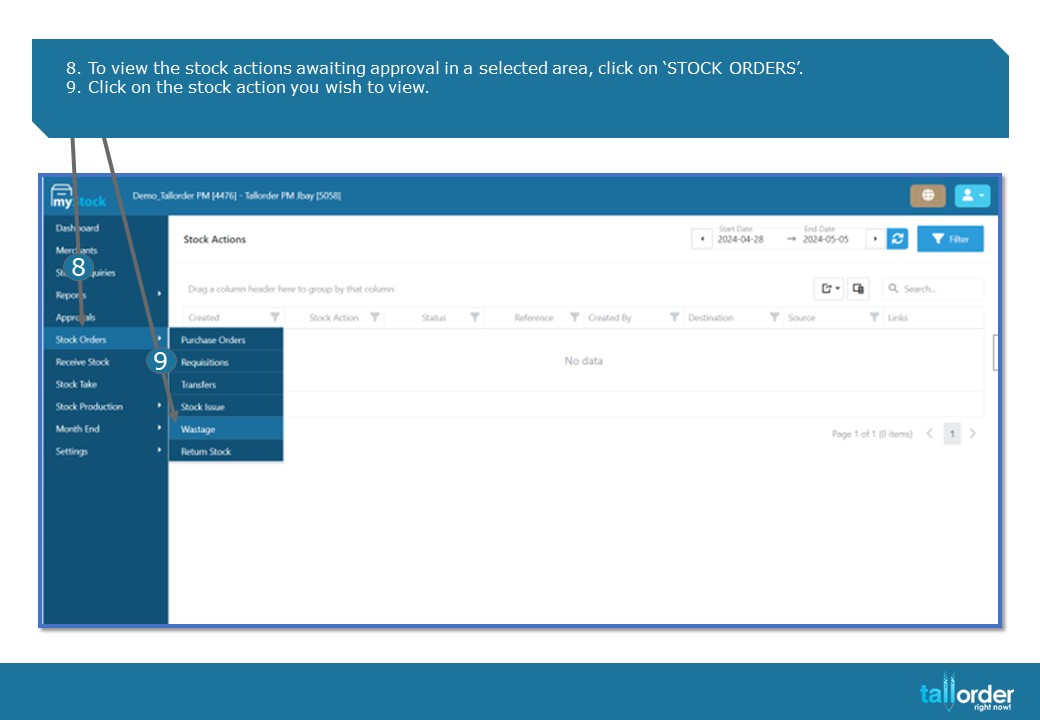
- To view the stock actions awaiting approval in a selected area, click on ‘STOCK ORDERS’.
- Click on the stock action you wish to view.
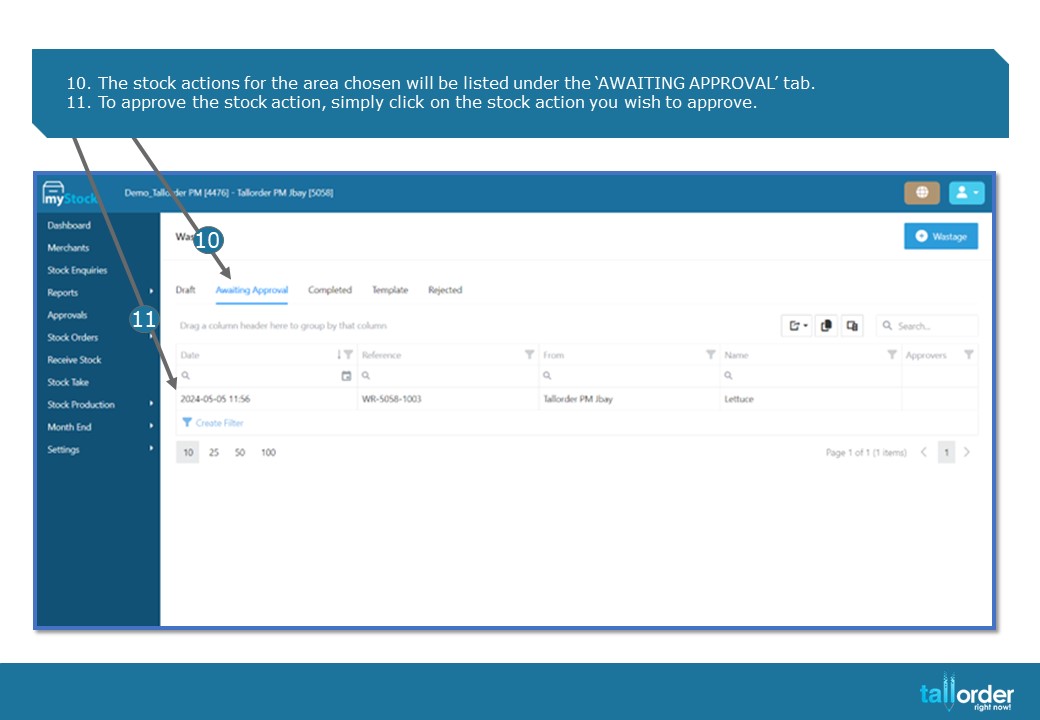
- The stock actions for the area chosen will be listed under the ‘AWAITING APPROVAL’ tab.
- To approve the stock action, simply click on the stock action you wish to approve.

- The stock action page will open, and you are able to print the stock action by clicking ‘PRINT’ button.
- Notes can be made by clicking on the ‘NOTES’ button.
- If you would like to reject the stock action, simply click on the ‘REJECT’ button.
- To continue to approve the stock action, click on the ‘GO APPROVE’ button.

- The stock action page will open, and you are able to then approve the stock action by clicking the ‘APPROVE’ button.
- To edit the stock action, click on the ‘EDIT’ button.
- Notes can be made by clicking on the ‘NOTES’ button.
- If you wish to print the stock action, click on the ‘PRINT’ button.
- To reject the stock action, click on the ‘REJECT’ button.

- The approval page will open; you can leave a note below.
- Click on the ‘APPROVE’ button.

- After the stock action is approved, it will no longer be listed under the Approval Report or the Awaiting Approval tab within the stock actions.
STEP-BY-STEP BREAKDOWN
- You can view all stock actions that need to be approved, by clicking on the ‘APPROVALS’ report.
- To approve the stock action, simply click on the stock action below.
- The stock action page will open, and you are able to then approve the stock action by clicking the ‘APPROVE’ button.
- To edit the stock action, click on the ‘EDIT’ button.
- Notes can be made by clicking on the ‘NOTES’ button.
- If you wish to print the stock action, click on the ‘PRINT’ button.
- To reject the stock action, click on the ‘REJECT’ button.
- To view the stock actions awaiting approval in a selected area, click on ‘STOCK ORDERS’.
- Click on the stock action you wish to view.
- The stock actions for the area chosen will be listed under the ‘AWAITING APPROVAL’ tab.
- To approve the stock action, simply click on the stock action you wish to approve.
- The stock action page will open, and you are able to print the stock action by clicking ‘PRINT’ button.
- Notes can be made by clicking on the ‘NOTES’ button.
- If you would like to reject the stock action, simply click on the ‘REJECT’ button.
- To continue to approve the stock action, click on the ‘GO APPROVE’ button.
- The stock action page will open, and you are able to then approve the stock action by clicking the ‘APPROVE’ button.
- To edit the stock action, click on the ‘EDIT’ button.
- Notes can be made by clicking on the ‘NOTES’ button.
- If you wish to print the stock action, click on the ‘PRINT’ button.
- To reject the stock action, click on the ‘REJECT’ button.
- The approval page will open; you can leave a note below.
- Click on the ‘APPROVE’ button.
- After the stock action is approved, it will no longer be listed under the Approval Report or the Awaiting Approval tab within the stock actions.